
After you’ve assigned a video assignment through dadan, the next step is to review student submissions efficiently. This guide will walk you through accessing, reviewing, and providing feedback on video assignments within Google Classroom.
Dadan integrates seamlessly with Google Classroom, allowing educators to manage, review, and grade video submissions efficiently. Follow these steps to ensure a smooth and effective review process.
How to review a Google Classroom video assignment with dadan #
To review a Google Classroom video assignment with dadan:
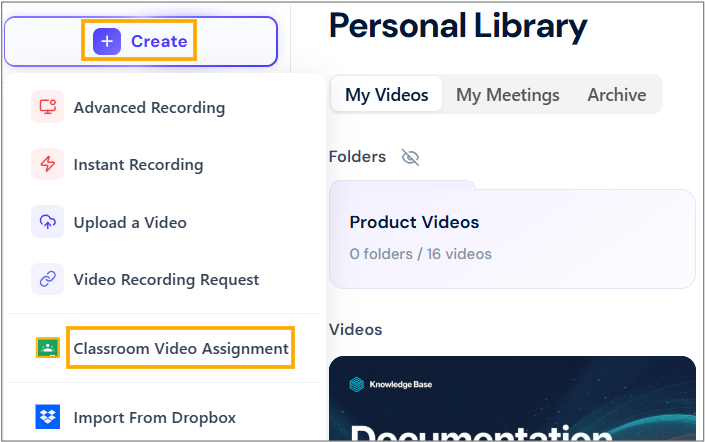
- Access the Create menu:
- Open the dadan app and click + Create on the left sidebar.
- Select Classroom Video Assignment from the options.
- View Assignment History:
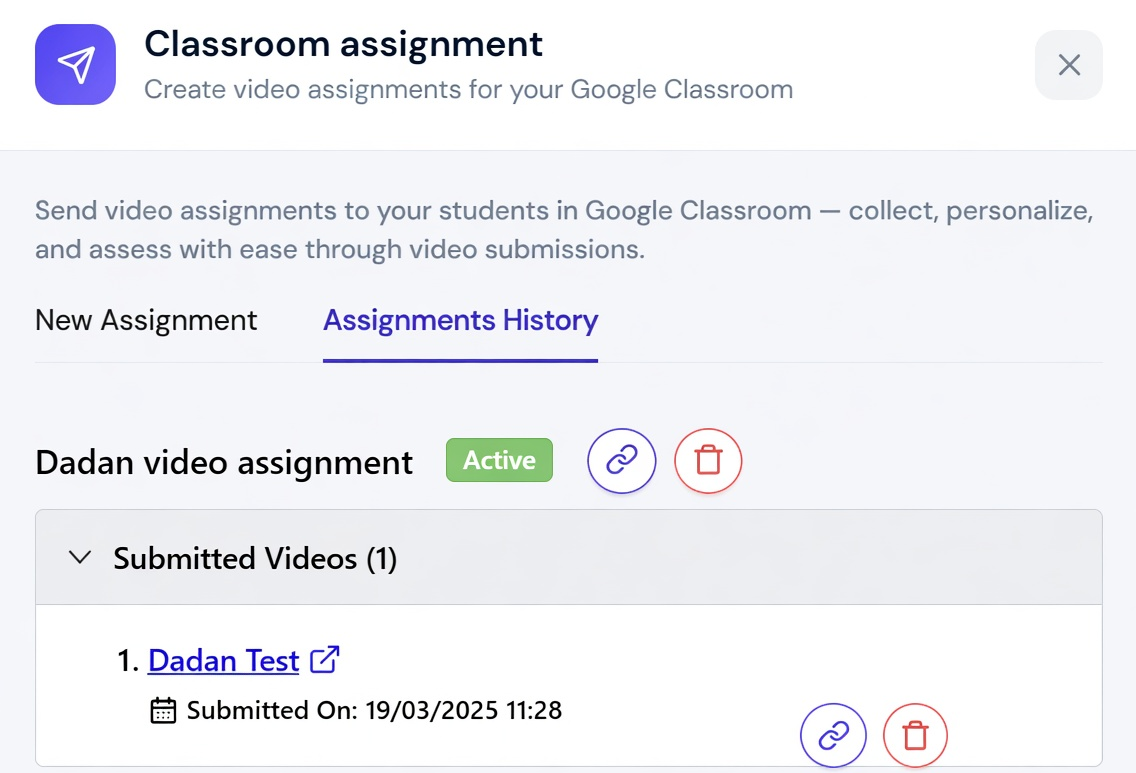
- Navigate to the Assignments History in the Classroom assignment.
- Locate the assignment you want to review (e.g., “Dadan video assignment”).
- Expand the Submitted Videos section to see the list of student submissions.
Access the assignment in Google Classroom #
To access the assignment in Google Classroom:
- Log in to Google Classroom and navigate to the class where the assignment was posted.
- Go to the Student Work tab to view the assignment details.
- Check the submission status (e.g., 1 turned in, 1 assigned).
- Review a student submission:
- In the Student Work tab, locate the student’s submission.
- Click on the student’s submission name to view their submitted video.
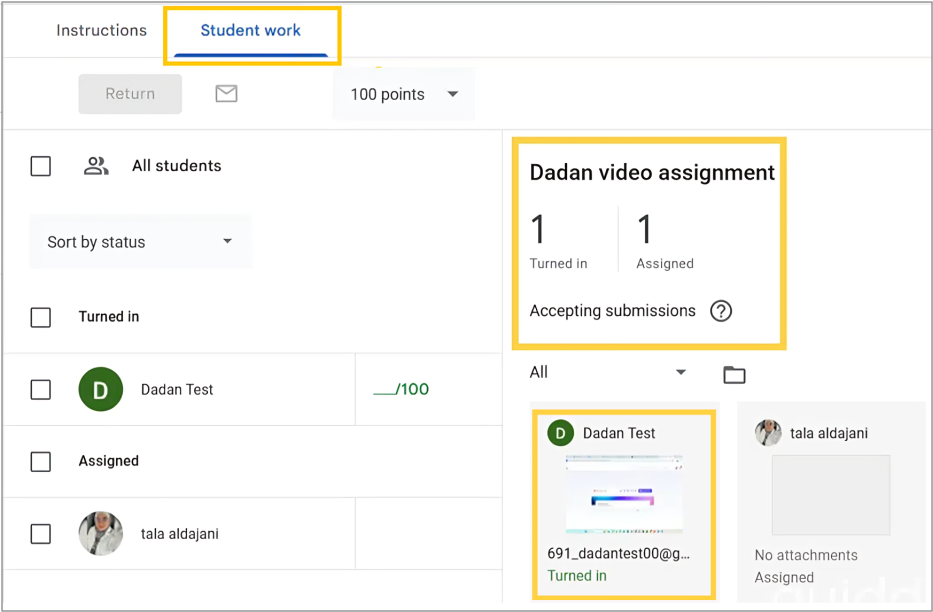
- The video will open in a new tab within the Google Classroom platform for review.
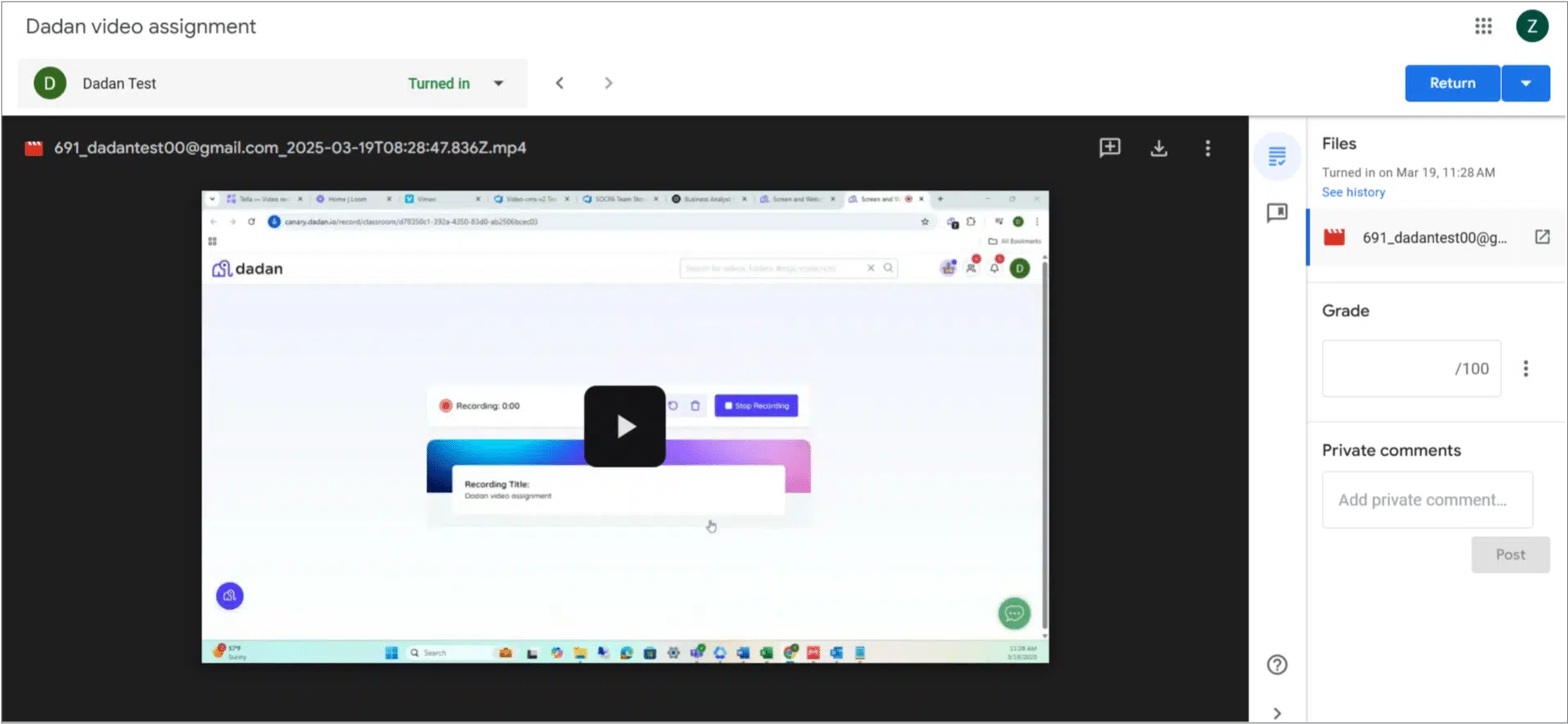
- Play the submitted video
- Once the video is open, click the play button to watch the student’s submission.
- Evaluate the content based on the assignment criteria.
- Provide feedback and grade:
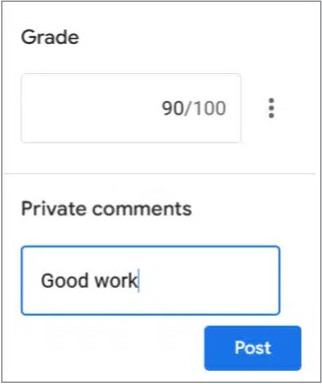
- In the Grade section, enter the student’s score (e.g., 90/100).
- In the Private comments section, add feedback for the student.
- Click Post to save the comment.
- Return the assignment:
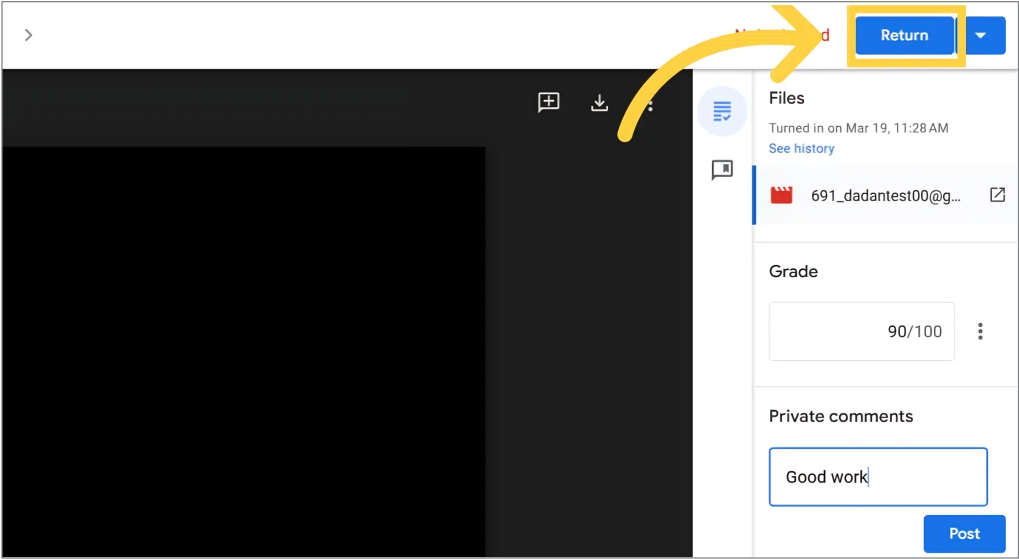
- Click the Return button to send the graded assignment back to the student.
- The student will receive a notification in Google Classroom with their grade and feedback.
Note: To create a Google Classroom video assignment, follow this guide: Create a Google Classroom video assignment in dadan.


