Working together becomes easier with a shared space. In dadan, you can create a dedicated Team space where multiple members can record, comment on, and share videos seamlessly. This guide will walk you through setting up a new Team, inviting members, assigning roles, and managing invitations, so your team can start collaborating quickly and effectively.
See also:
How to create team collaboration in dadan #
To begin collaborating, you’ll need to create a Team space, separate from your Personal Library.
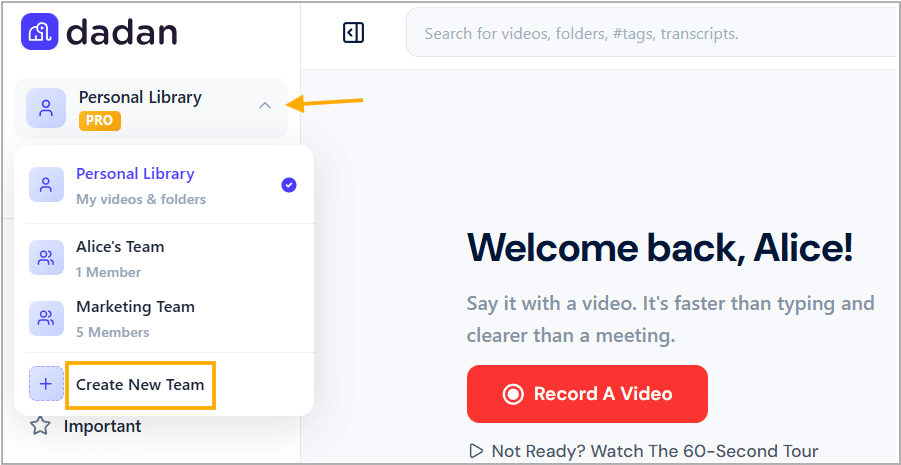
- Go to the dadan web app. In the left bar, click the arrow next to Personal Library and click Create New Team from the drop-down menu.
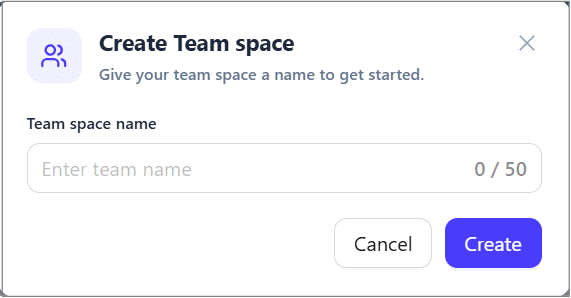
- In the Create Team space box, enter a name for the team that reflects its purpose (e.g., “Marketing Team”). Then click Create.
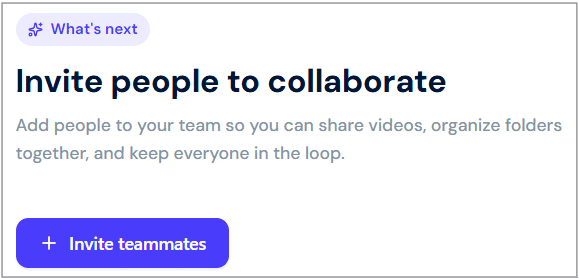
- To invite members, click the Invite people to collaborate button.
- Alternatively, click the Manage Members button below the team’s settings in the right sidebar.
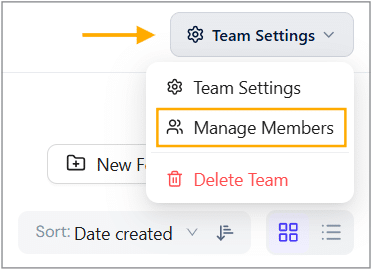
- The Manage team space members box will open.
- In the email field, enter the email address of the member you want to invite.
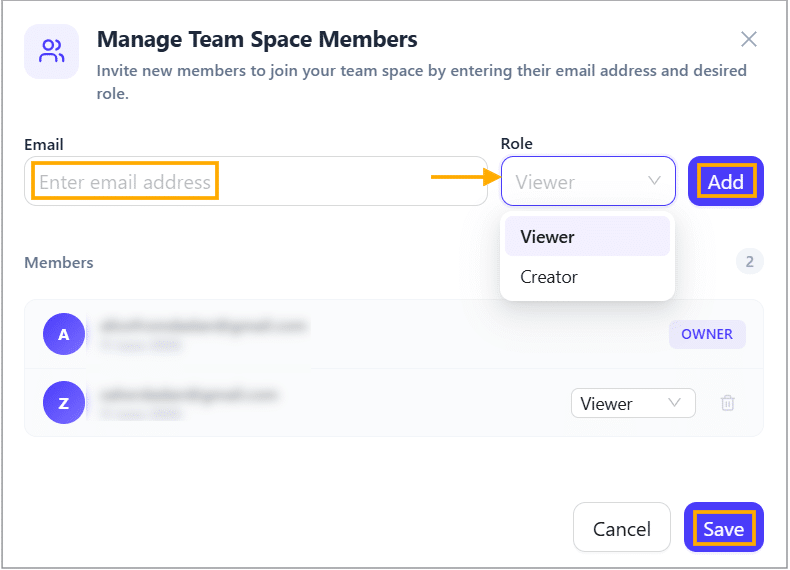
- Assign the member role to control their level of access:
- Viewer: Can only watch and comment on shared videos.
- Creator: Can record, edit, comment, and share videos.
- Click Add for each member to add them to the team list.
- Click Save to send invitations. Once accepted, members will have access to the team space.
Invite people to your workspace #
Once the invitation is sent:
- The invited member will receive an email and an in-app notification with links to join your team and confirm their membership.

When the invited member clicks on the Join Team link in the email:
- They will instantly become a member of your team with the role they are assigned (Creator or Viewer).
- The team owner will receive both an email and an in-app notification confirming the member has successfully joined the team.
- They will appear in the team member list under Team Settings.
- Their role (Creator or Viewer) will be visible alongside their name.
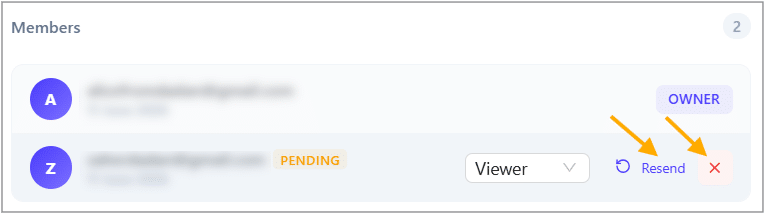
- If the member doesn’t accept the invitation, you can resend or cancel it in the team members list.