
Dadan’s intelligent search makes it easy to quickly find the right video without manually browsing folders. Enter a keyword, and dadan will search. Whether you’re revisiting a specific project, locating a tagged discussion, or searching for an exact moment in a transcript, dadan’s search feature ensures precise results in seconds.
What you can search for #
Dadan’s centralized search is designed to scan across multiple content types, ensuring you find exactly what you need. It enables you to choose these options:
- Videos: Find recordings by title, description, or content.
- Folders: Locate collections of related videos.
- Libraries & Teams: Search across specific libraries or within the content shared by your teams.
- Chapters: Jump directly to relevant sections within a video.
- Transcripts: Search within spoken words captured in transcripts.
- Tags: Search by custom tags assigned to videos.
👉 Important note: Ensure your videos are transcribed and have tags and chapters. Without these elements, the search results will only include videos, folders, and libraries. Refer to the dadan video AI transcript guide for more information.
How to use dadan intelligent search #
To use intelligent search effectively, follow these steps:
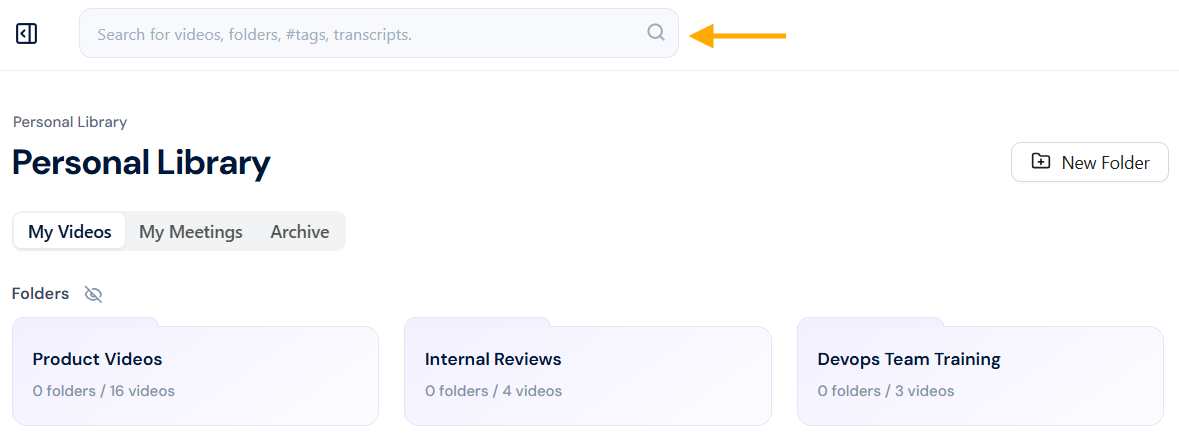
- Locate the search bar: Open the dadan app and position your cursor in the search bar above.
- Enter a search keyword: Type any word or phrase related to the video, folder, or video transcript you are searching for.
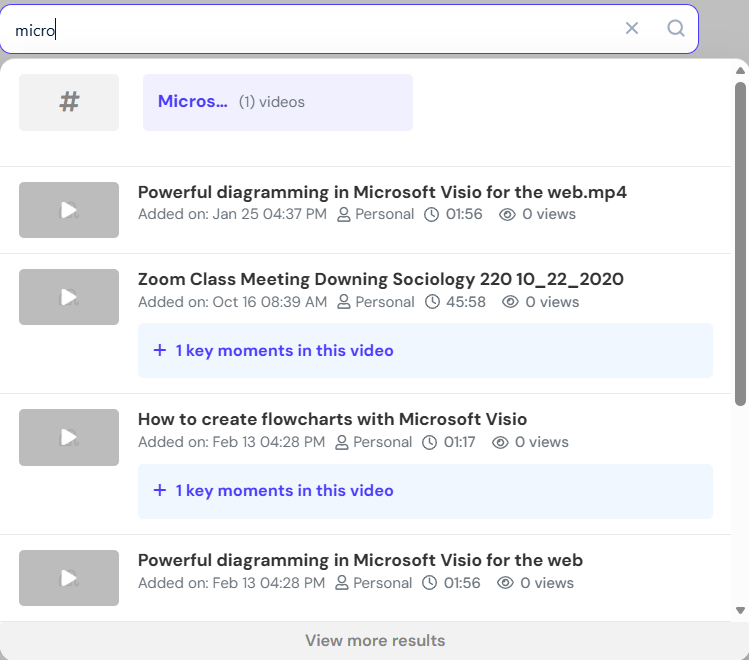
- Initial results: Results will appear below the search bar, or click the search icon if they don’t appear automatically.
- Click to access: Select the result that matches your search to instantly open the video or folder.
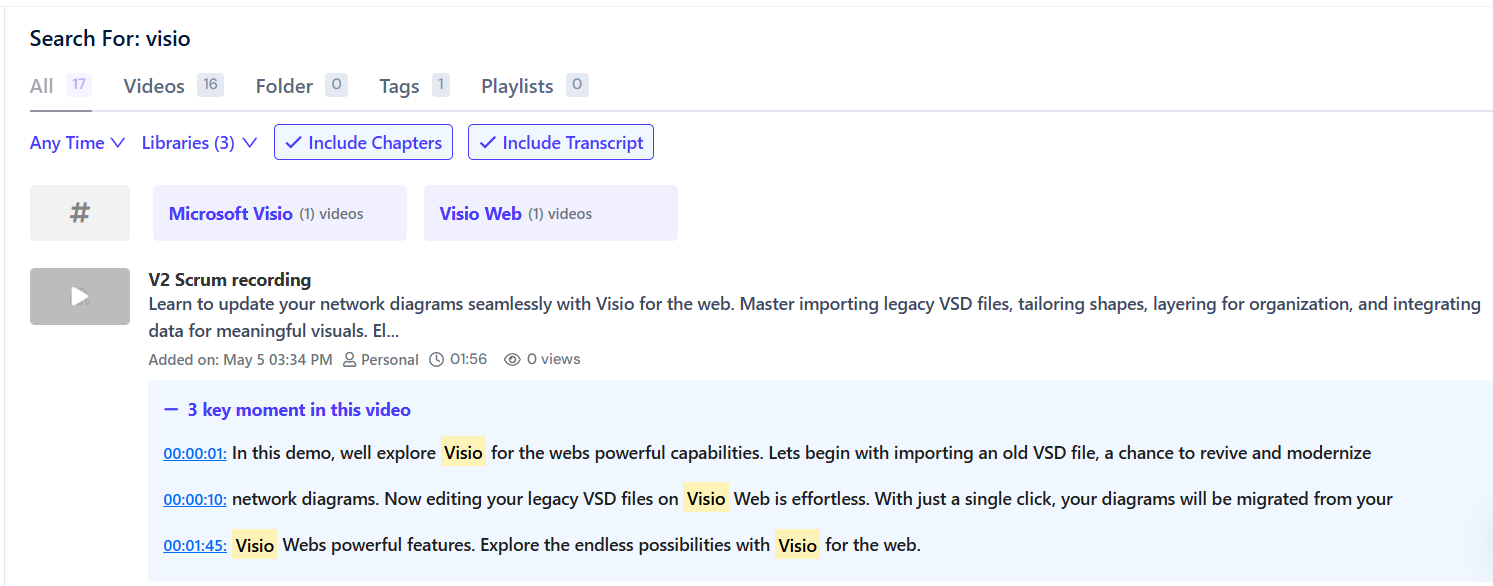
- View detailed results: Click View more results below the results if you want to open advanced search options.

- Review search results: Advanced results will be categorized by Videos, Folders, Tags, Playlists, Time, Libraries, Chapters, and Transcripts for easy navigation.
Refine your search #
Make your searches more precise by using filters and advanced search options in dadan. Here’s how you can narrow down your results:
- Filter by content type: Choose between Videos, Folders, Tags, Playlists, or All to find exactly what you need.
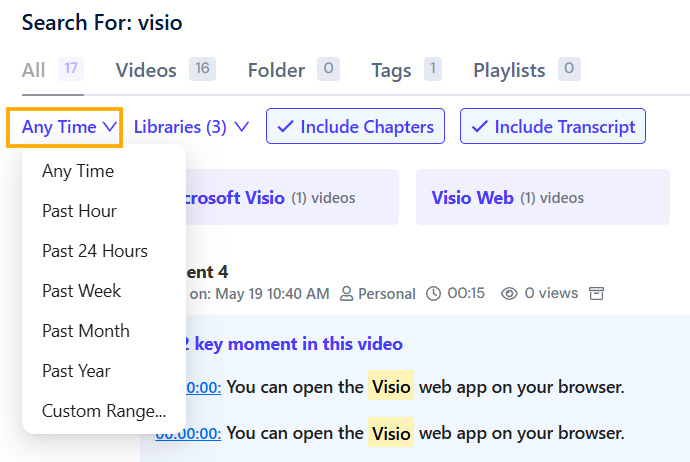
- Use time filters: Select a specific time range to find recent or older content.
- Search within specific libraries: If you have Teams, filter results to search within a particular Library or a specific Team.
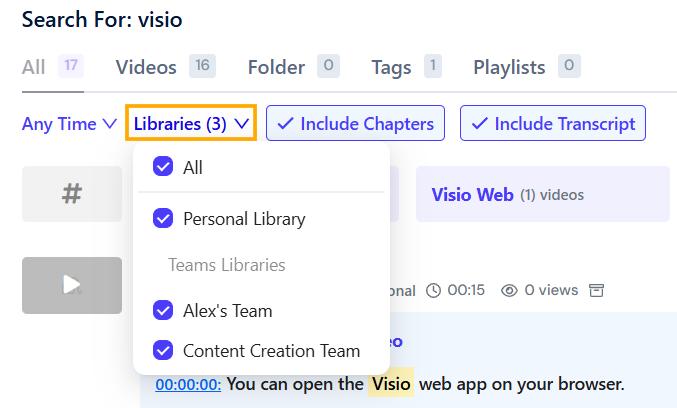
- Include or exclude chapters and transcripts: Keep Include Chapters and Include Transcript checked or uncheck them to refine your search results further.


