
Clear, relevant video names make it easier to stay organized and find what you need, especially when collaborating with others in dadan.
Looking for the full guide on video management? Check out the complete video management guide.
Steps to rename videos #
To update a video’s title:
- Go to the Personal Library or Team Space where the video was uploaded.

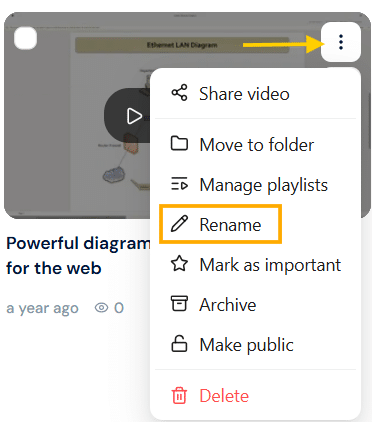
- In the Videos section, find the video and click the three-dots [⋮] icon.
- A dropdown menu will appear. Click Rename.
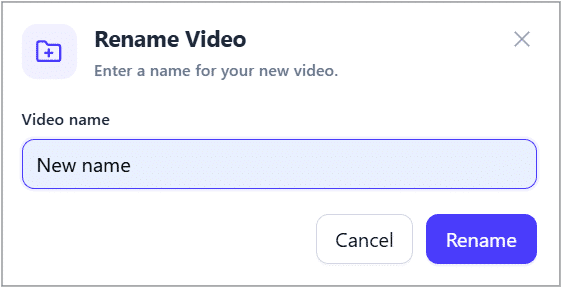
- The Rename Video box will appear. In the Video name field, enter the desired video name.
- Click the Rename button to apply the changes.
Tip: Choose clear, searchable titles like “Client Kickoff April 2025” or “How to Connect Calendar” to save time later and help teammates instantly understand the content.


