The Player Customization section in dadan enables users to personalize their video player to match their brand identity. Adjustments can be made to colors, controls, and information displays to shape the overall viewing experience.
The customization options are divided into several sections. Each section offers specific settings to tailor the video player’s appearance and functionality, including:
- Embed Information & Sharing Controls.
- Branding & Colors.
- Player Controls (Global).
- Playback Options.
Player Customization settings #
To manage your Player Customization settings, follow these steps:
- Open the dadan web app.
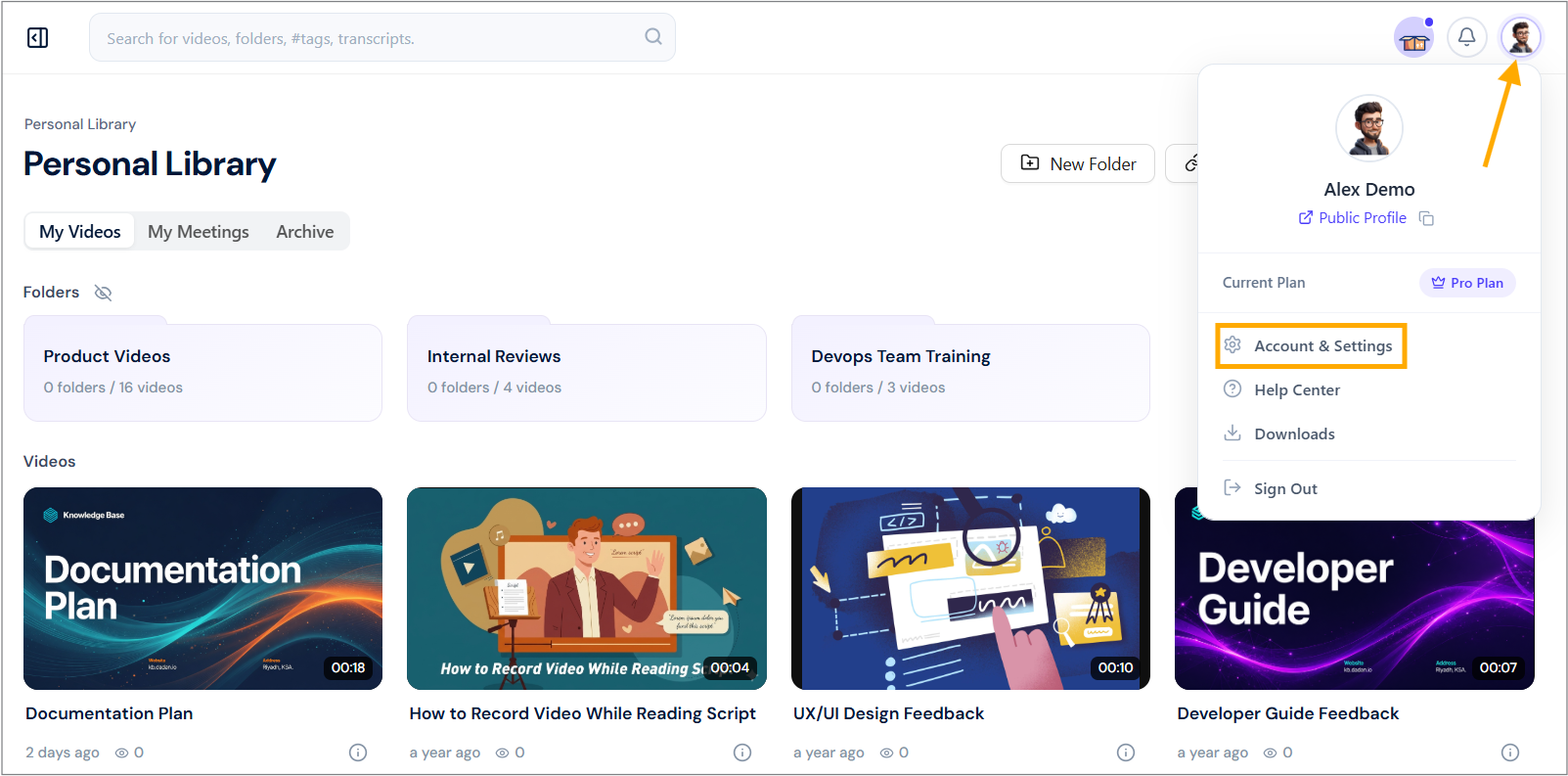
- Click on your profile icon in the top-right corner.
- Select Account & Settings from the dropdown menu.
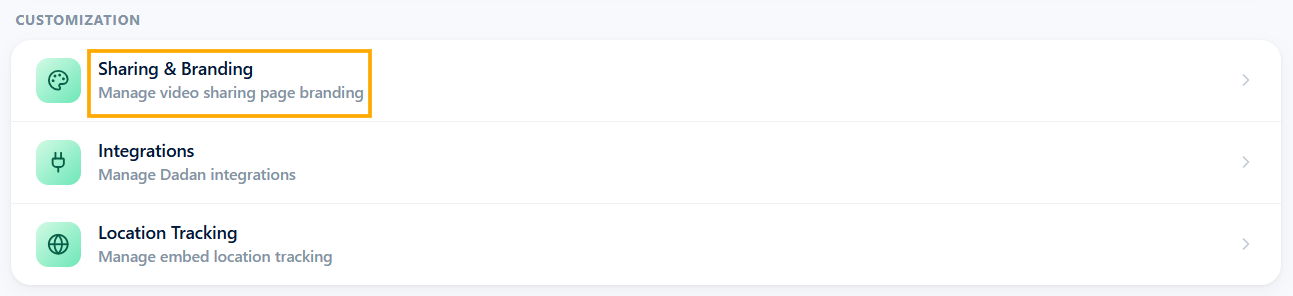
- Navigate to the Customization section. It includes several sections.
- Click the Sharing & Branding option.
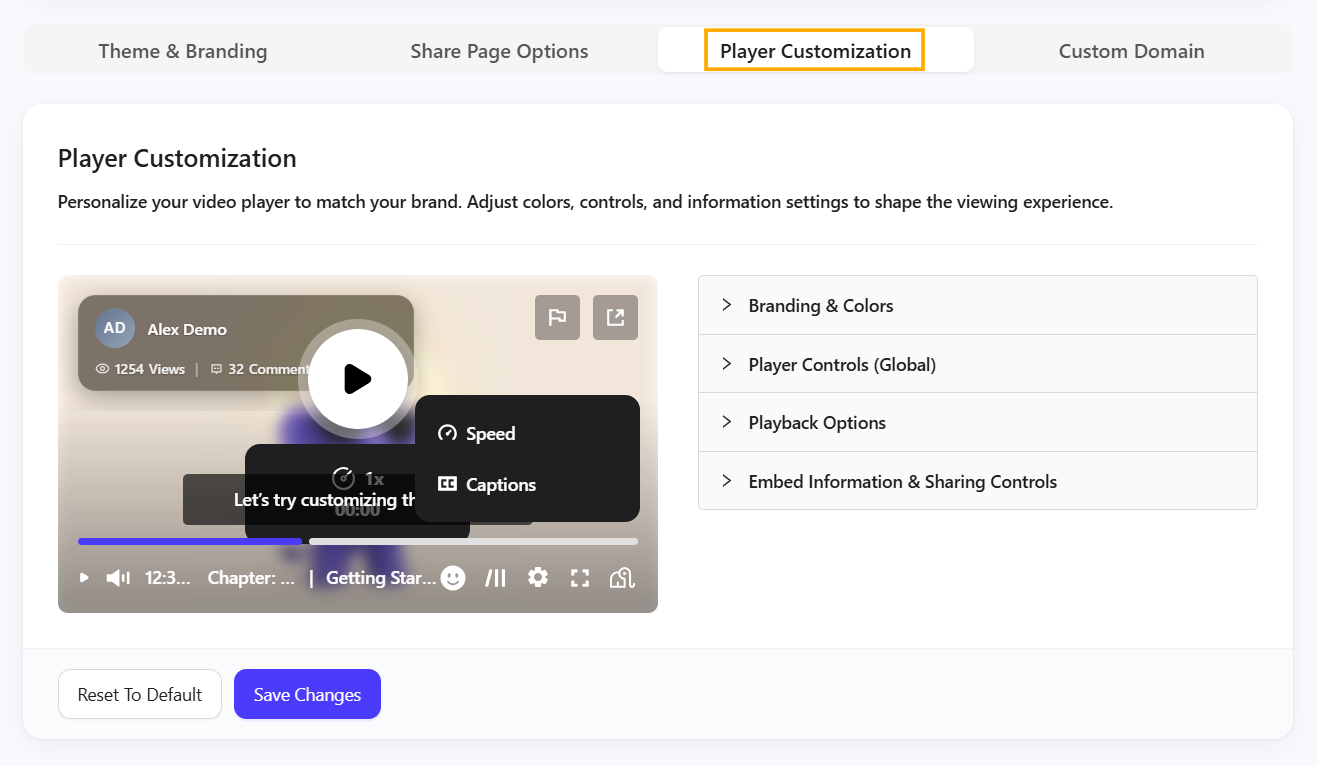
- The Sharing & Branding page will open.
- Select the Player Customization tab.
Player Customization options #
You can personalize the video player to match your brand identity and control how viewers interact with your content. The customization options are grouped into sections, each focusing on a specific aspect of the player’s appearance and functionality.
Branding & Colors #
The Branding & Colors section allows you to align the video player with your company’s visual identity. You can adjust key elements such as buttons, text, and backgrounds to match your brand guidelines. All options include a color picker.
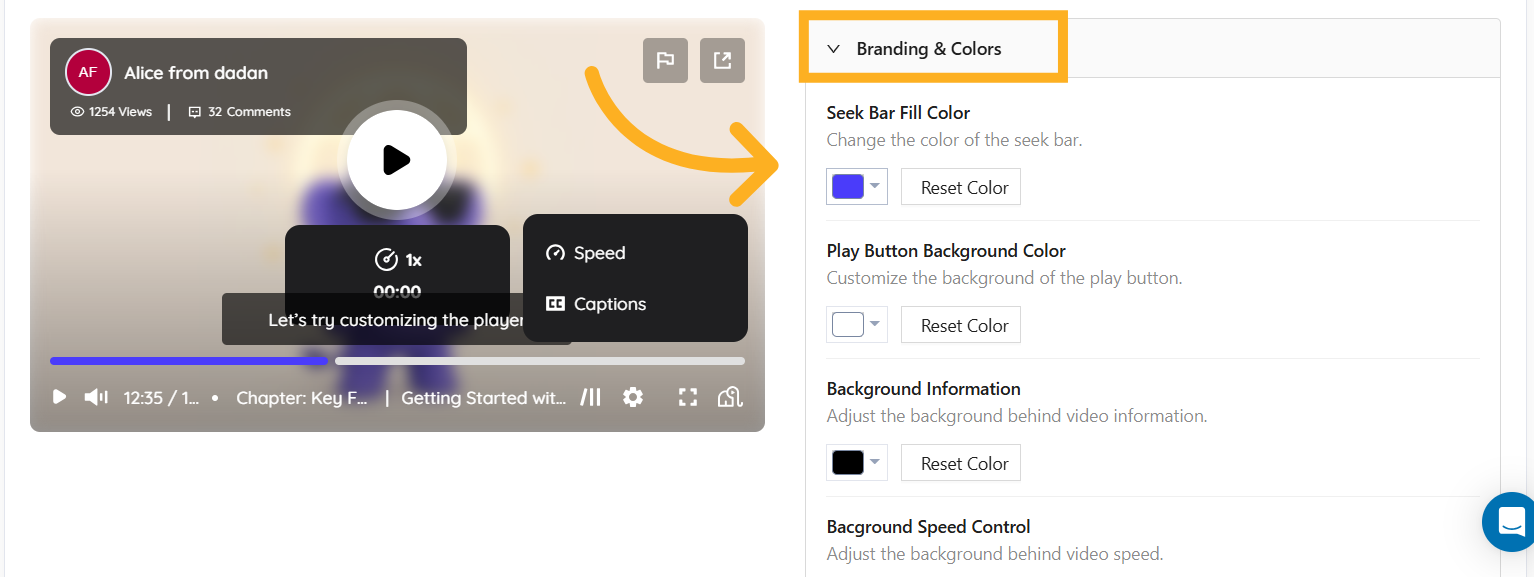
- Seek Bar Fill Color: Change the color of the seek bar to reflect your brand. The default is blue.
- Play Button Background Color: Customize the background of the play button. The default is white.
- Background Information: Adjust the background behind the video information. The default is grey.
- Background Speed Control: Modify the background behind the video speed controls. The default is black.
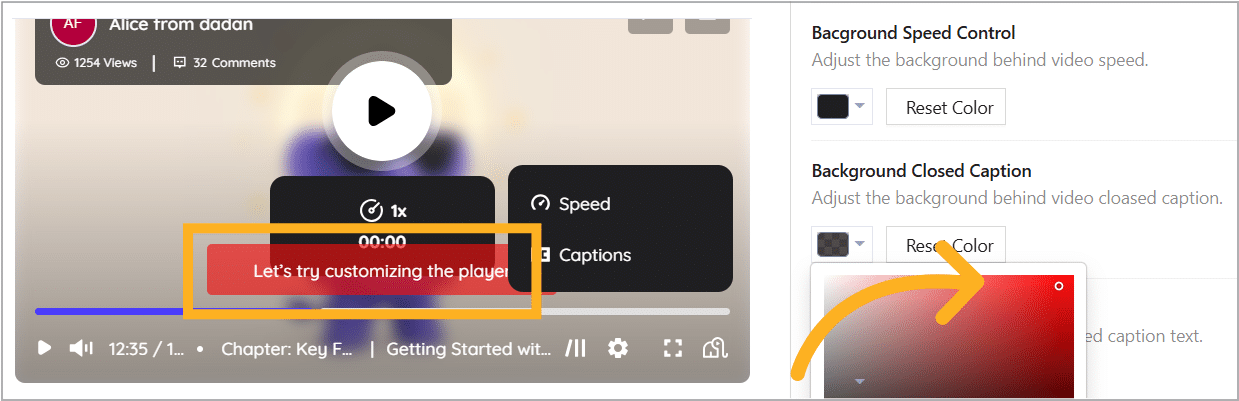
- Background Closed Caption: Adjust the background behind closed captions. The default is black.
- Closed Caption Text Color: Customize the text color of closed captions. The default is white.
Notes:
- All colors have a Reset Color button to restore the default color.
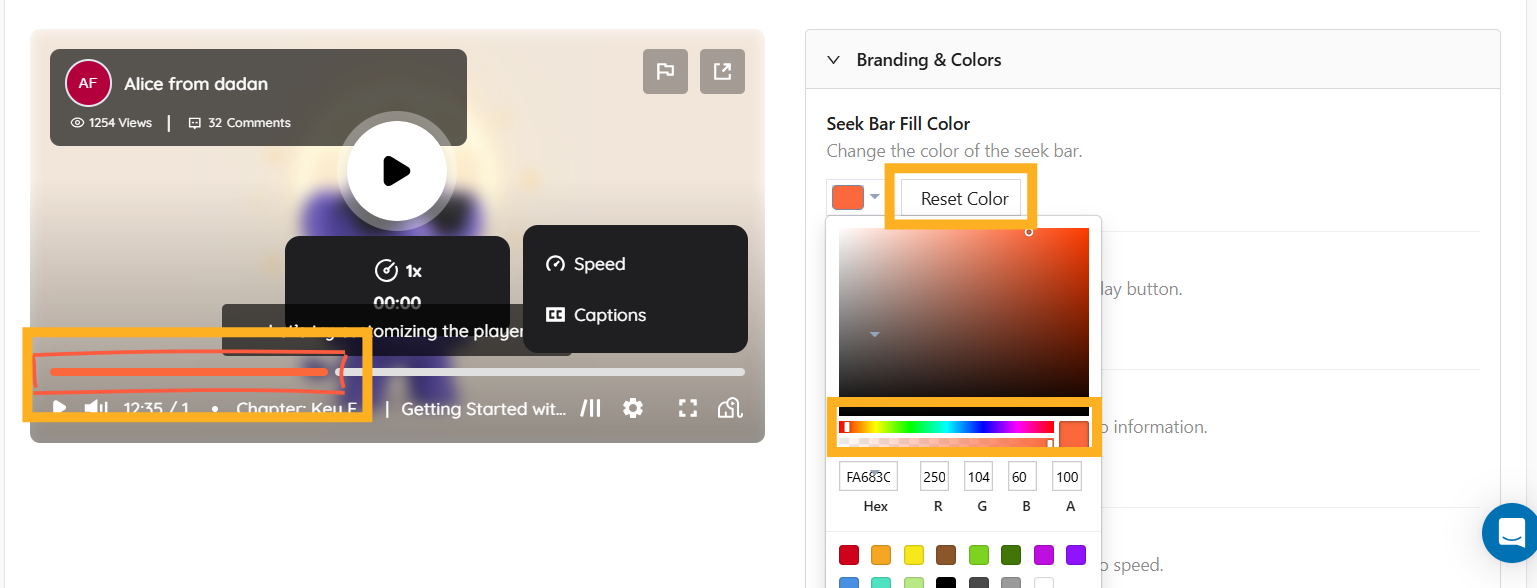
- When selecting any option, its corresponding part in the video example dummy will be highlighted.
Player Controls (Global) #
The Player Controls (Global) section defines which features are available to viewers while watching your video. These options provide flexibility in determining the level of control viewers have over their playback experience.
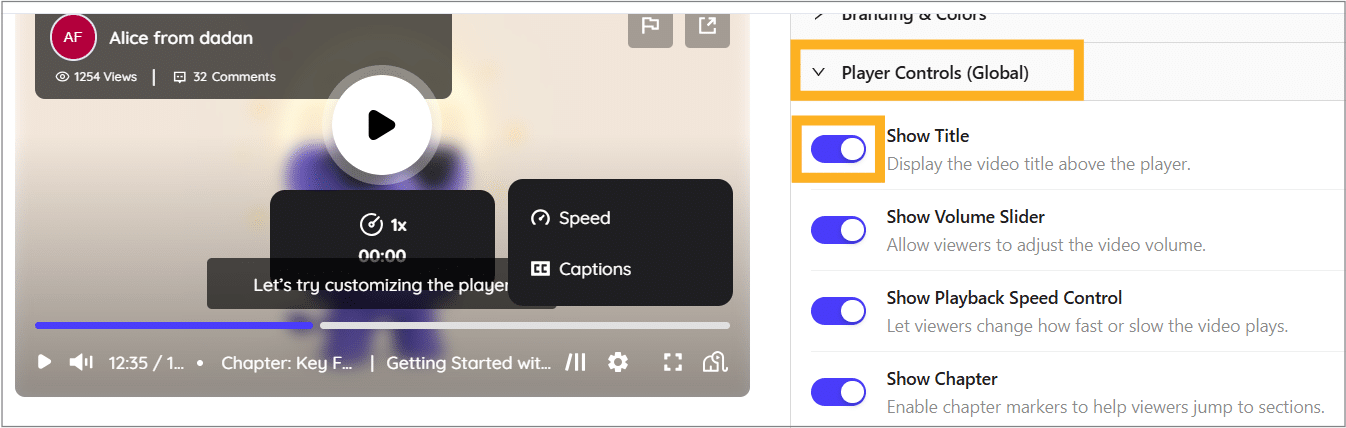
- Show Title: Display the video title above the player (toggle on by default).
- Show Volume Slider: Allow viewers to adjust the video volume (toggle on by default).
- Show Playback Speed Control: Let viewers change how fast or slow the video plays (toggle on by default).
- Show Chapter: Enable chapter markers to help viewers jump to sections (toggle on by default).
- Show Branding Logo: Display your brand’s logo on the video player (toggle on by default).
- Show Full Screen Button: Allow viewers to expand the video to full screen (toggle on by default).
- Show Video Duration: Show elapsed time and total video length (toggle on by default).
- Show Closed Captions: Enable captions or subtitles if available (toggle on by default).
Playback Options #
The Playback Options section lets you control how viewers start and navigate your video. These settings enhance usability and make playback more intuitive.
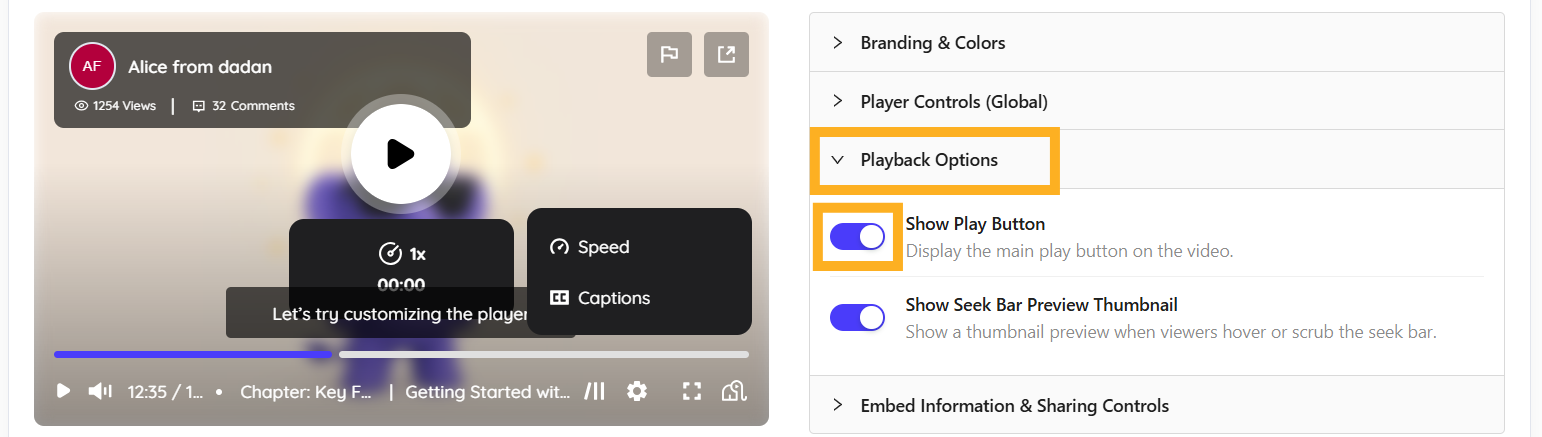
- Show Play Button: Display the main play button on the video (toggle on by default).
- Show Seek Bar Preview Thumbnail: Show a thumbnail preview when viewers hover or scrub the seek bar (toggle on by default).
Embed Information & Sharing Controls #
The Embed Information & Sharing Controls section manages how your video can be shared and what information is visible to viewers. These options help you control the visibility and accessibility of your content.
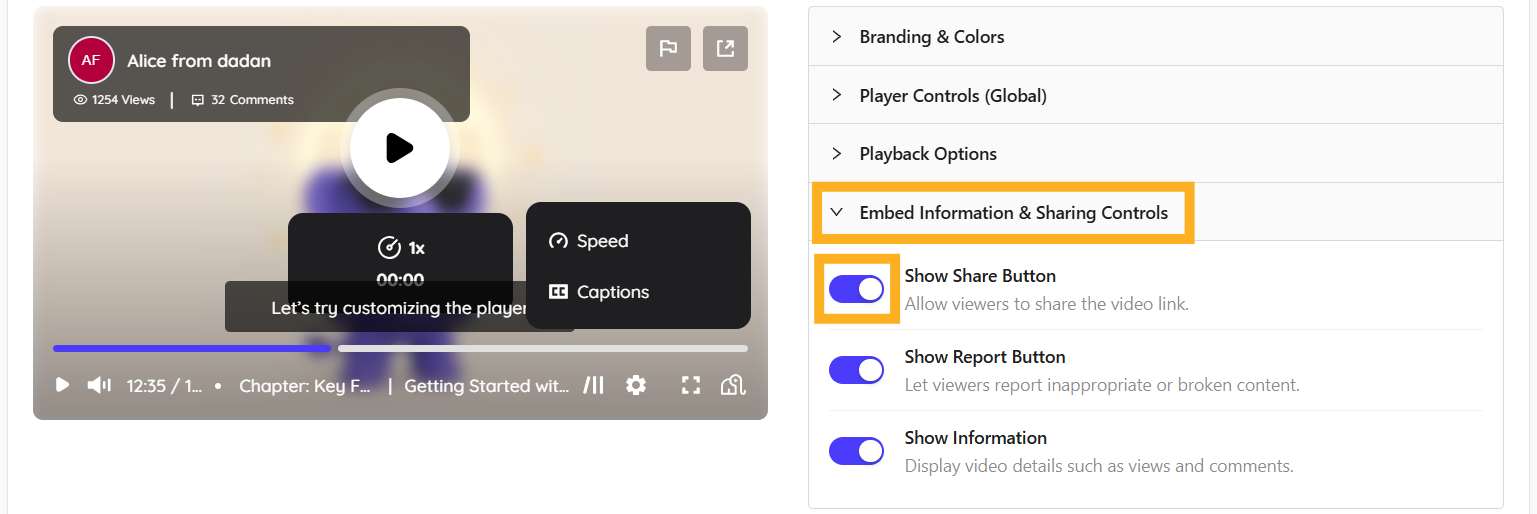
- Show Share Button: Allow viewers to share the video link (toggle on by default).
- Show Report Button: Let viewers report inappropriate or broken content (toggle on by default).
- Show Information: Display video details such as views and comments (toggle on by default).
Note: When selecting any option, its corresponding part in the video example dummy will be highlighted.
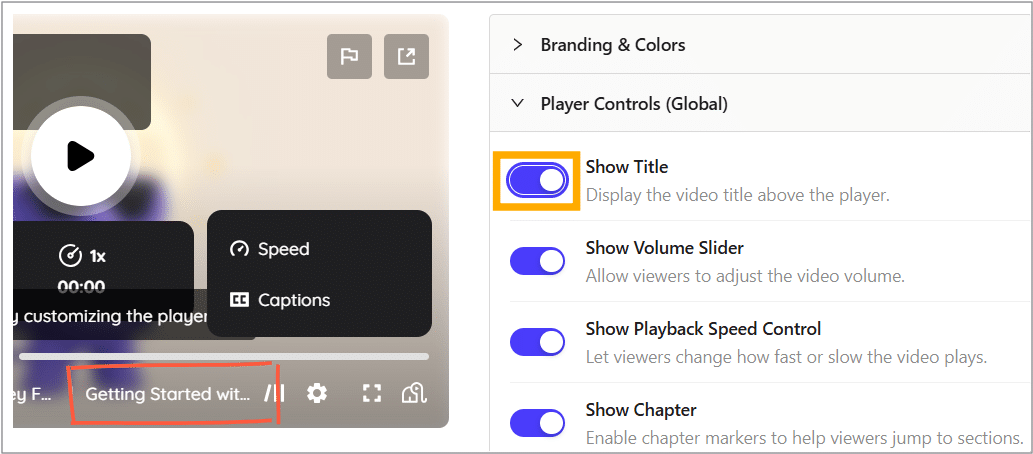
Click Save Changes to save.
Managing your settings #
Once you’ve adjusted the player to your preference, use the following options to apply or undo changes:
- Save changes: Click Save Changes to apply and save all adjustments. After saving, a confirmation message appears: “Your settings have been saved successfully.”
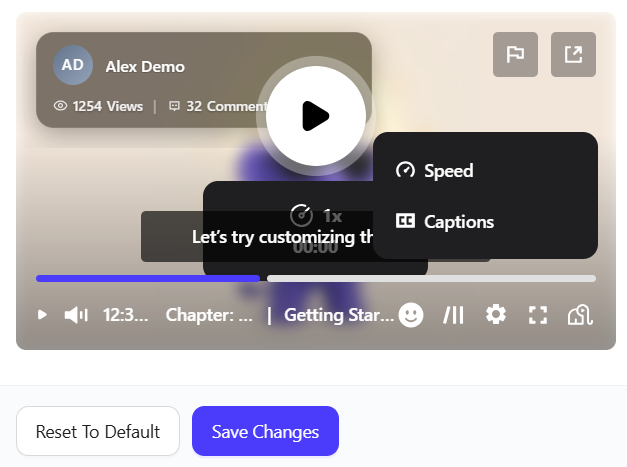
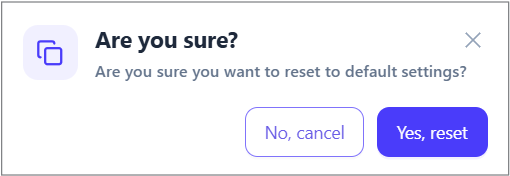
- Reset To Default: Click this button to revert all customizations to their original defaults. A confirmation dialog appears with options to select “Yes, reset it!” or “No, cancel.”