
Dadan provides flexible camera settings to help you customize your recording experience. Whether you want to use your profile picture, adjust webcam placement, or flip the camera for different recording scenarios, dadan allows you to control how your camera appears in your videos.
How to use your profile picture instead of live video #
When opening the extension, the camera will activate, displaying your live feed without recording. To use your profile picture instead of live video:
- Navigate to the Webcam Controls located at the bottom of the interface.
- Click the show avatar icon to display your profile picture instead of the live camera feed.
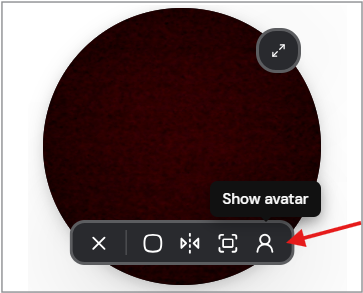
- This will ensure that your recorded video shows your profile picture rather than a live webcam stream.
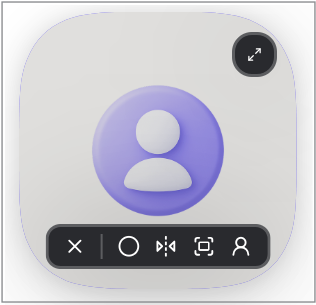
- You can also change your profile picture for this recording session only by clicking Change Photo.
📌 Note: Changing your profile picture instead of the video is only available in Screen + Webcam mode. If you switch to Full Webcam mode in the Chrome extension, you won’t be able to replace the video with a picture or make any adjustments to the webcam feed.
Changing camera placement in your recordings #
You can position the live camera feed or profile picture at the center of your screen:
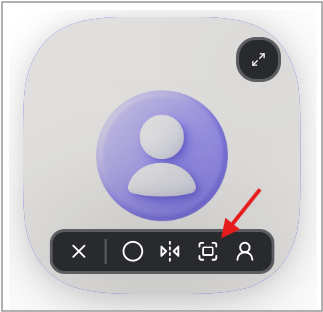
- Click the Enter large mode icon.
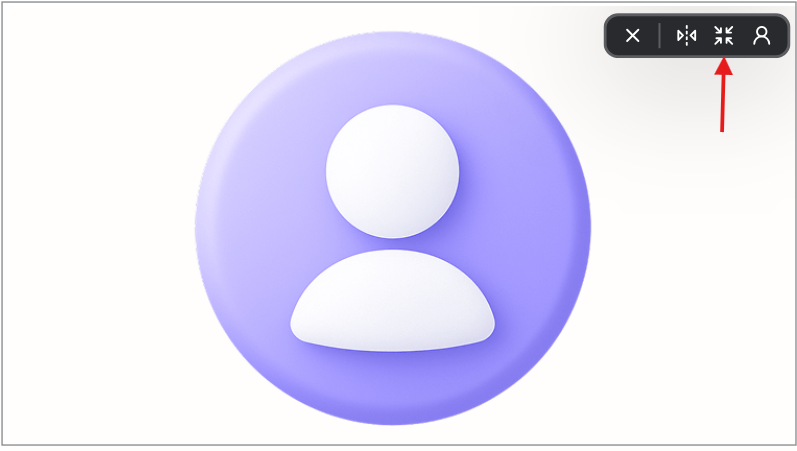
- To return the camera or profile picture to its original position, click the Exit large mode icon.
Flip the camera #
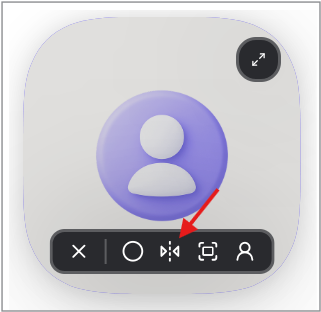
To flip the camera:
- Click the Enable mirror icon to flip or mirror your live camera feed or profile picture.
Toggle the camera shape: square or circle view #
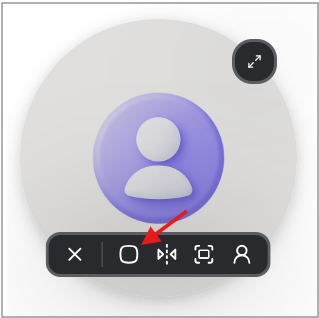
To switch between a circular and square camera view:
- Click the Circle shape icon to revert to a circular view.
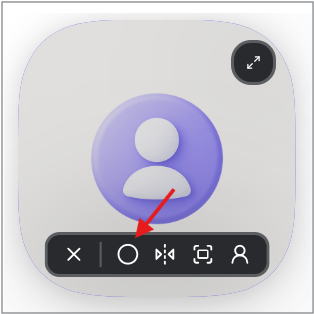
- Click the Square shape icon to change the camera shape to a square.
📌 Note: You can also adjust the size of the circle or square by clicking the small or large icon for each shape.


