
The Licenses Management section in dadan allows team owners and admins to assign Business Plan licenses to users. This ensures that team members have full access to all premium features available under the Business Plan tier.
You can assign licenses in bulk or edit individual user tiers directly from the Licenses Management page.
Access dadan licenses management #
To access dadan Licenses Management, follow these steps:
- Open the dadan web app.
- Click on your Profile icon in the top-right corner.
- Select Account & Settings from the dropdown menu.
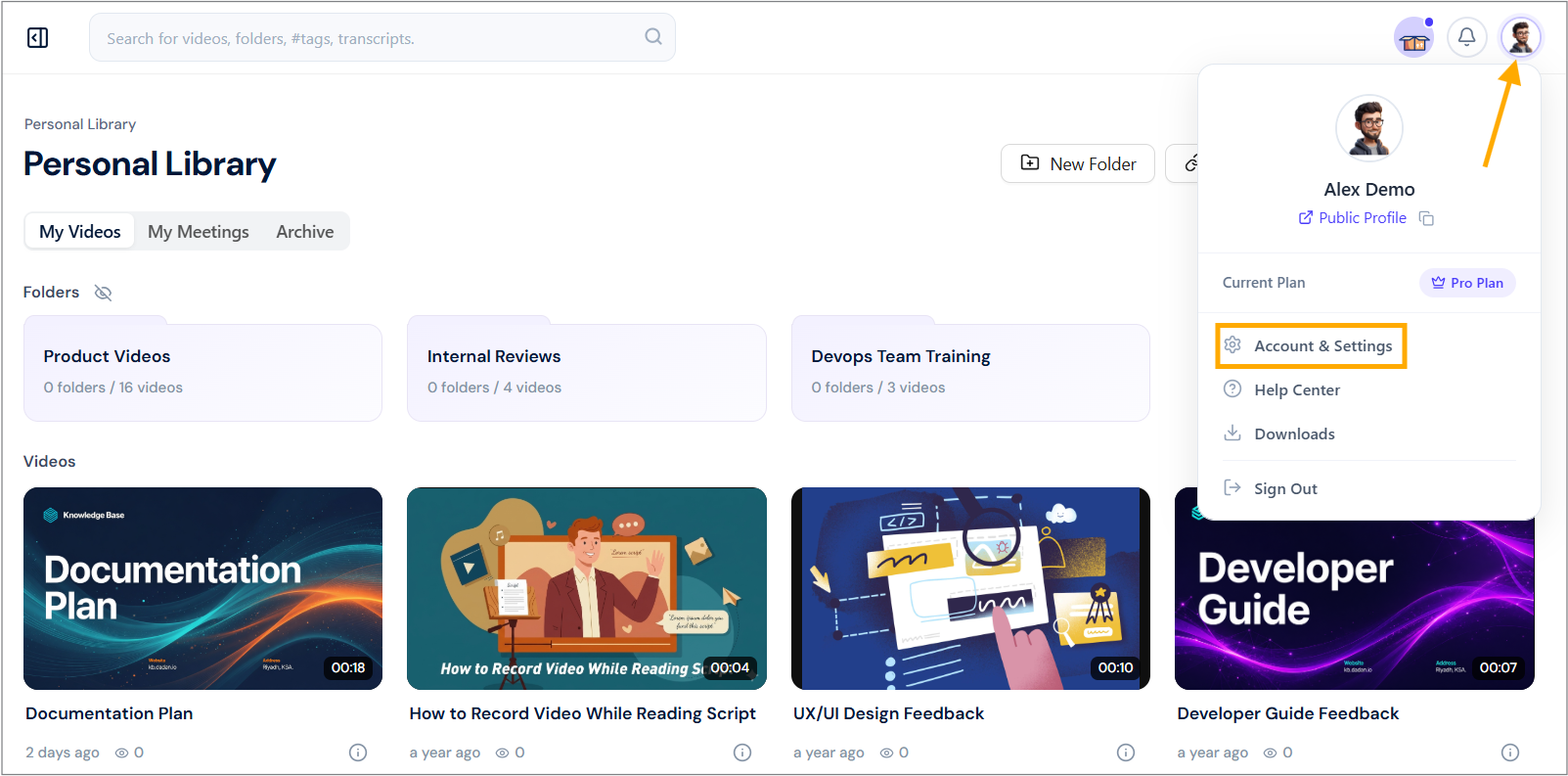
- Navigate to the Advanced section. It includes several sections. Select the Subscriptions Management option.

Assign new licenses #
- In the Licenses Management page, click the blue button + Assign Licenses located in the upper right area of the page.
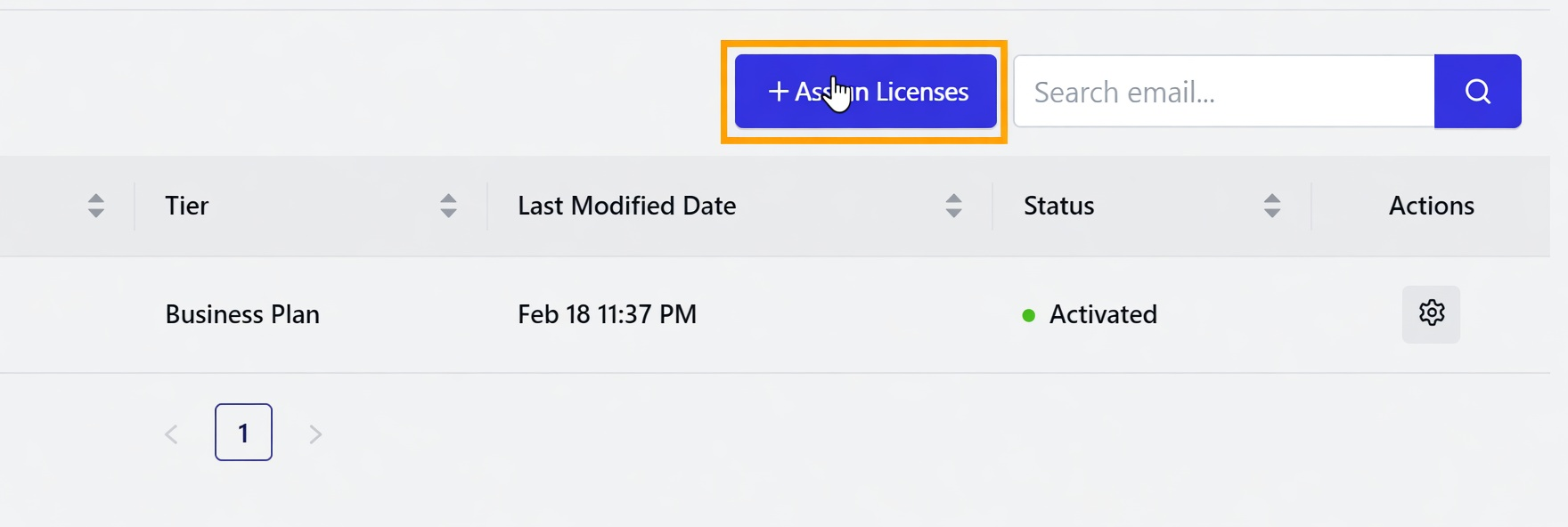
- Fill in the assignment details: The Assign New Licenses pop-up will appear with the following fields:
- User Email (required): Enter the email address of the user you want to assign the license to.
- Tier (required): Click the dropdown and select Business Plan.
- You can assign multiple licenses at once:
- Fill the first row with one user’s email and tier.
- Click + Add Another Email to add more rows as needed.
- Use the trash icon 🗑️ next to any row to remove it.
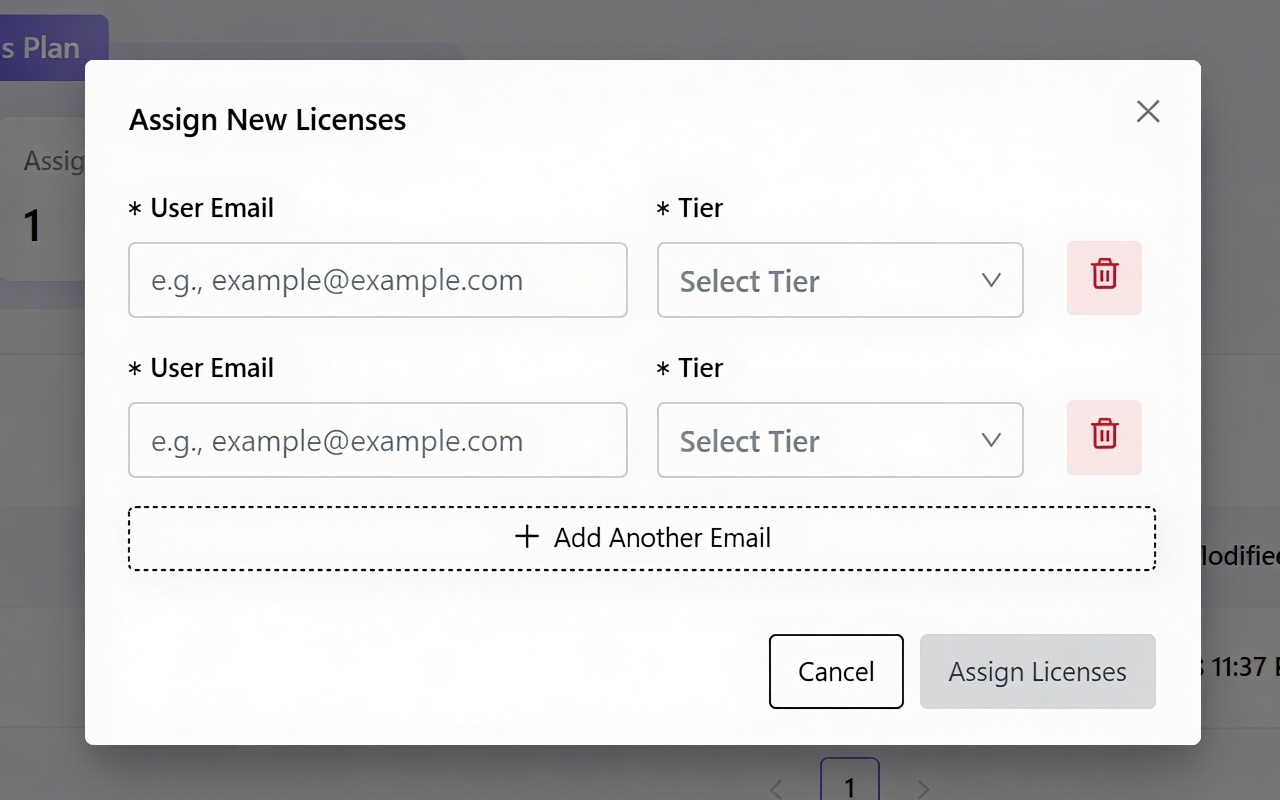
- Complete the assignment: Once all emails and tiers have been entered, click Assign Licenses. Click Cancel to discard the changes.
How to edit or change an existing user’s tier #
- On the Licenses Management page, locate the user in the table.
- In the Actions column, click the gear icon ⚙️ (settings icon) next to the user.
- The Edit User Tier pop-up will open.
- User Email will be pre-filled and cannot be changed.
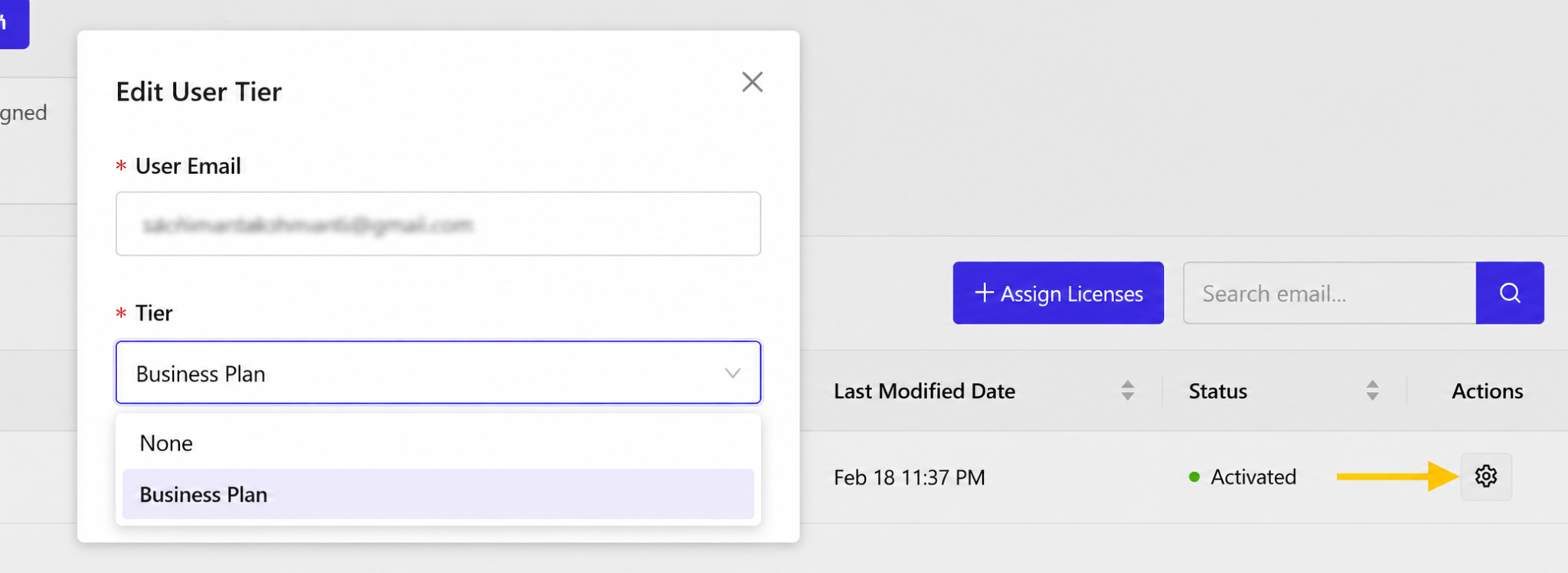
- In the Tier dropdown, select the desired tier:
- None (to remove the license).
- Business Plan.
- Click Save changes.
Key notes #
- Only users with Business Plan tier will have access to the full Business Plan features.
- The status of assigned users will show as Activated (green dot) once successfully assigned.
- You can add multiple users in a single assignment session using the + Add Another Email button.
- To remove a license from a user, edit their tier and select None.


