
Streamline your email marketing with the dadan and GetResponse integration. This guide provides clear, step-by-step instructions for connecting dadan videos with GetResponse, enabling you to capture video leads, sync them with your marketing platform, and automate workflows to enhance engagement and boost conversions.
Accessing marketing integrations #
To open the dadan GetResponse integration:
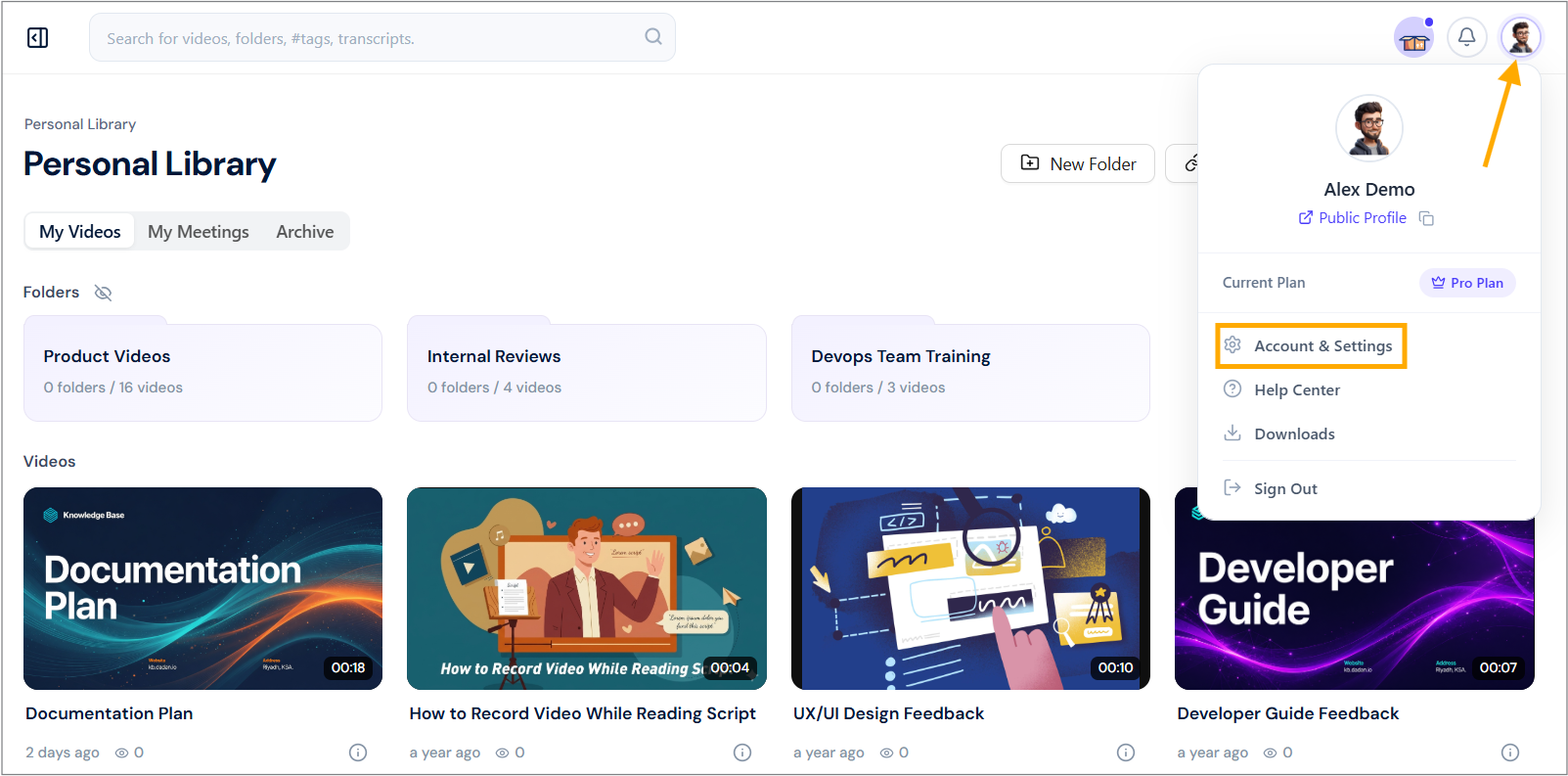
- Navigate to your dadan account and click your profile icon in the top right corner.
- Select Account & Settings from the dropdown menu.
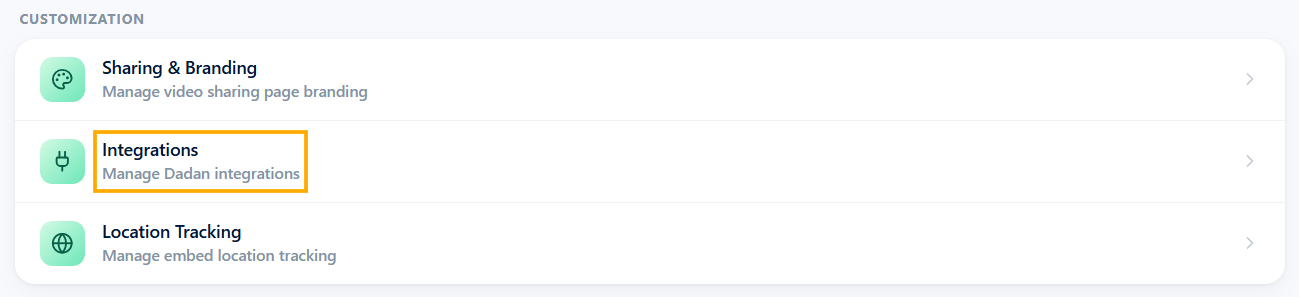
- In the Customization section, click the Integrations option.
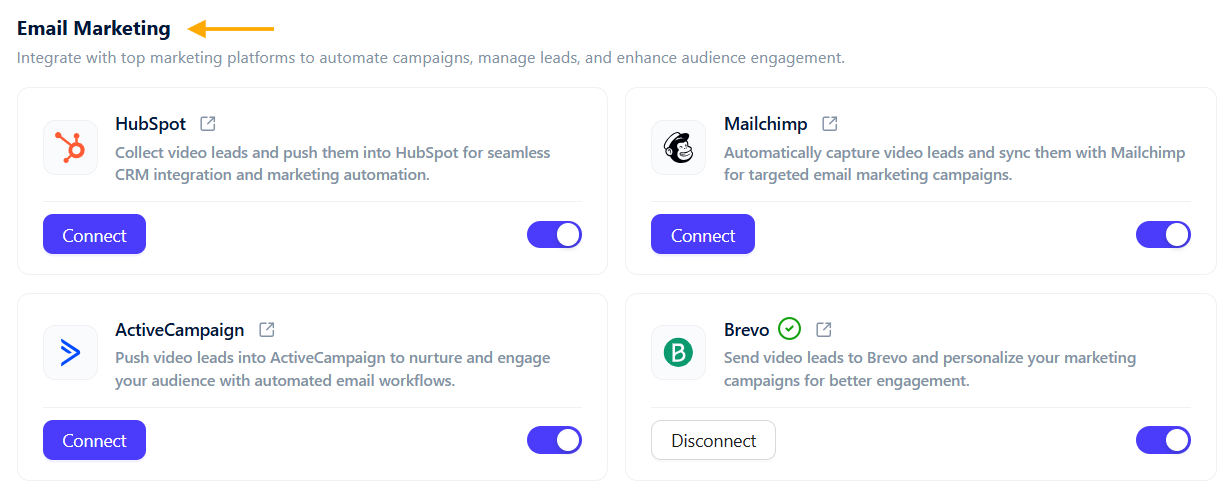
- In the Email Marketing section, view available marketing tools.
Steps to integrate dadan with GetResponse #
Now, to integrate dadan with your GetResponse account, do the following steps:
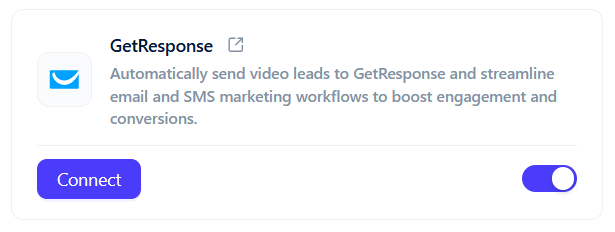
- Click the Connect button under GetResponse to start the integration process.
- You need to obtain an API Key from GetResponse.
- Open the API Key Guide link in a new tab and read the instructions.
- Follow the steps to generate and copy your API key.
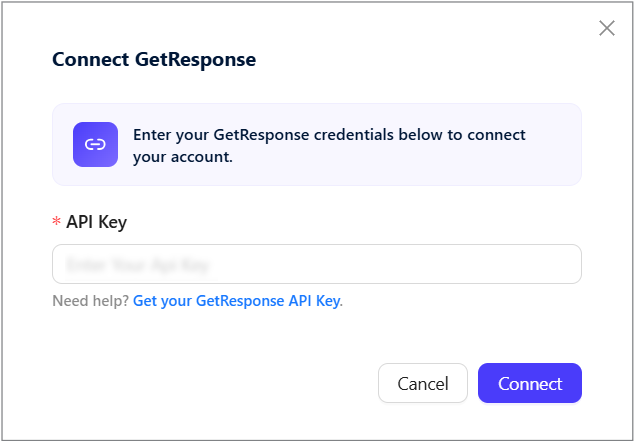
- Enter the API Key. Click Connect to link dadan with the marketing tool.
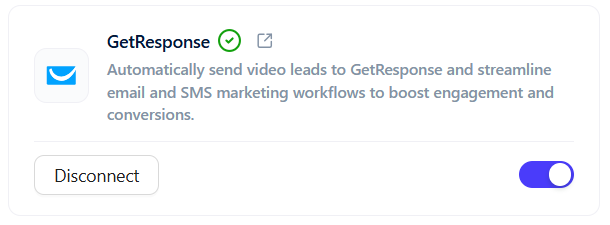
- The status next to GetResponse in the Email Marketing section will show a green checkmark, indicating active integration.
Send your dadan in-video leads to GetResponse #
Through integration, dadan enables you to effortlessly capture and manage your dadan video leads and send them directly to GetResponse. This section guides you through configuring dadan to sync in-video leads with your GetResponse CRM.
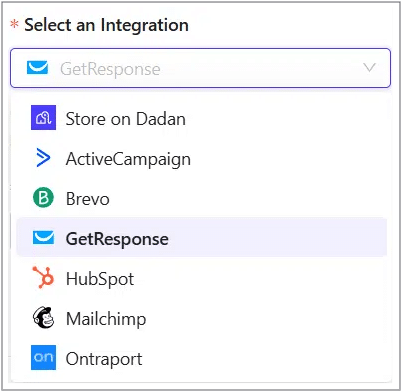
- In the dadan in-video leads settings, apply the Select an Integration step.
- Select GetResponse from the menu to store collected leads.
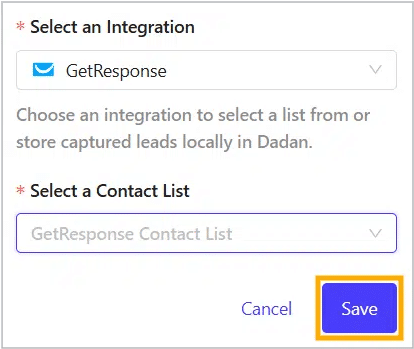
- In the Select a Contact List, choose your list.
- Click Save to apply the settings, then check the confirmation message.
- Open the GetResponse platform, and you will find that your leads will be collected in the system.


