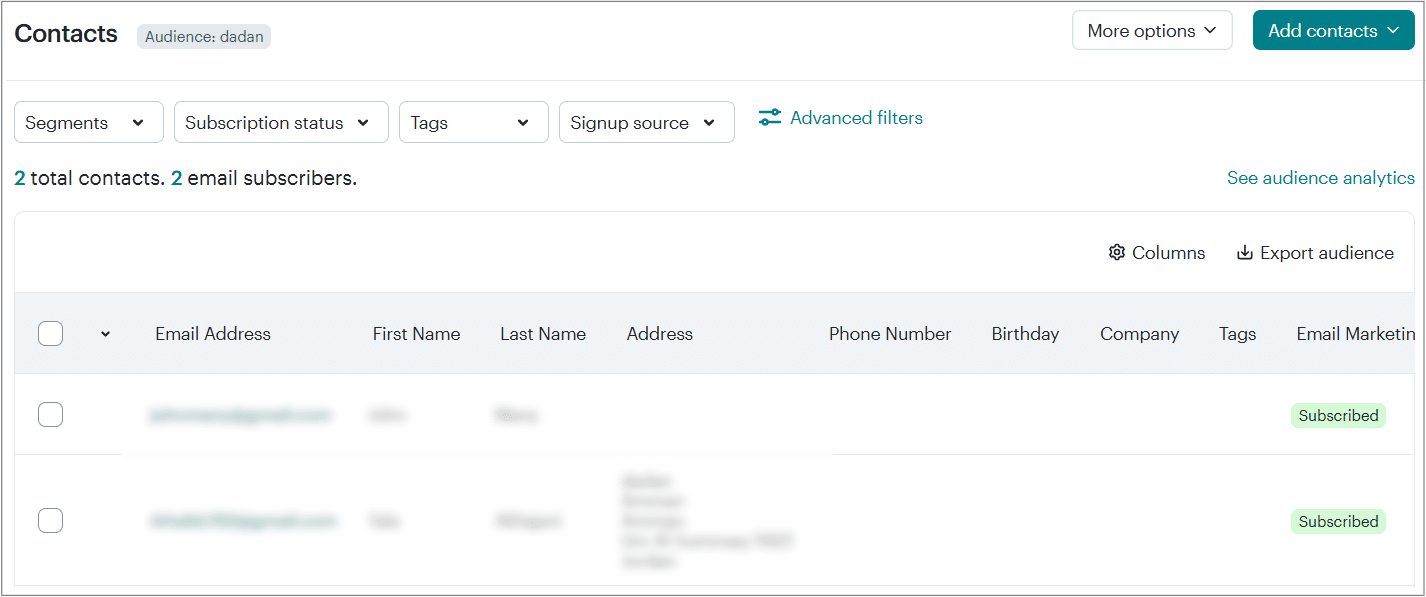
Dadan’s In-Video Leads feature enables you to collect viewer details such as names and email addresses directly within a video. This is ideal for businesses aiming to grow their contact lists, engage audiences, and drive conversions seamlessly during video playback.
Set up dadan In-Video Leads #
To set up dadan in-video leads:
- Open the dadan web app and select a video to which you want to add a lead form.
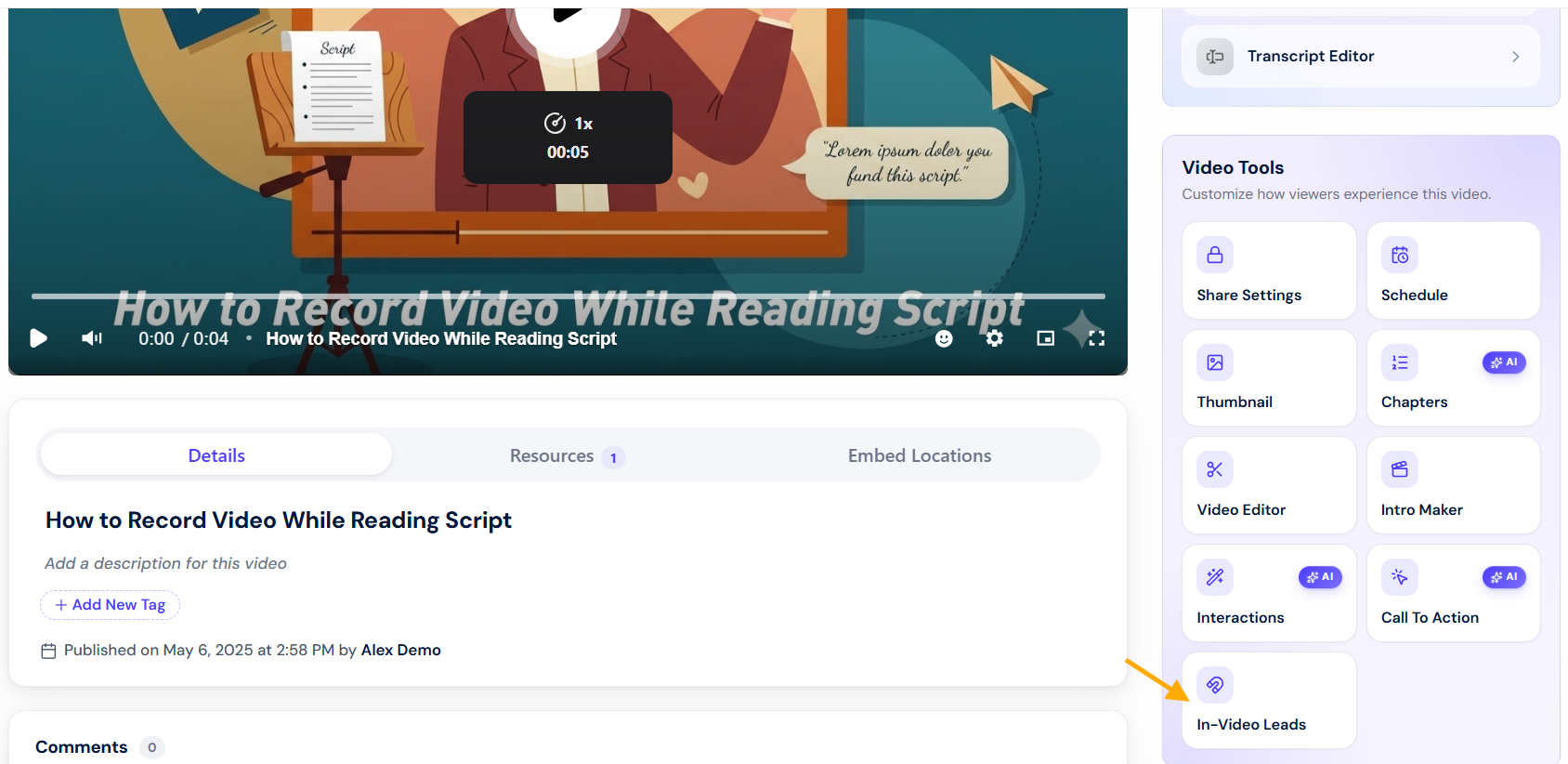
- On the right side, locate the In-Video Leads button and click it.
- Toggle the Enabled switch to activate the In-Video Leads feature.
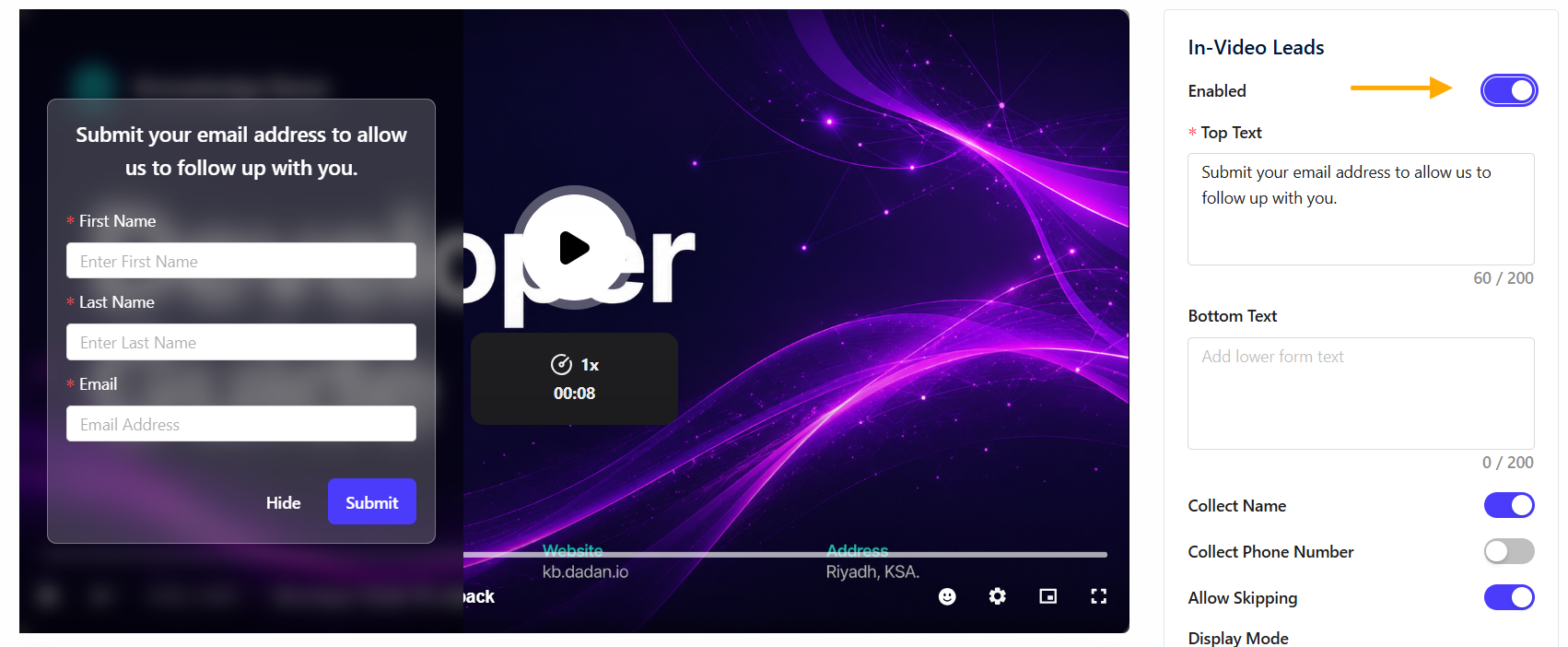
- The In-Video Leads form will appear in the video preview and display fields for First Name, Last Name, and Email.
- Customize the form text:
- In the Top Text field, edit the default message.
- In the Bottom Text field, update the confirmation message.

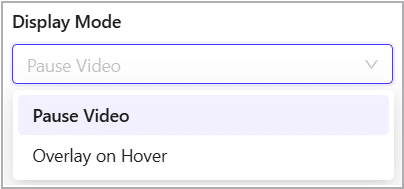
- In Display Mode, select Overlay on Hover to show the form when viewers hover over the video, or choose Pause Video to pause playback until the form is filled.
Adjust form fields #
There are some settings to help you customize the In-Video Leads:
- Toggle off Collect Name if you want to collect only the email addresses, simplifying the form to just the Email field.
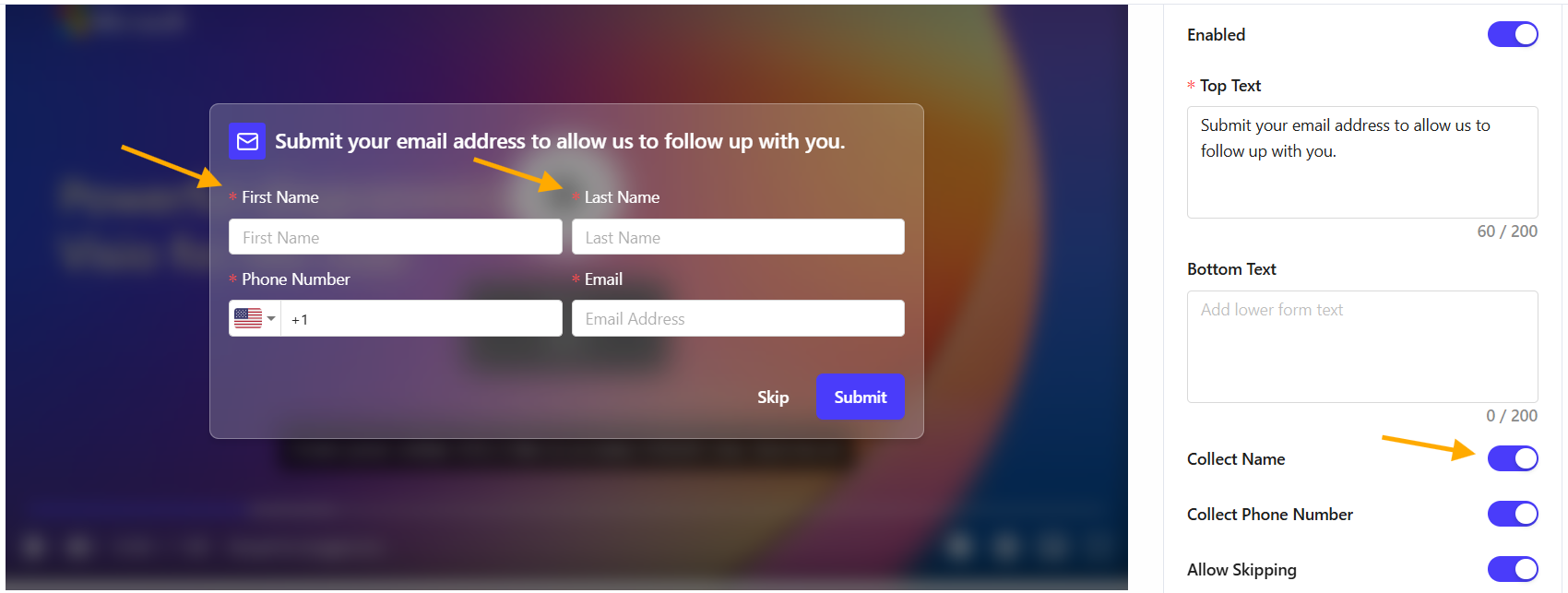
- Use the Collect Phone Number toggle to collect user phone numbers in the form.

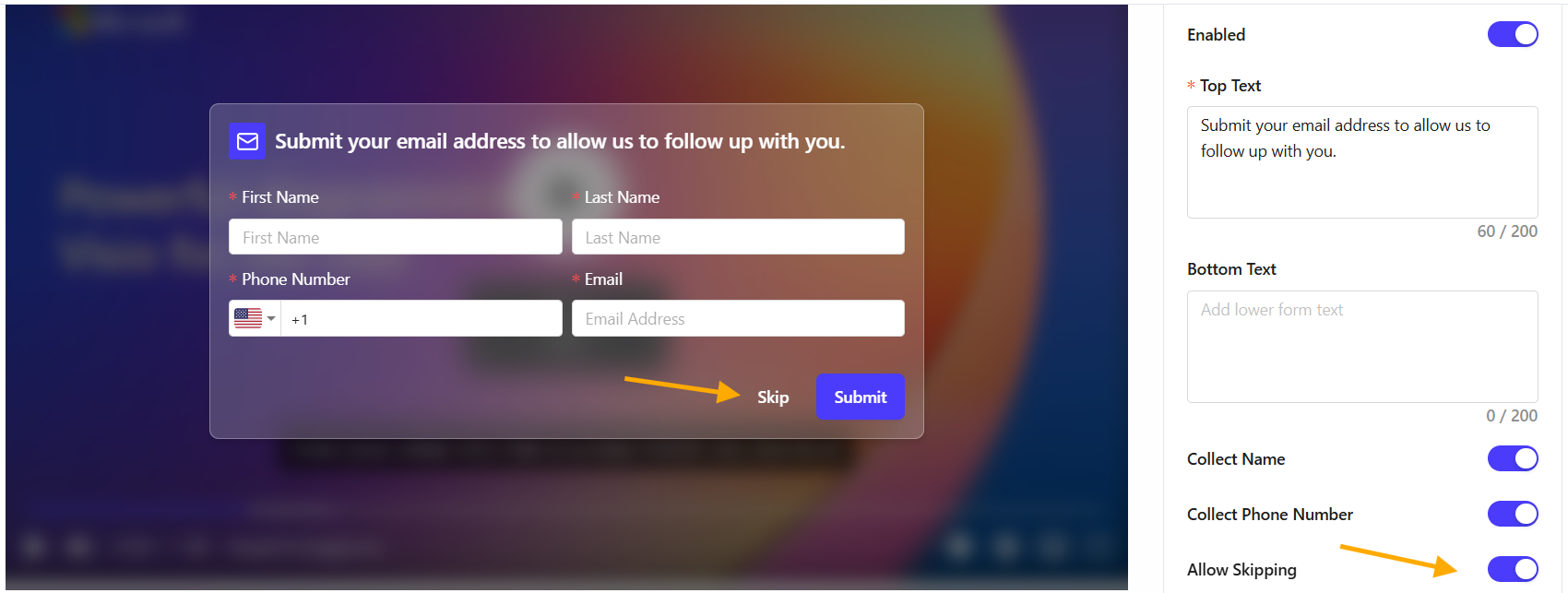
- Use the Allow Skipping toggle to determine whether viewers can skip the form.
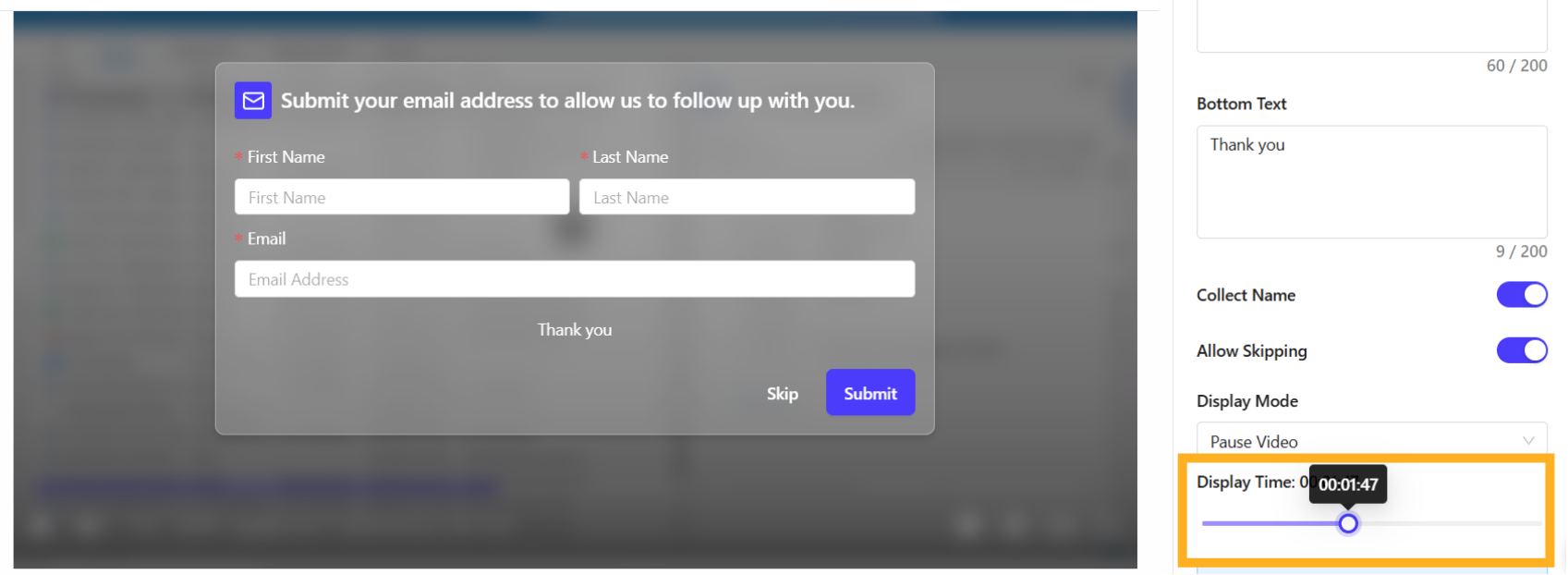
- Set Display Time to specify when the form appears during the video.
Select an Integration #
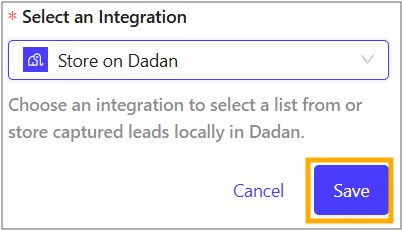
The Select an Integration step lets you connect your in-video lead data with your preferred marketing platform. This ensures your leads are efficiently organized and accessible, enhancing your marketing and follow-up processes.
- Choose where to store the collected leads by selecting an integration.
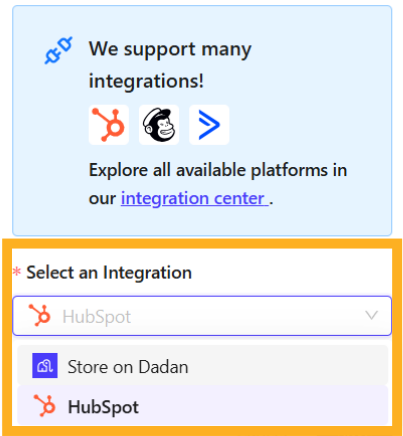
- Click Save to apply the settings, then check the confirmation message.
Note: You need to connect and integrate these platforms. For more details, refer to this guide: Integration to publish dadan videos directly to your marketing tools.
Download your In-Video Leads #
To download collected leads:
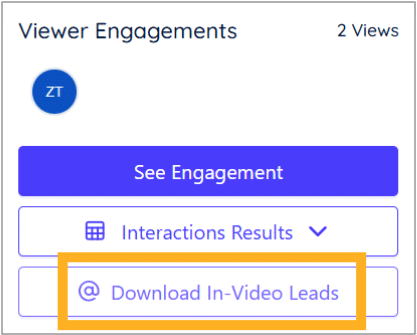
- Click Download In-Video Leads under Viewer Engagements to export the data as an Excel file.
- For integrated email marketing tools, Mailchimp is used as an example in this screenshot.