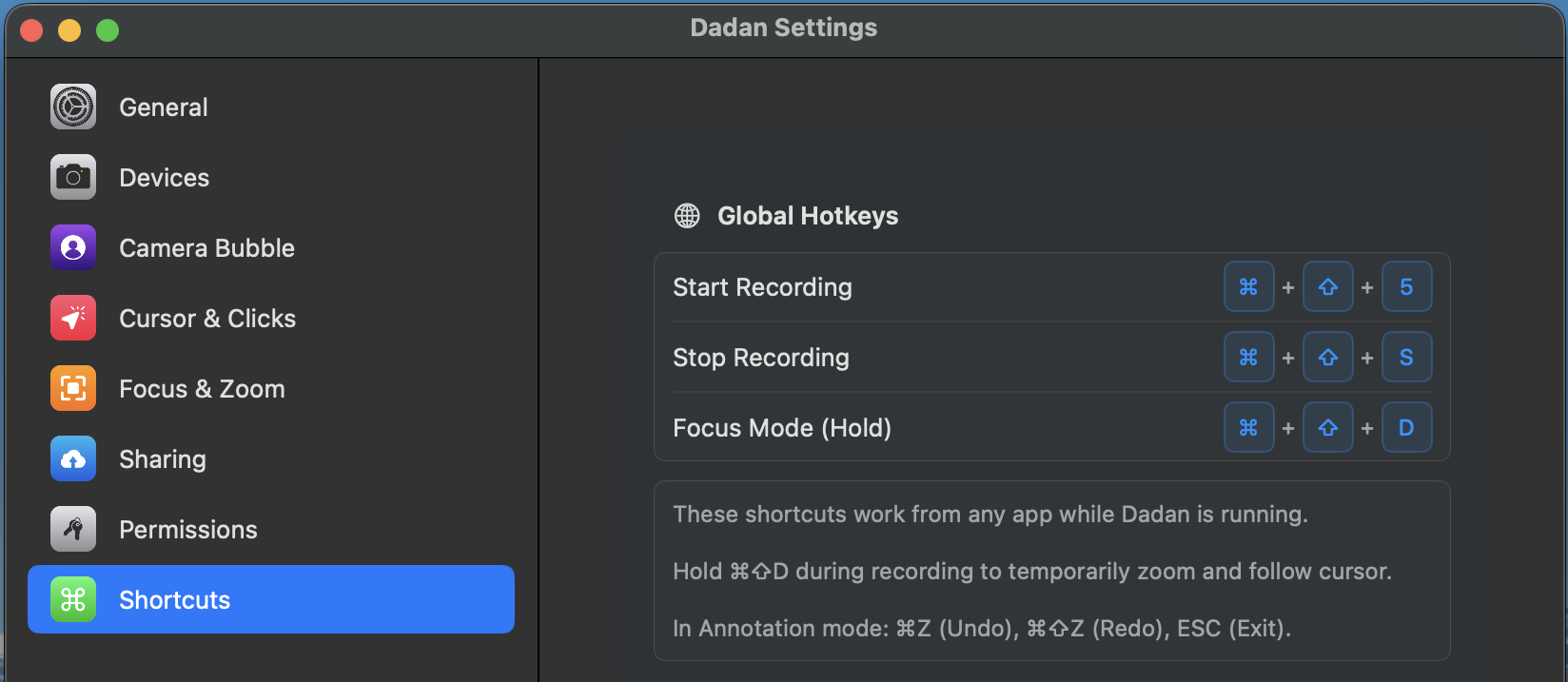
Dadan offers deep, intuitive customization through its dedicated Settings window. The settings are organized into clearly labeled categories on the left sidebar, each focusing on a specific aspect of the app’s behavior and appearance.
These panels let you fine-tune everything from recording quality and device defaults to camera bubble styling, cursor effects, focus/zoom behavior, sharing options, permissions, and global shortcuts. Most changes apply instantly, and many include helpful tooltips, reset buttons, and visual previews.
Access dadan settings #
To open dadan settings, open the dadan Mac application:
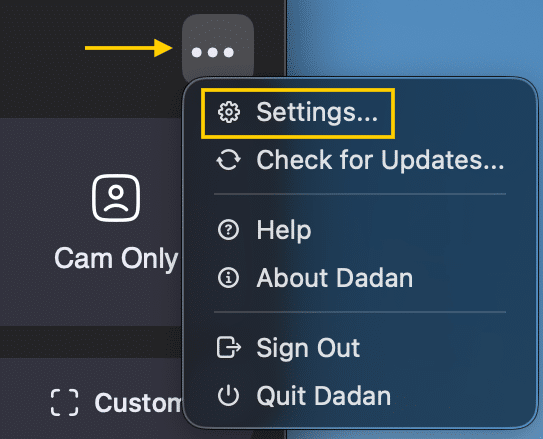
- Click the three dots […] in the upper-right corner, then choose Settings from the menu.
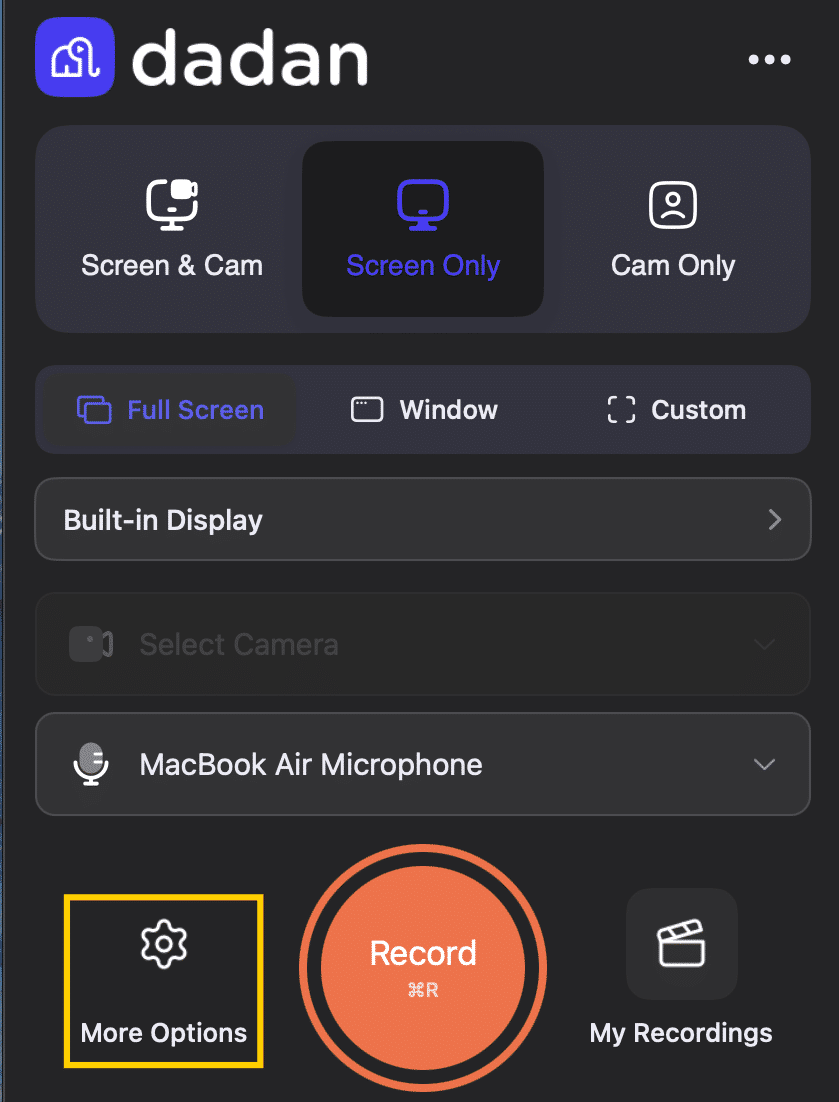
- Or click the More Options gear button in the lower left corner.
The categories are:
- General: Default save location, recording quality presets, countdowns, Do Not Disturb integration, updates, and app launch preferences
- Devices: Camera, microphone selection, noise suppression, volume controls
- Camera Bubble: Floating webcam overlay appearance, size, position, snap behavior, background effects
- Cursor & Clicks: Highlight styles, colors, click animations
- Focus & Zoom: Temporary cursor-follow zoom during recording
- Sharing: Post-recording share bubble, auto-copy link, quick integrations
- Permissions: MacOS permission status and troubleshooting
- Shortcuts: Global hotkeys for start/stop, focus mode, annotations
Note: Use the sidebar to jump between sections and tailor dadan settings exactly to your workflow.
General #
General settings include:
- Account Management: View logged-in user details.
- See the current subscription/Plan status.
- Option to Sign Out of the account.
- Max supported resolution.
- Cloud Upload: Toggle Auto-upload recordings to dadan on or off.
- Appearance: Theme selection (the three preview thumbnails):
- Auto: follows system mode.
- Light mode.
- Dark mode.
- Launch at login: Toggle whether dadan starts automatically when you log in to macOS.
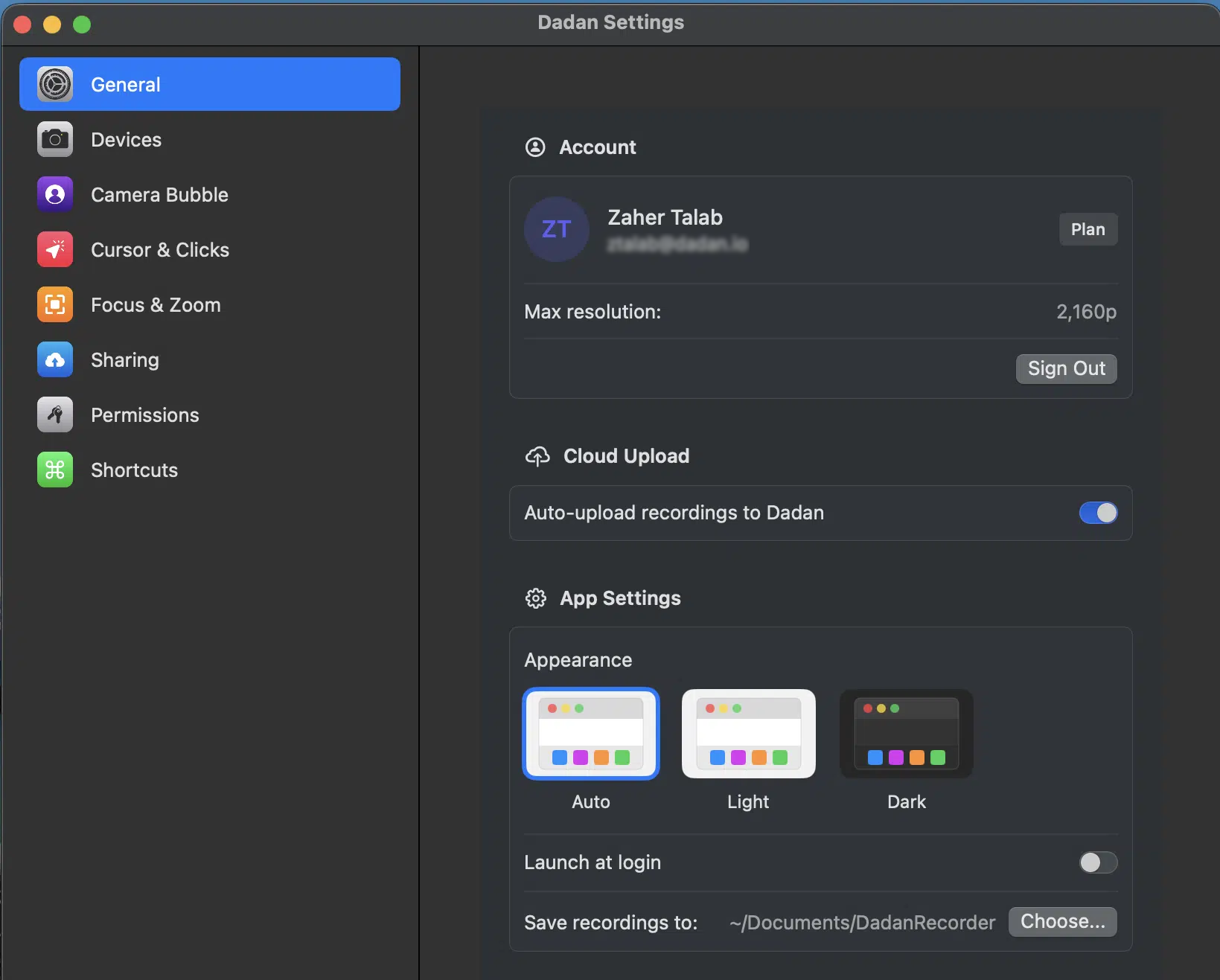
- You can choose the default folder on your Mac where your videos will be saved as a local cop.
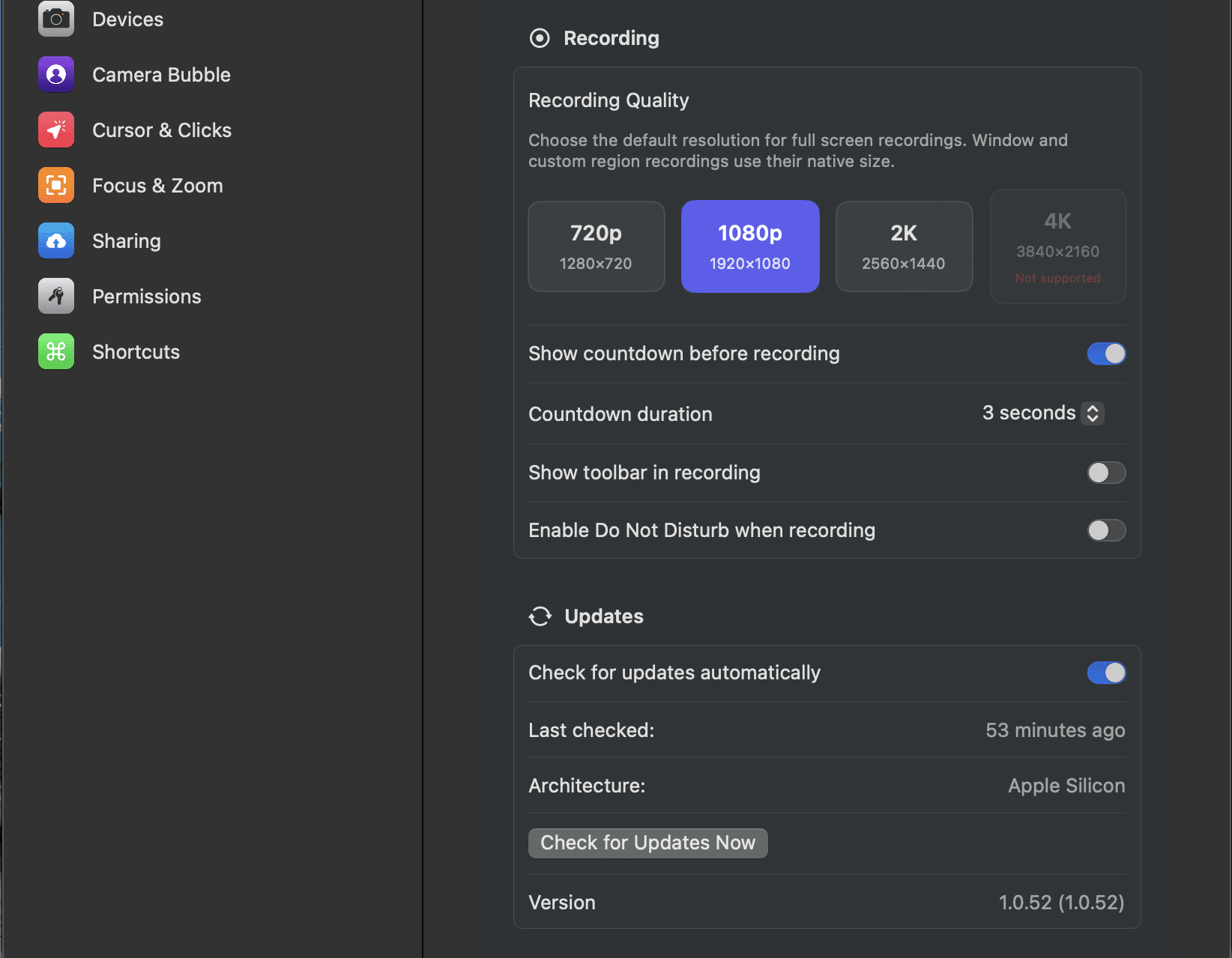
- Recording quality presets for full-screen capture: 720p, 1080p (default), 2K, 4K (If it shows ‘not supported’, it indicates the current system specifications do not meet the requirements).
- Disable/enable countdown before recording (3 seconds (default), or 5 seconds).
- Show/hide dadan toolbar during recording.
- Enable/disable Do Not Disturb option automatically when recording (requires one-time Focus mode setup in System Settings).
- Auto-check for updates:
- Enable automatic update checks
Turn on this option to allow the system to check for new updates automatically in the background. - Last checked status
View the most recent time the system checked for updates (for example, “53 minutes ago”). - Architecture information
Displays the current system architecture (for example, Apple Silicon). - “Check for Updates Now” button
Manually trigger an update check at any time. - Current version
Shows the installed application version (for example, 1.0.52).
- Enable automatic update checks
Devices #
Device settings include:
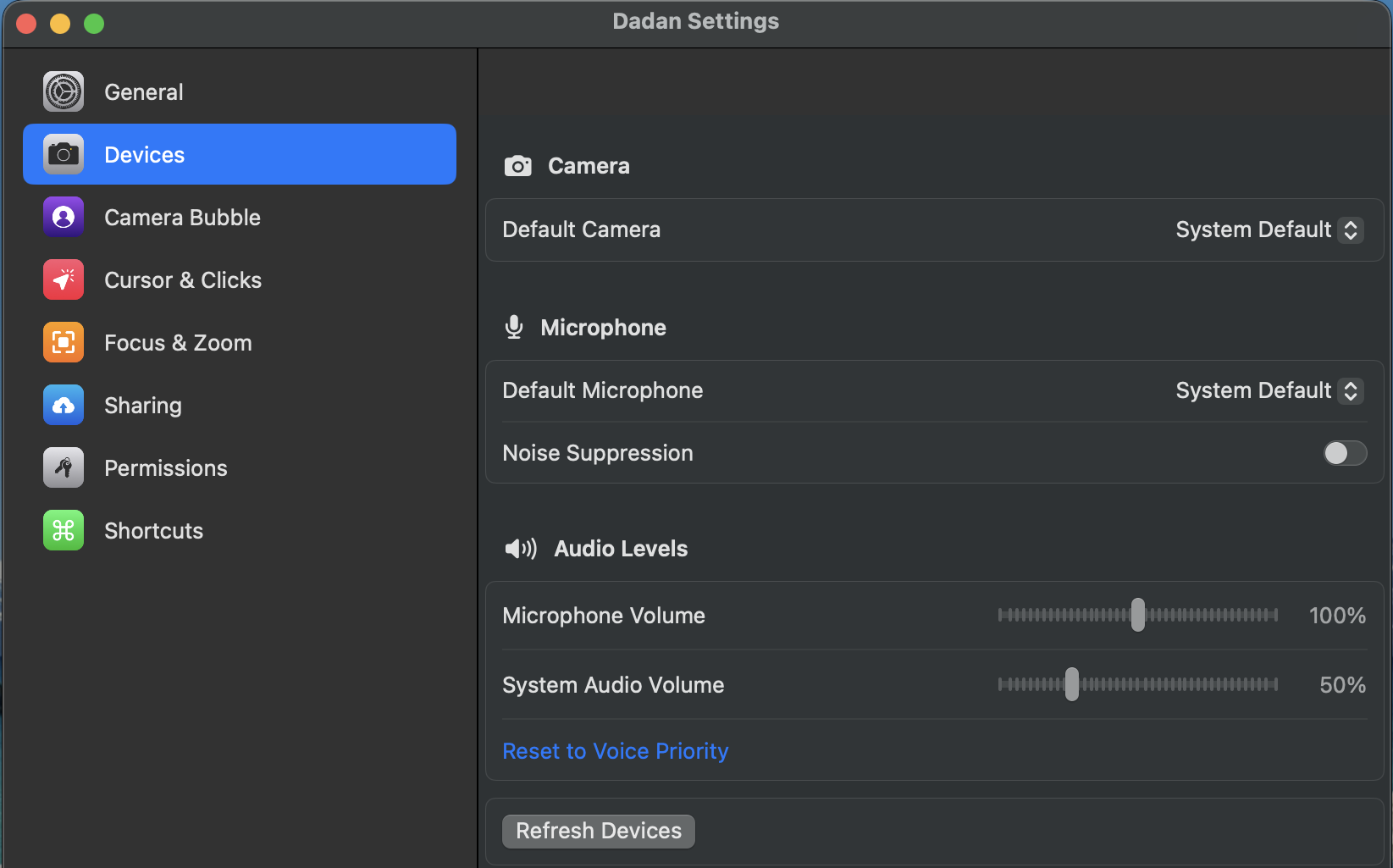
- You can choose the default camera & microphone to be used during recording.
- Noise suppression toggle (optimized for voice clarity).
- Drag the Microphone Volume slider to control voice level and the System Audio Volume slider to balance computer sounds.
- Optimize settings for clear speech using Reset to Voice Priority to prioritize the microphone over system audio.
- Refresh Devices reloads the list of cameras, microphones, and audio inputs to detect changes or fix detection issues.
Camera Bubble (PiP webcam overlay) #
Customize the webcam overlay:
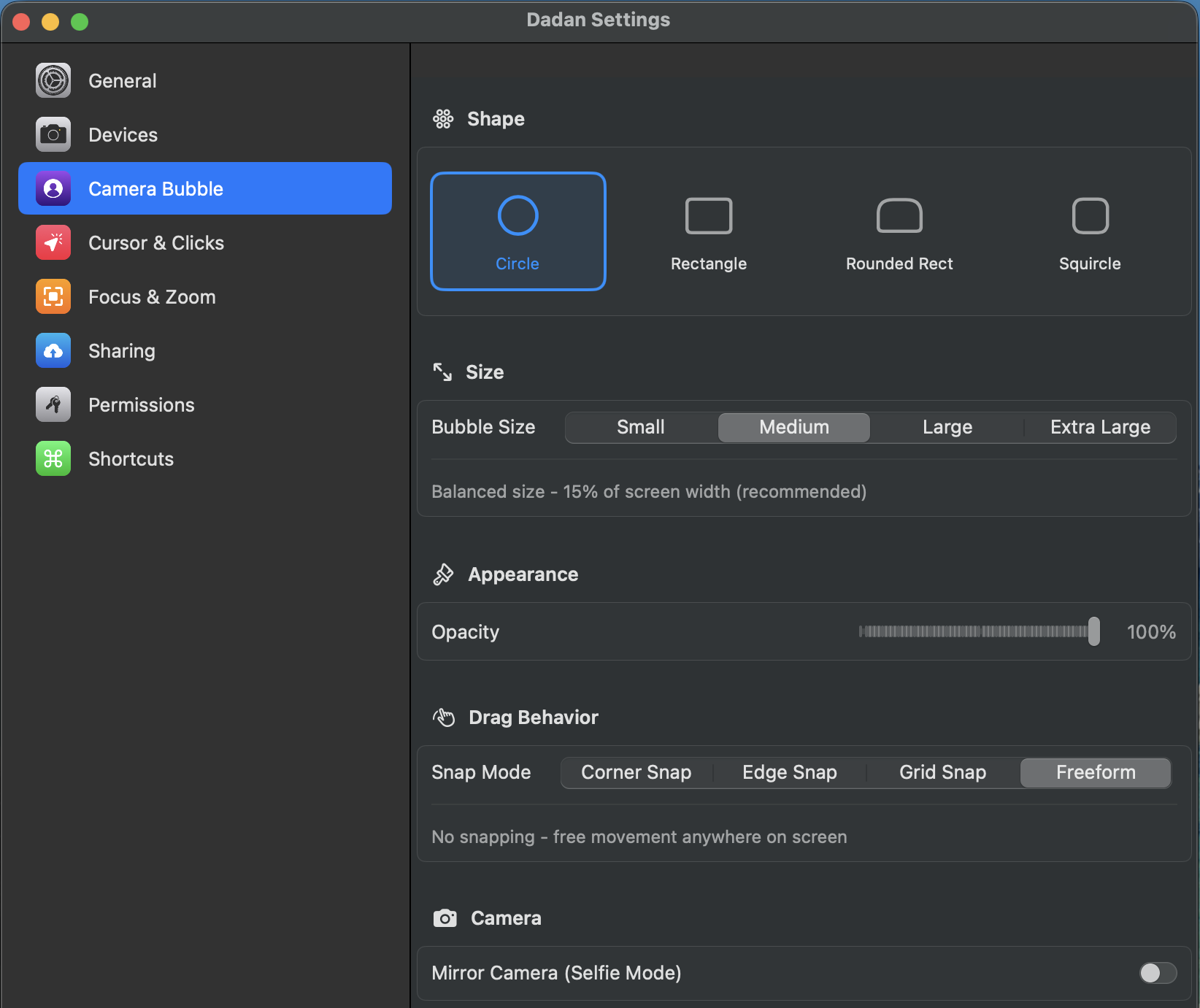
- Shape: Circle (default), Rectangle, Rounded Rect, or Squircle.
- Size: Small → Extra Large (or balanced % of screen width).
- Opacity slider.
- Drag behavior: This will automatically pin your webcam overlay to the corner of your screen when you drag (default), or use Corner Snap, Edge Snap, Grid Snap, or Freeform with a margin/edge snap distance.
- Appearance: Opacity, mirror camera (selfie mode).
- Background effects: None, Blur (with intensity), Color, Gradient (several presets), Image (upload/select professional backgrounds like Office, Bookshelf, Nature, etc.).
- Position presets: Bottom Right, Top Right, Bottom Left, Top Left (save current position, recall with ⌘ 1–4).
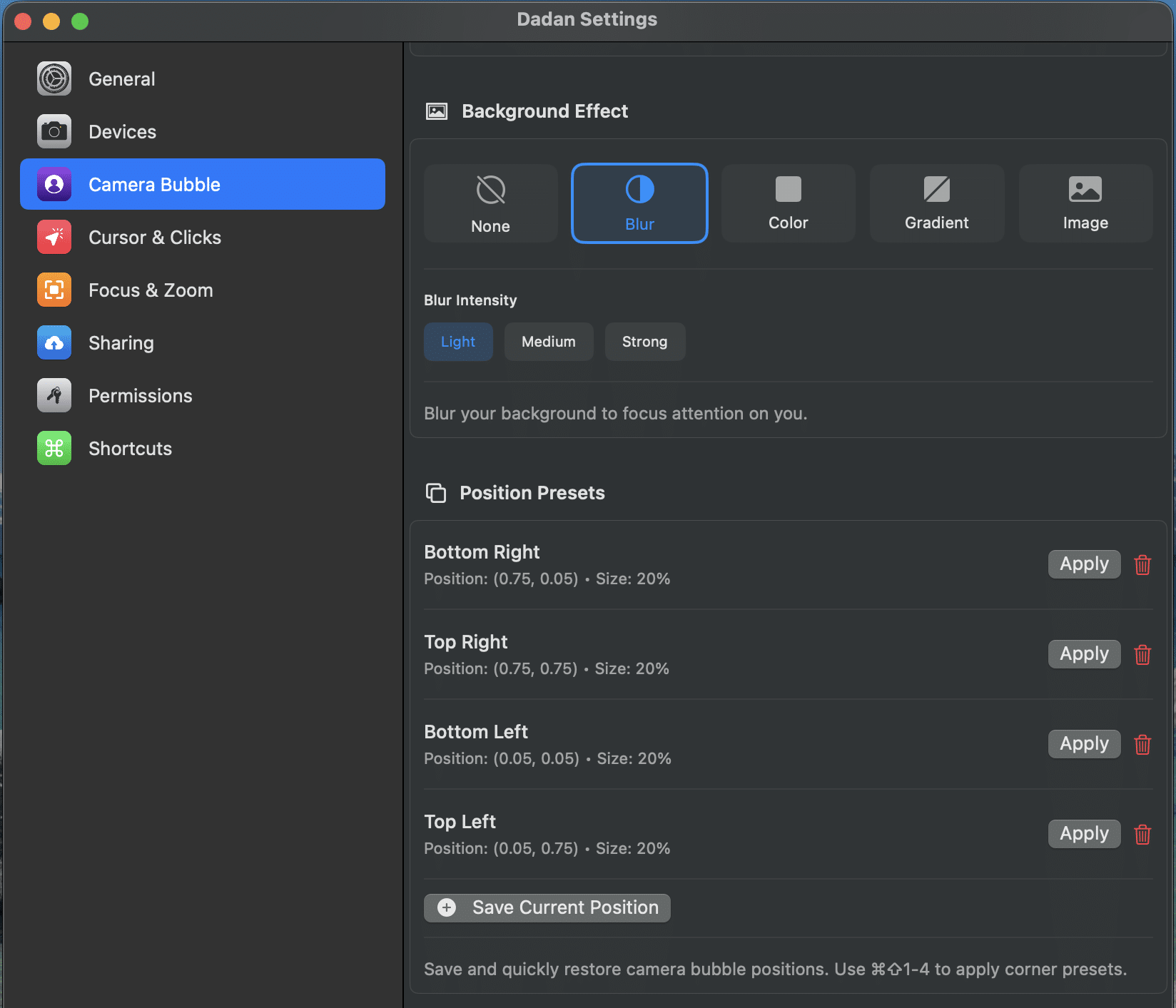
- Top Right preset: Position (0.75, 0.75), Size 20%, with Apply / Delete buttons.
- Bottom Left preset: Position (0.05, 0.05), Size 20%, with Apply / Delete buttons.
- Top Left preset: Position (0.05, 0.75), Size 20%, with Apply / Delete buttons.
- Save Current Position: Button to capture and store your current bubble location.
- Quick recall shortcuts: Use ⌘ 1–4 to apply corner presets instantly.
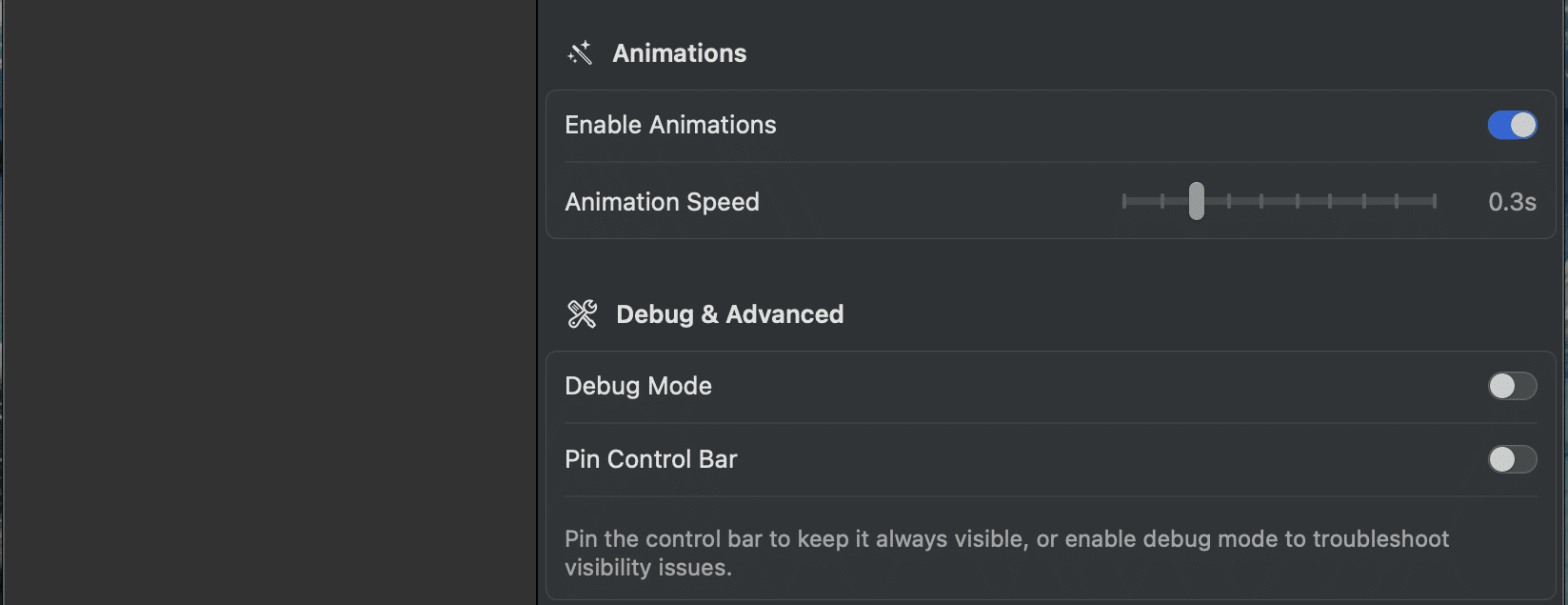
- Enable Animations: Toggle to turn bubble movement animations on/off (currently on).
- Animation Speed: Slider to adjust animation duration (default 0.3s).
- Debug Mode: Toggle for troubleshooting (shows hover areas, bounds, logs; currently off).
- Pin Control Bar: Toggle to keep the recording toolbar always visible (currently off).
Cursor & Clicks #
Cursor & Clicks settings include:
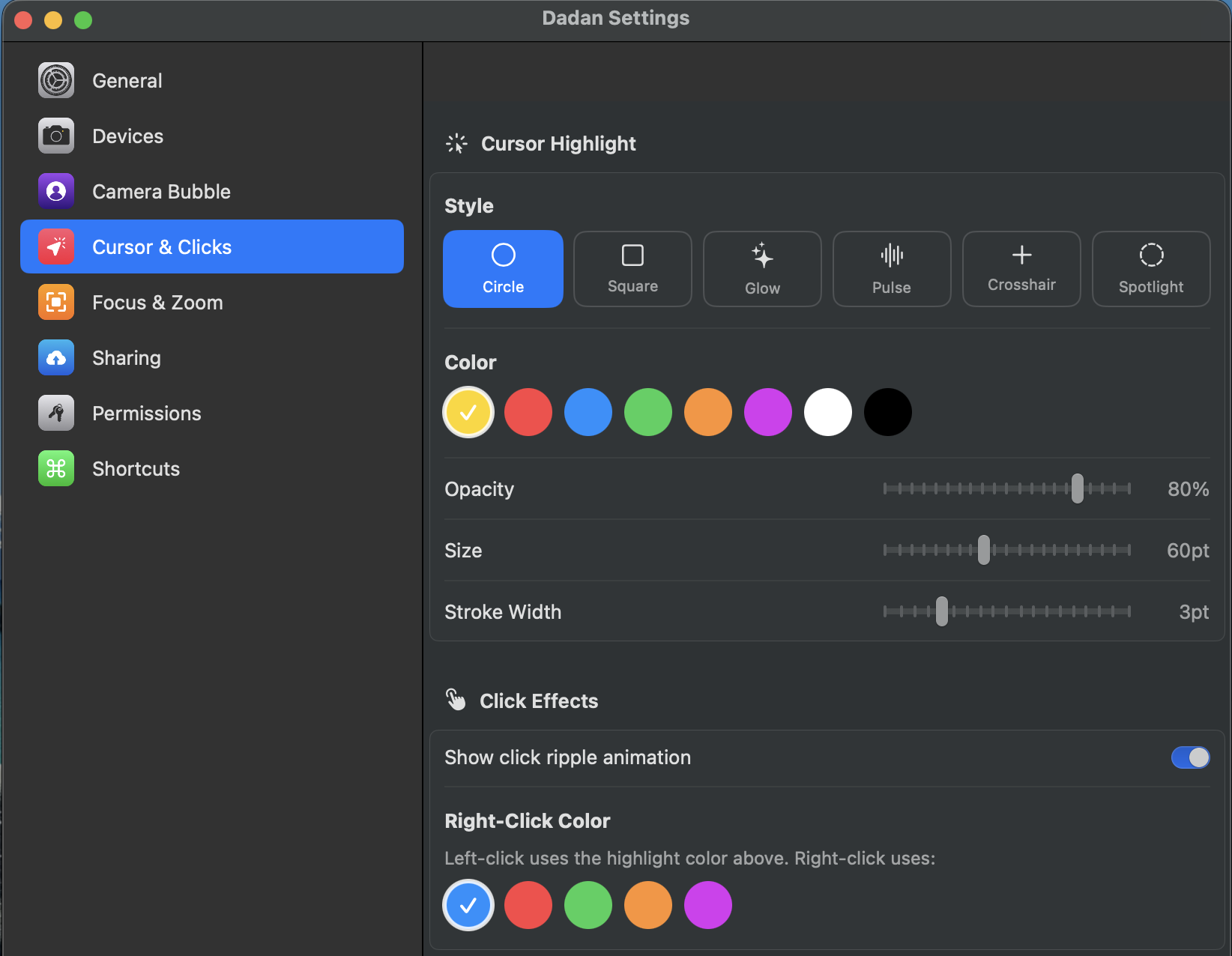
- Cursor highlights styles: Customize how the cursor highlight appears in annotation mode. Circle, Square, Glow, Pulse, Crosshair, Spotlight.
- Color picker + opacity/size/stroke width: Select the color, opacity level, size of your annotations, and stroke width.
- Toggle click effects: Enable or disable the ripple animation that visually pulses outward from the cursor each time you click during recording.
- Set separate right-click color: Choose a distinct highlight color for right-clicks (different from the left-click cursor highlight) to make secondary actions stand out clearly.
Focus & Zoom #
The Focus & Zoom section lets you customize Focus Mode, a feature that automatically zooms in on your cursor area during recordings to keep viewer attention on what you’re clicking or highlighting. Ideal for tutorials, demos, or detailed walkthroughs.
Focus & Zoom settings include:
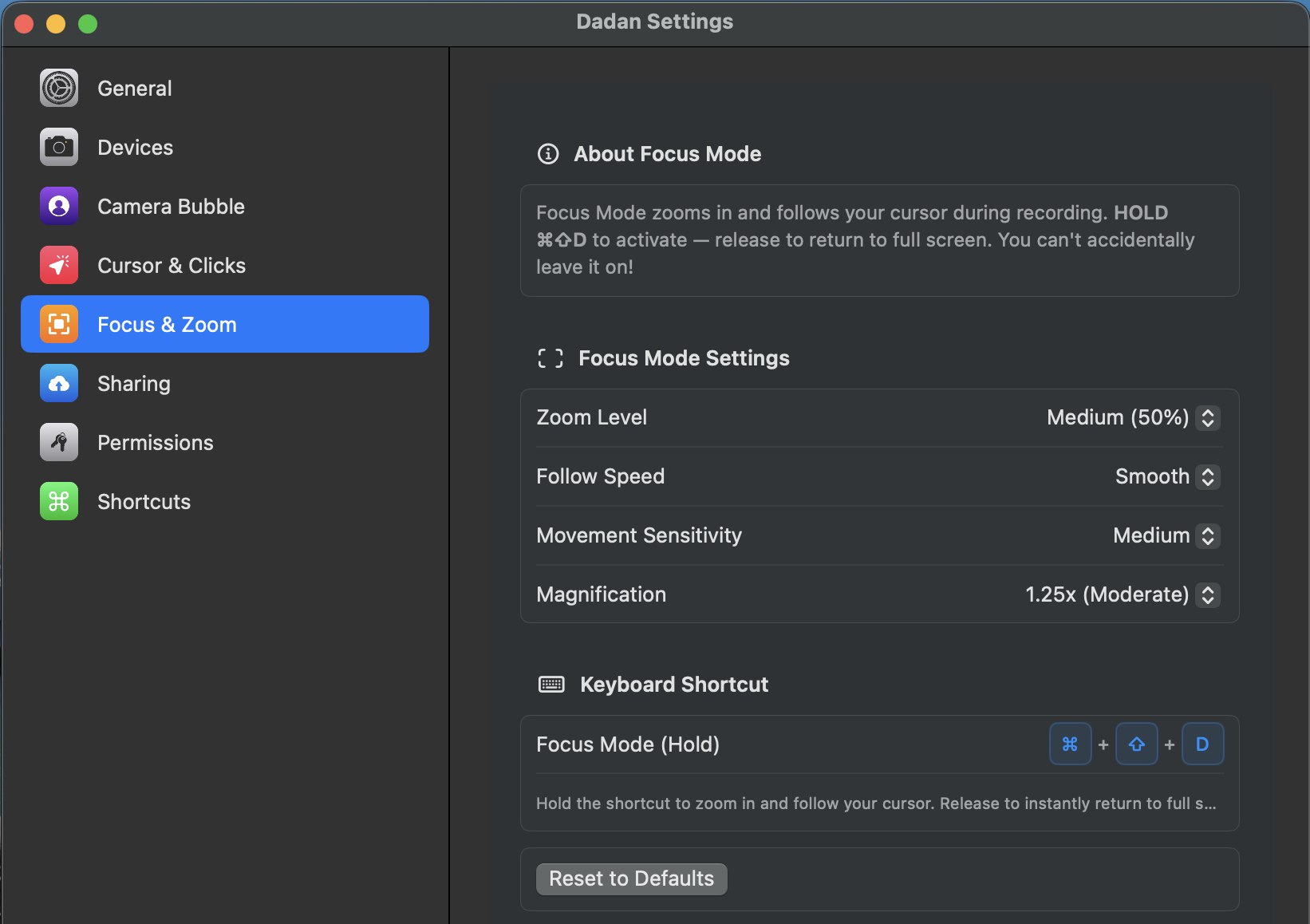
- About Focus Mode: Hold the shortcut ⌘ + ⇧ + D (Command + Shift + D) to activate Focus Mode, which zooms in and follows your cursor smoothly. Release the keys to instantly return to full screen. Designed to prevent accidental activation (you must hold it).
- Focus Mode settings:
- Zoom Level: Choose from options like Medium (50%) to control how much the screen enlarges when active.
- Follow Speed: Set to Smooth (or other speeds) for natural cursor tracking without jitter.
- Movement Sensitivity: Medium (adjustable) determines how responsively the zoom follows mouse movements.
- Magnification: Default 1.25x (Moderate), with options to increase/decrease zoom intensity.
- Keyboard Shortcut: Customizable hold combo (shown as ⌘ + ⇧ + D); hold to zoom/follow, release to exit.
- Reset to Defaults button: Quickly revert all Focus & Zoom settings to original values.
Sharing #
Sharing settings include:
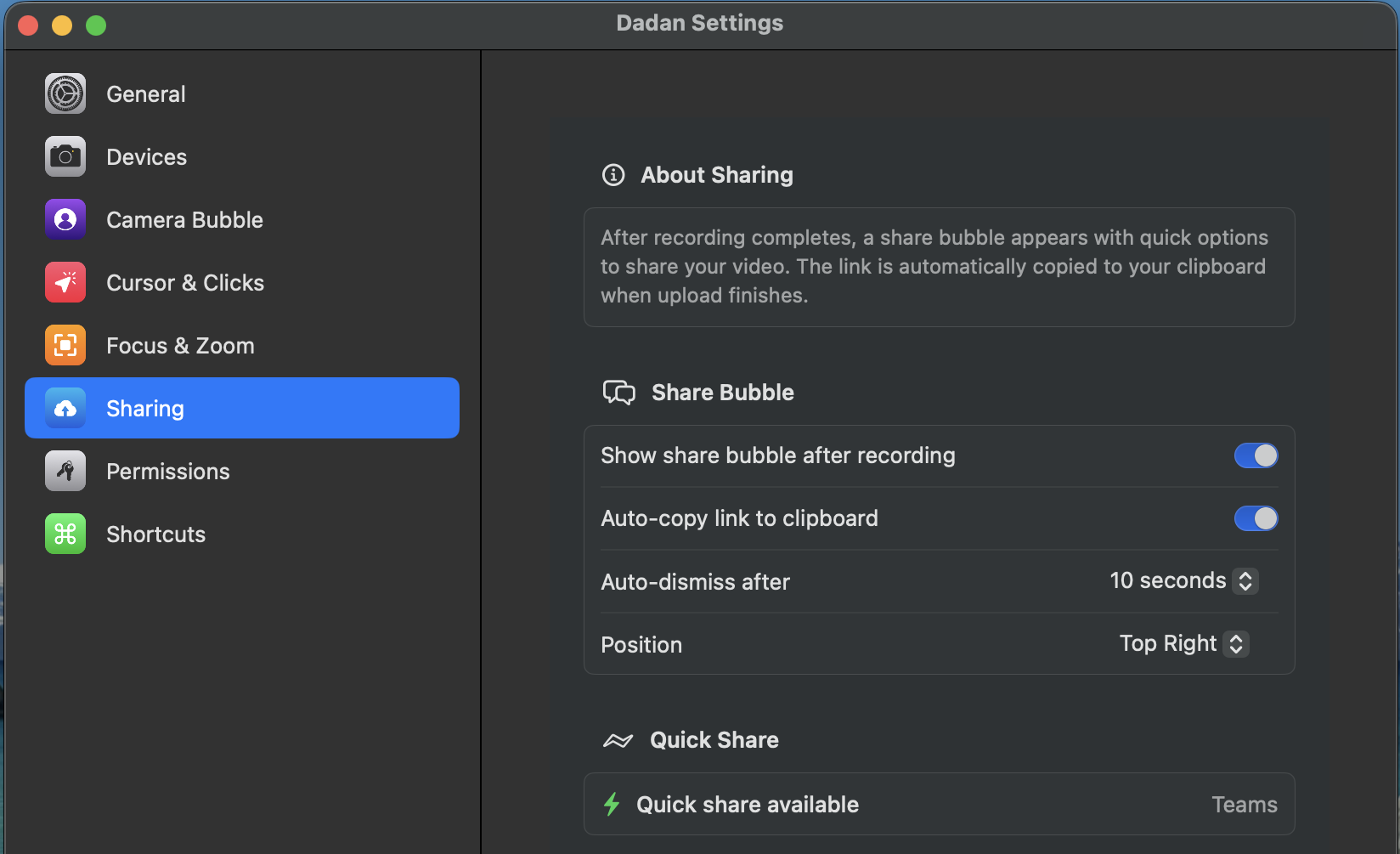
- Show share bubble after recording (toggle). This allows you to quickly edit the video’s name, copy the video link, or share it with Teams or email.
- Auto-copy link to clipboard.
- Auto-dismiss timer (10s is the default).
- Position (Top Right is the default).
- Quick share integrations (e.g., Teams).
After upload finishes → toast with link, copy button, quick share to Teams/Email, preview thumbnail of recording.
Permissions #
Shows status of required/optional macOS permissions:
- Screen Recording: required.
- Camera, Microphone, Accessibility: Needed for full features.
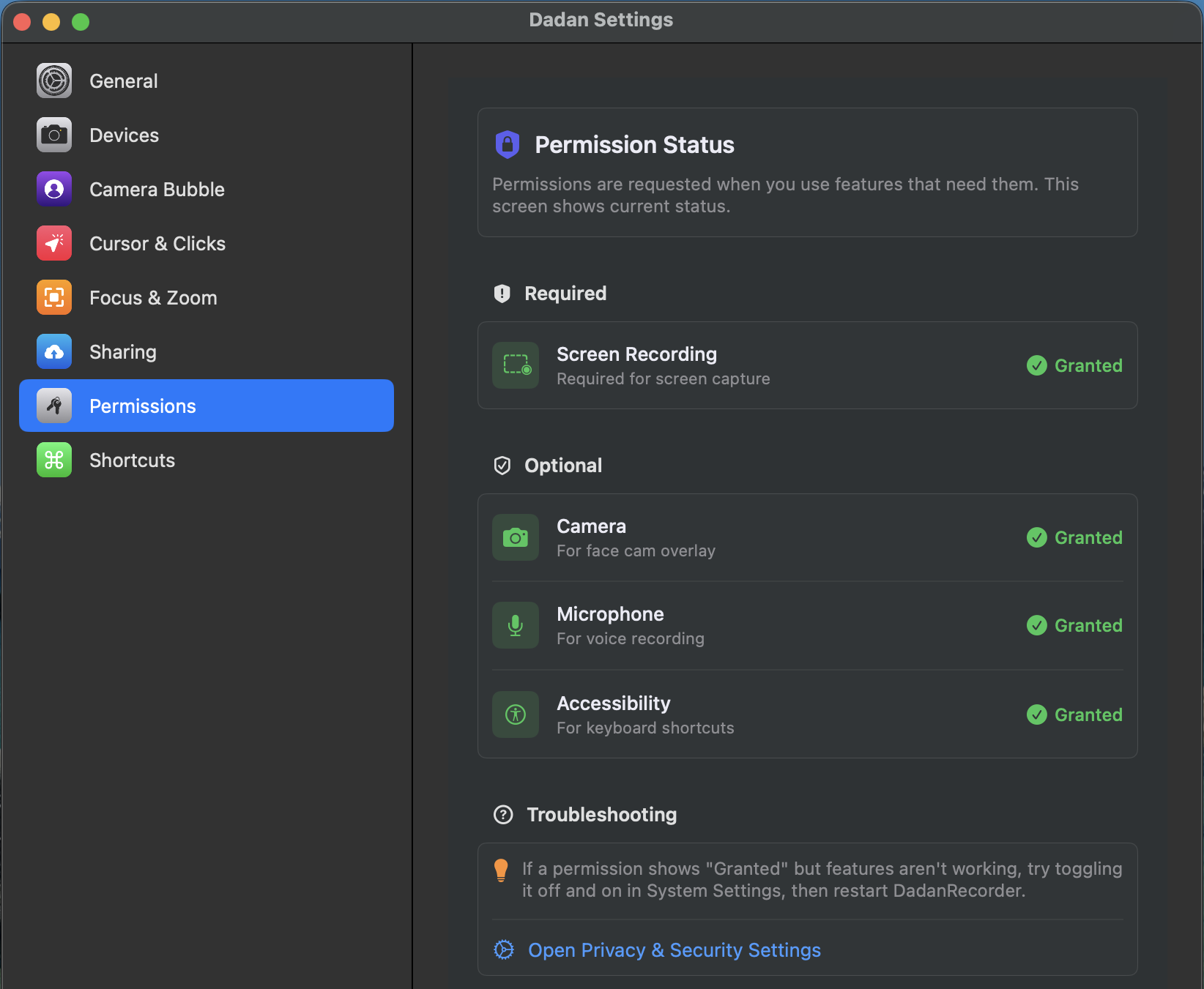
Troubleshooting tip: toggle permissions off/on in System Settings → restart app if features don’t work.
Shortcuts #
Overview of global hotkeys and annotation shortcuts (as listed here).