
Dadan is a modern, native macOS screen recording application designed for creating professional-looking screen + webcam videos with minimal friction. It emphasizes clean UI, quick sharing, built-in annotation tools, camera bubble (PiP-style overlay), cursor effects, focus/zoom modes during recording, and seamless cloud upload & sharing workflows.
It positions itself as a user-friendly tool, especially strong for tutorials, async video updates, product demos, support videos, and educational content.
Dadan interface & recording modes #
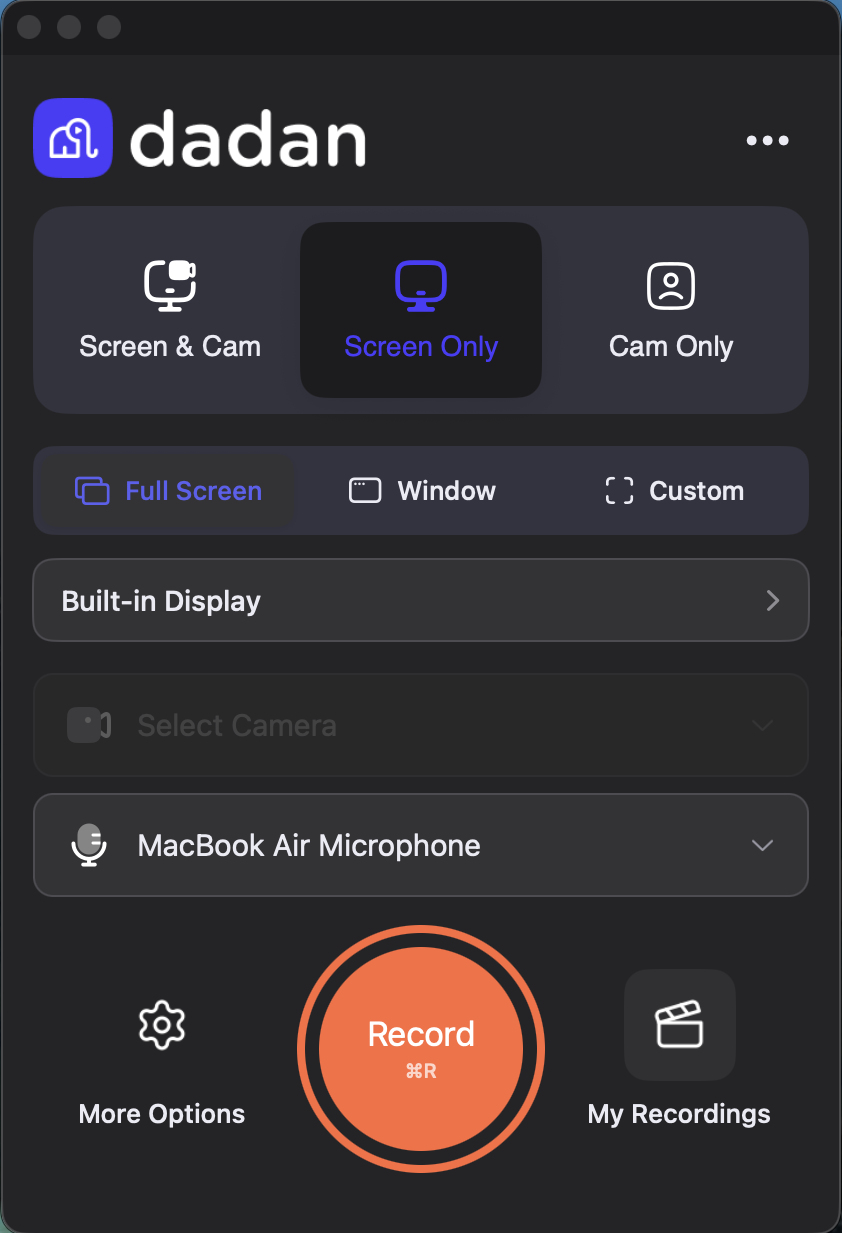
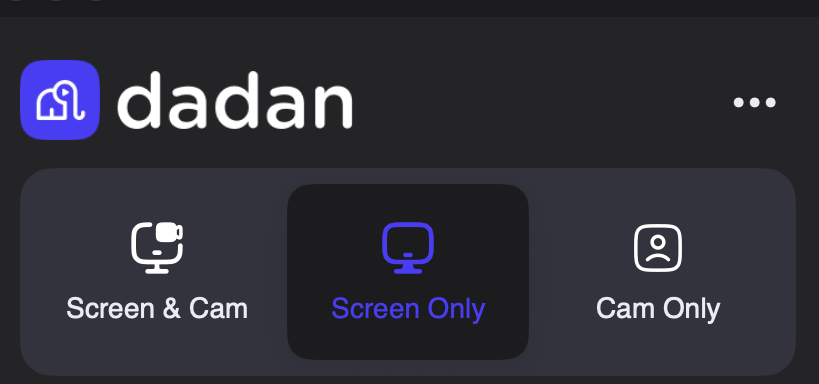
The main recording window offers three primary capture modes (selected via large toggle buttons):
- Screen & Cam: records screen + floating webcam overlay.
- Screen Only: desktop/screen capture without camera.
- Cam Only: webcam/face recording (great for talking-head style videos).
Capture area choices #
When starting a Screen & Cam or Screen Only recording, dadan offers three main ways to choose what portion of your display(s) to capture:
- Full Screen: Captures the entire selected display (or the primary screen if only one is connected).
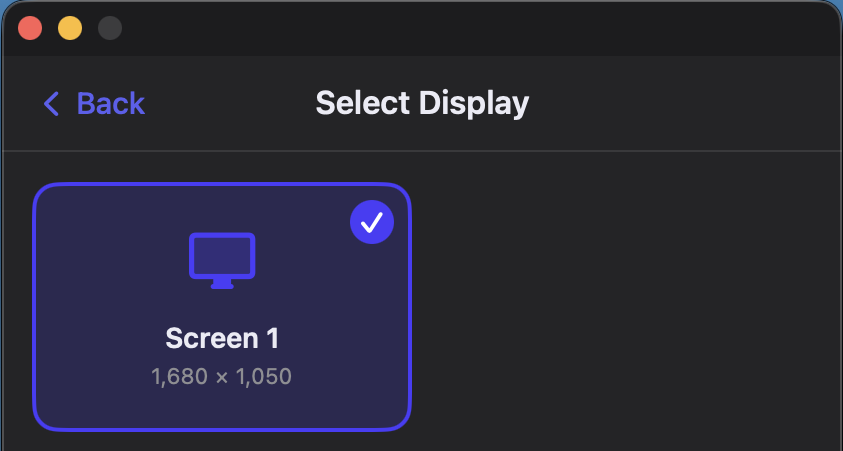
- Choose the Full Screen option to open the Select Display pop-up.
- This shows all available screens with their resolution (e.g. “Screen 1 – 1,680 × 1,050”) and a checkmark on the active/selected one.
- Useful for: recording your whole desktop, presentations, or multi-monitor workflows when you want everything visible.
- Specific Window: Lets you record only one application window.
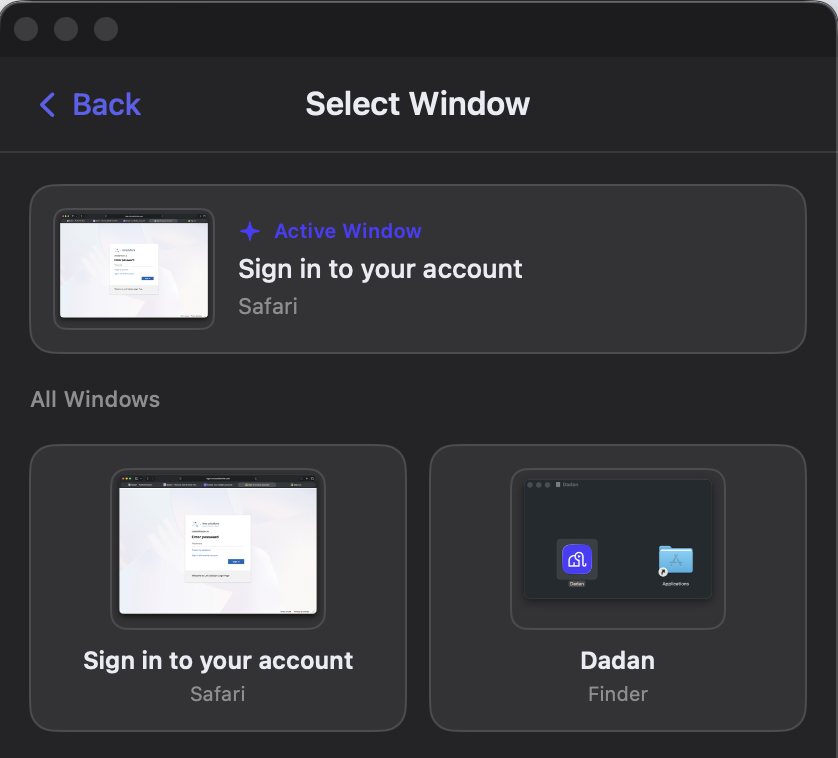
- Choose the Window option to open the Select Window overlay, which displays:
- Active Window (highlighted at the top with a purple accent and ✦ star) – the currently focused window (e.g. a Safari sign-in page).
- All Windows section below – thumbnails of every open window across apps, including title, app name, and a small preview screenshot.
- Clicking any thumbnail begins recording that exact window.
- Useful for: clean app demos, tutorial videos focused on a single program, or async updates without showing your full, messy desktop.
- Choose the Window option to open the Select Window overlay, which displays:
- Custom region: Allows free-form selection of any rectangular area on the screen.
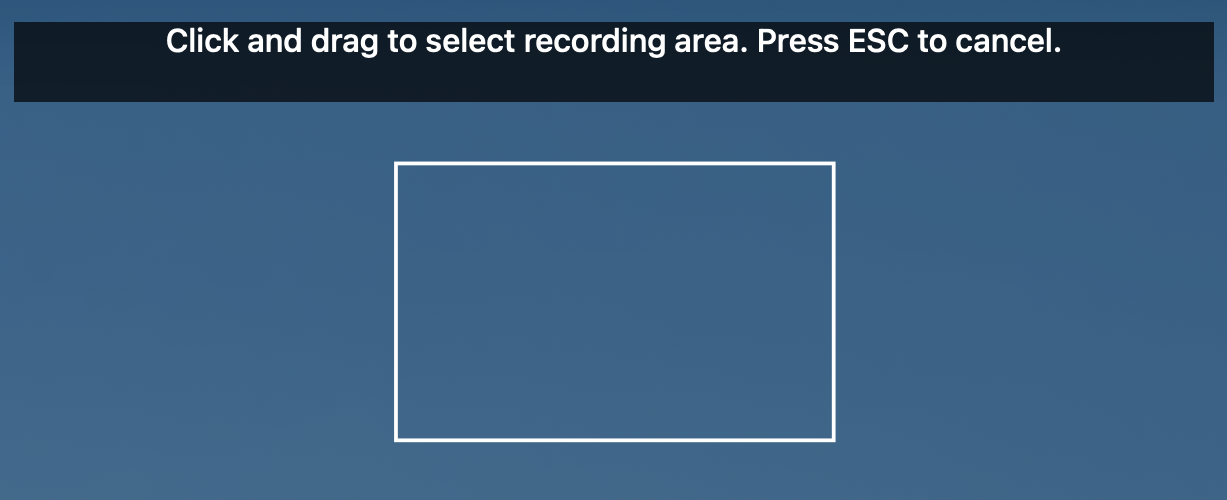
- After choosing this mode, the screen dims, and a dark overlay appears with centered instruction text: “Click and drag to select recording area. Press ESC to cancel.”
- You click and drag to draw the desired rectangle; the selected area highlights while the rest stays dimmed.
- Release to confirm?; press ESC at any time to abort and return to the recording setup screen.
- Useful for: zooming in on a specific part of an app, cropping out distractions, recording only a portion of a large window or browser tab, or creating precisely framed shots.
Additional notes visible in the flow #
- Display selection always comes first if multiple monitors are connected (even for window or custom modes, you pick which screen the window/region lives on).
- The interface is modal and non-intrusive: thumbnails are high-contrast/dark-mode friendly, active window is clearly prioritized, and custom drag uses the standard macOS-style selection overlay.
- Once the area is chosen, you proceed to camera/mic settings (if applicable) and hit Record.?
This gives users flexibility from “everything” → “one clean app” → “exactly what I want” without ever leaving the native macOS feel.
Global hotkeys & shortcuts #
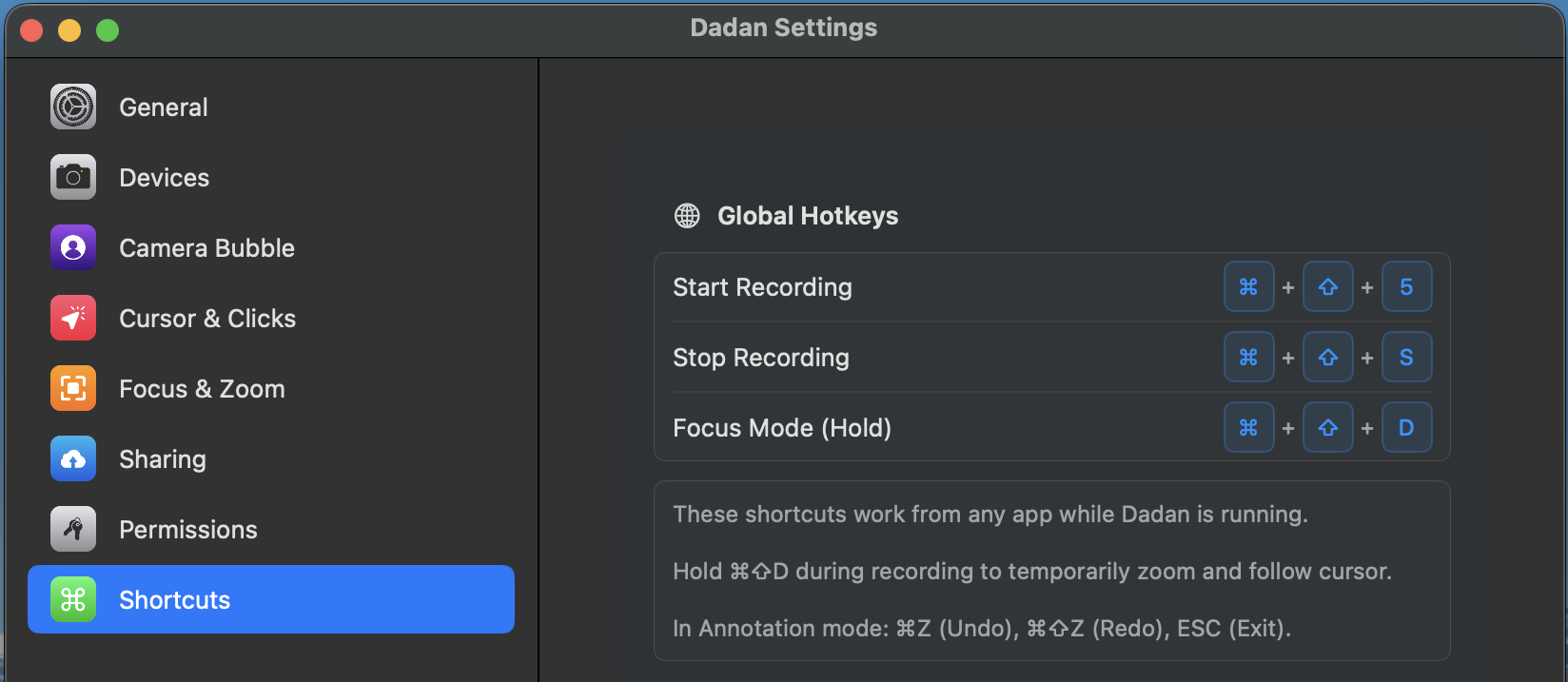
Configurable system-wide shortcuts (work while Dadan is running):
- Start Recording → ⌘ + ⇧ + 5
- Stop Recording → ⌘ + ⇧ + S
- Focus Mode (Hold) → ⌘ + ⇧ + D (temporary zoom/follow cursor during recording).
Annotation mode shortcuts:
- Undo → ⌘ + Z
- Redo → ⌘ + ⇧ + Z
- Exit → ESC
Snap record #
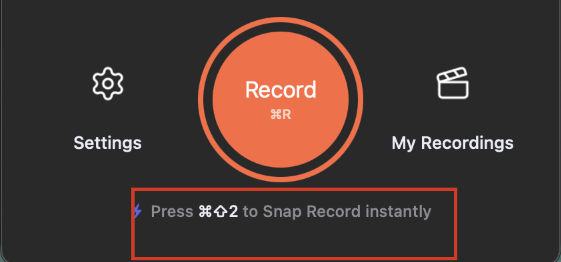
Instead of opening the app, choosing your recording mode, and then hitting Record, you can now start recording instantly with a simple keyboard shortcut:
- ⌘ + ⇧ + 2
- You need to select the recording setup to be remembered, so you’re ready to go in seconds.
Typical workflow #
- Choose recording mode (Screen & Cam / Screen Only / Cam Only).
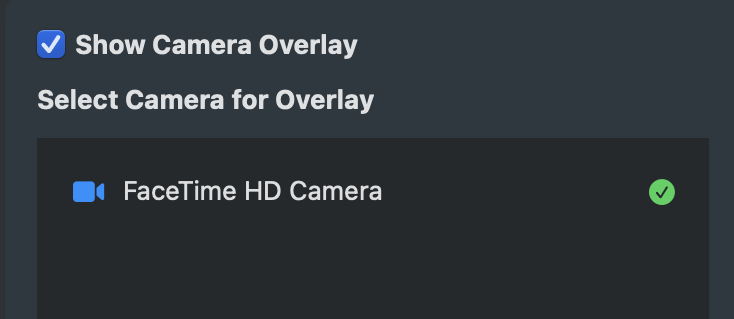
- Select area/display/camera/mic.
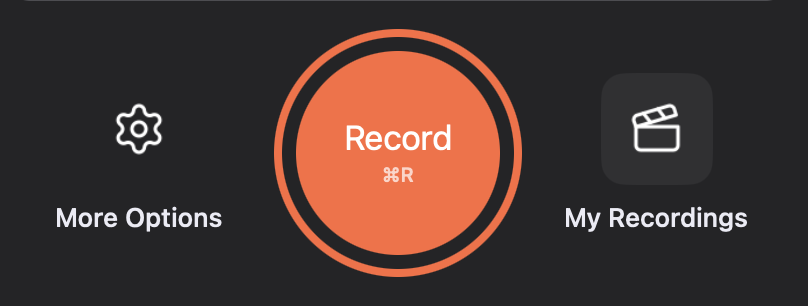
- Hit Record (or use global hotkey).
- Use annotations, hold Focus Mode zoom, and highlight the cursor.

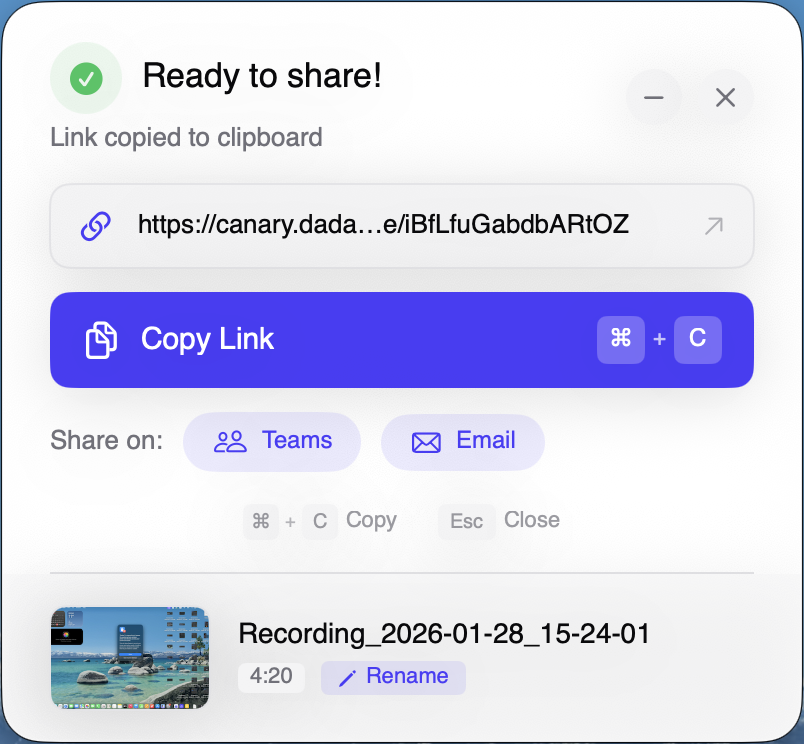
- Stop → processing → share bubble appears with link copied.
Dadan aims for a polished, modern macOS-native experience with strong emphasis on camera presentation (bubble customization + background effects), helpful recording aids (focus/zoom, cursor highlights), and frictionless sharing, making it especially attractive for async video communication, tutorials, and customer-facing recordings.


