Managing your videos efficiently is key to staying organized. The Folders feature in dadan helps you categorize your videos, making it easier to access content, separate public and private files, and keep your workspace clutter-free.
This guide will walk you through everything you need to know about folders: how to create, sort, move, rename, and delete them. You’ll also learn how to mark folders as Important, make them public, and archive them when needed.
- Note: To unlock all features, start by signing in to your dadan account here or explore our plans and subscriptions.
How to create new folders in dadan #
In this section, you will learn how to create Folders that include a Personal Library and Team Space. This feature lets you organize your videos.
To create a folder, follow the steps below:
- After logging in to your dadan account, the Home page opens by default.
- Switch to the Personal Library, a Team Space, or any other location to sort a folder.
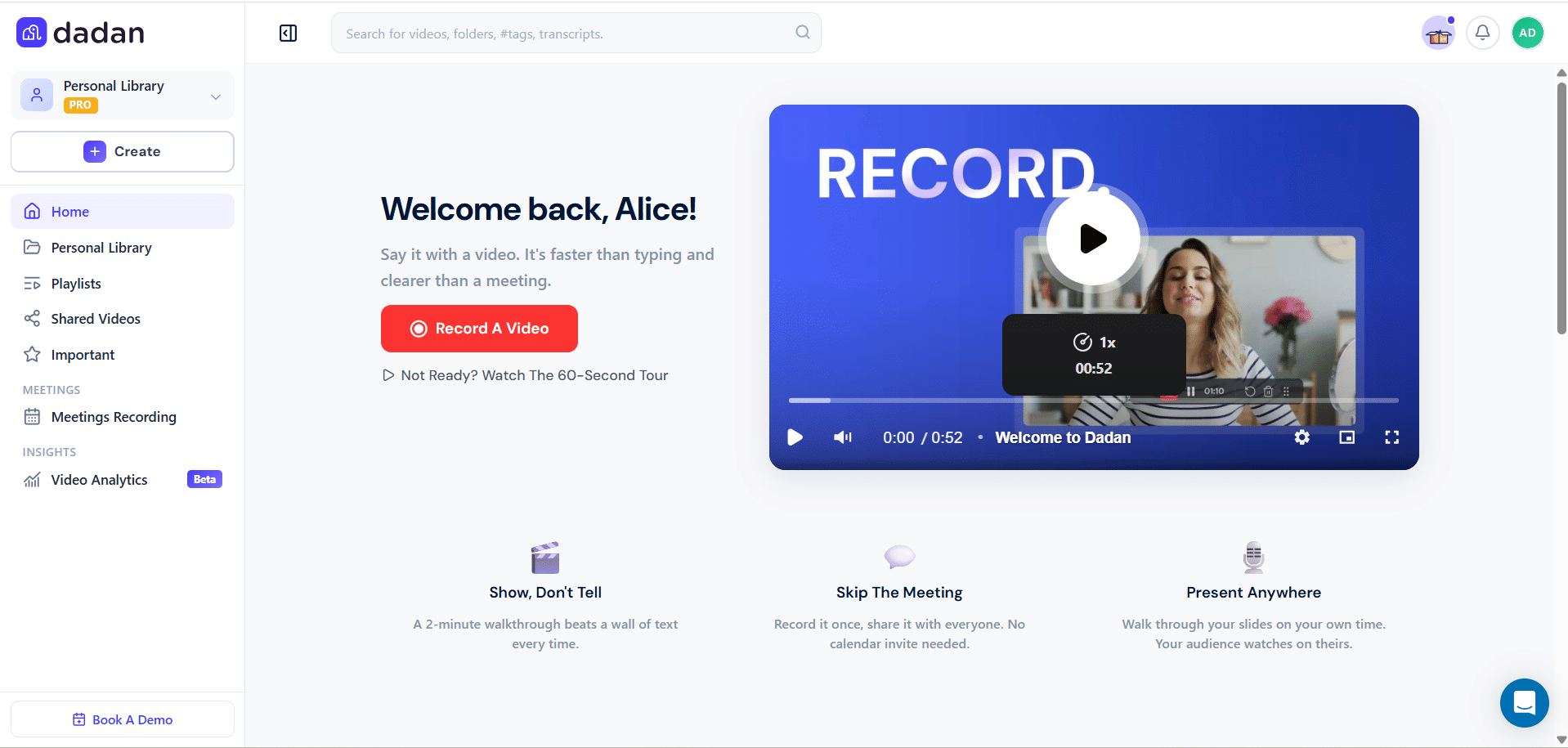
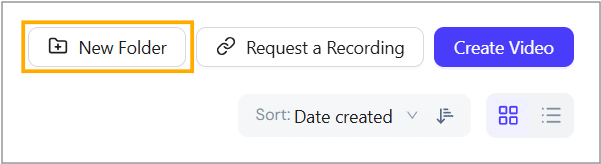
- Click the New Folder button in the upper right section of the screen.
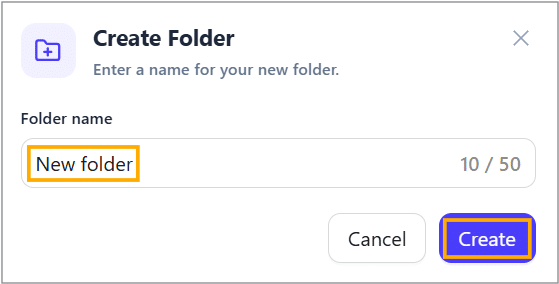
- The Create Folder box will pop up.
- Enter the new name (e.g., New folder) in the Folder name field.
- Click the Create button to continue.
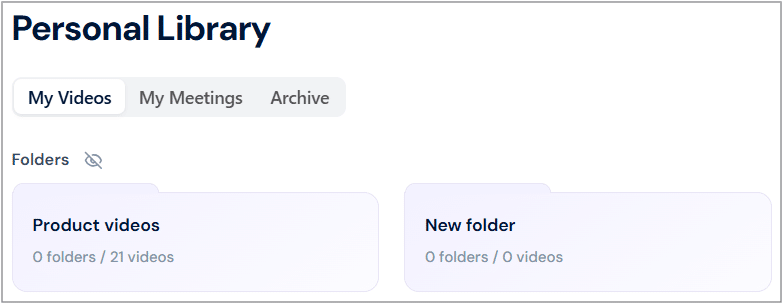
- The newly created folder will now appear in the Folders section.
How to sort your folders in dadan #
In this section, you will learn how to sort folders by name or date in ascending or descending order. This option is beneficial when you need to filter folders in your preferred manner.
- Find the Sort option.
- Click the drop-down arrow to select your preferred sorting option: Date created or Name.
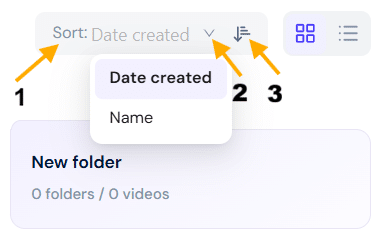
- To sort the folders in ascending/descending order, click the ascending/descending button.
How to move folders in dadan #
In this section, you will learn how to move a Folder from the Personal Library to Team Space and from one folder to another.
- Go to the Personal Library or Team Space, where the folder is saved.
- Find the folder you want to move.
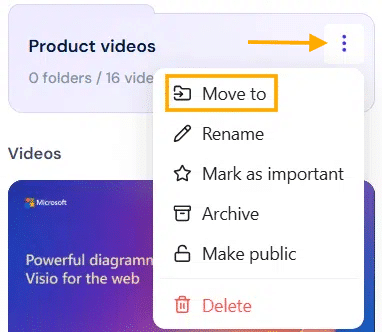
- Click the three dots [⋮] button.
- A dropdown menu will expand, click Move to.
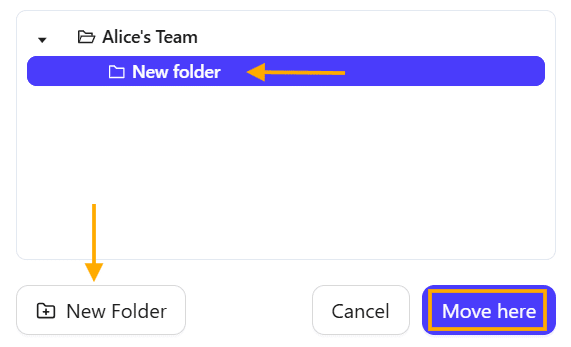
- In the Move to folder pop-up, select the new Location. You can choose from the Personal Library or a specific Team space.
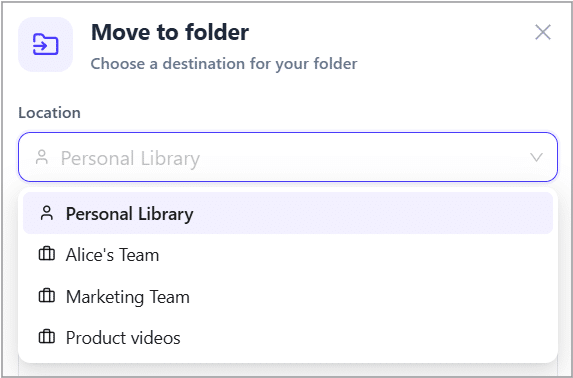
- In the Location box, select the desired designation folder.
- You can click the New Folder button to create a new folder during the move (optional).
- Click the Move here button to complete the action.
How to rename folders in dadan #
In this section, you will learn how to rename a folder:
- Go to the Personal Library or Team Space where the folder was created.
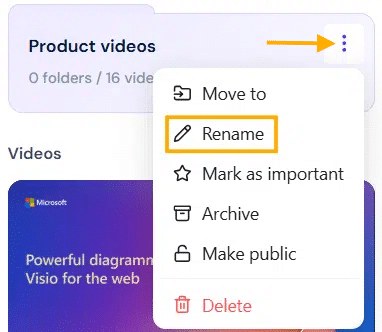
- Find the Folder you want to rename and click the three dots [⋮] button.
- A dropdown menu will expand; click Rename.
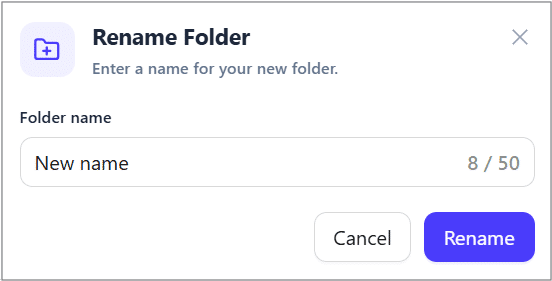
- The Rename Folder pop-up will open.
- Enter the desired folder name in the Folder name field.
- Click the Rename button to apply the changes.
How to mark folders as important in dadan #
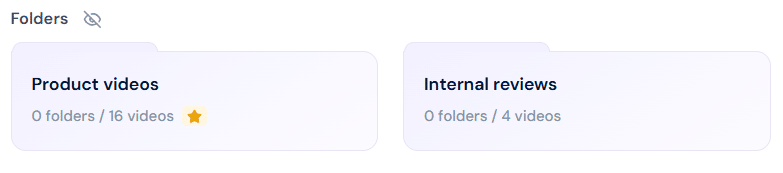
In this section, you will learn how to mark folders as important. After marking a folder as important, a star icon will appear on the folder thumbnail. Folders marked as important will also appear in the Important section, allowing you to access starred folders.
To mark folders as important:
- Go to the Personal Library or Team Space where the folder was created.
- Find the folder you want to mark as important and click the three dots [⋮] button.
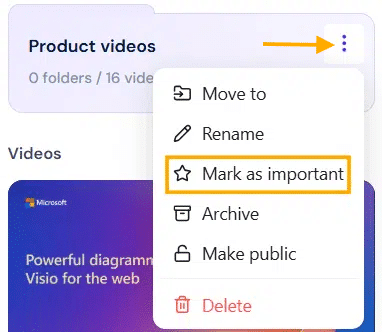
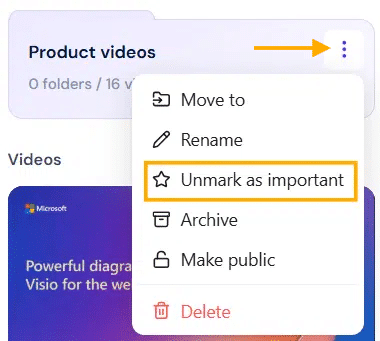
- A dropdown menu will expand, click Mark as important.
- A star icon will appear on the selected folder.
- To unmark the selected folder as important, use the steps above and select the Unmark as important option.
- This option is available only for folders that are already marked as important.
How to delete folders in dadan #
In this section, you will learn how to delete folders. Deleting folders and their contents will free up your storage and enable you to add another folder or videos.
- Go to the Personal Library or Team Space where the folder was created.
- Find the folder you want to delete and click the three dots [⋮] button.
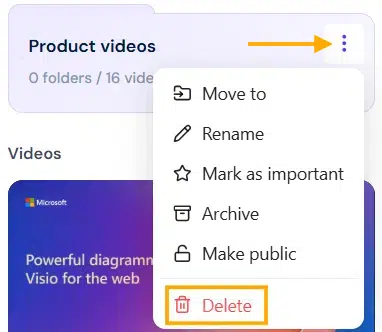
- A dropdown menu will expand, click Delete.
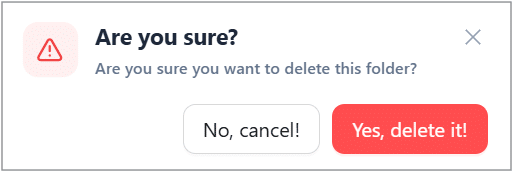
- A confirmation box will pop up.
- Click the Yes, delete it! button to continue deleting the selected folder.
How to archive folders in dadan #
In this section, you will learn how to archive existing folders. This feature allows you to keep folders and organize them into the Archive menu, rather than deleting them. Archived folders will not appear in the personal library or any team spaces.
- Go to the Personal Library or Team Space where the folder was created.
- Find the folder you want to archive and click the three dots [⋮] button.
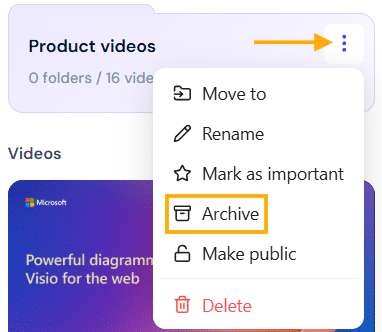
- A dropdown menu will expand, click Archive.
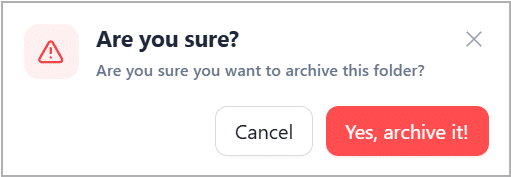
- A confirmation box will appear.
- Click the Yes, archive it! button to continue sending the folder to the Archive menu.
How to restore archived folders in dadan #
In this section, you will learn how to restore archived folders. Archived folders are no longer visible from their original file location. However, you can access these folders in the Archive menu.
To make the archived folders accessible again, you can restore them using this method:
- Find and click the Archive menu.
- In the folders section, find the folder you want to restore and click the three dots [⋮] menu.
- A dropdown menu will expand, click Restore.

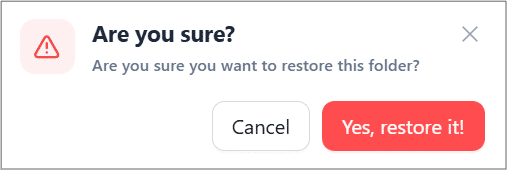
- A confirmation box will appear; click Yes, restore it! button to restore it.
How to delete archived folders permanently in dadan #
In this section, you will learn how to delete archived folders permanently. When folders are moved to the archive, they will no longer be visible from their original location. These folders are kept in the Archive menu, where you can permanently access, restore, or delete them.
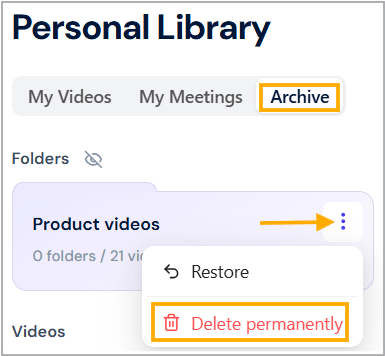
- Find and click the Archive menu.
- In the Folders section, find the folder you want to delete and click the three dots [⋮] menu.
- A dropdown menu will expand; click Delete permanently.
- A confirmation box will appear; click Yes, delete it! button.
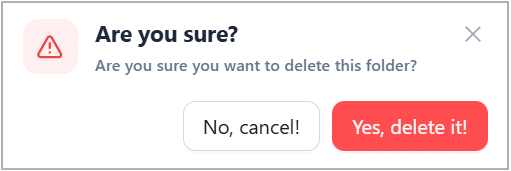
Note: Permanently deleted folders cannot be accessed or restored.
How to make folders public in dadan #
Need to share a collection of videos with others in your dadan public profile page? In this section, you will learn how to make folders public.
- Go to the Personal Library or Team Space where the folder was created.
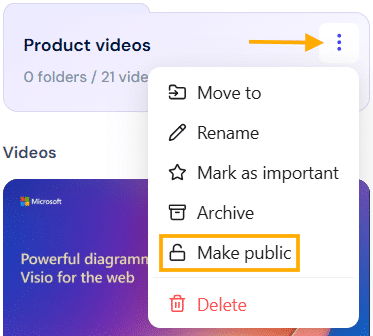
- Find the folder you want to make public and click the three dots [⋮] button.
- A dropdown menu will expand. Click Make public.
- Now, the folder will be available to the public.
- Your folder will be viewed in your public profile:

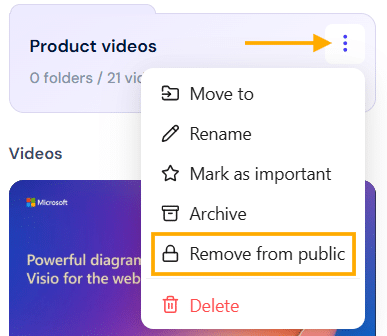
- To remove the folder from public, follow the steps above, and select the Remove from public option.
- This option is only available if the folders are already public.