
Understanding your video’s performance and activity is essential for managing your content effectively. In this guide, you’ll learn how to access the Video Details panel, where you can find key information such as the video’s creation date, duration, views, shared links, and user activity.
Additionally, this guide will walk you through:
- Copying shared links to distribute your video efficiently.
- Stop sharing links to manage access and privacy.
Follow the steps below to explore the video details and take control of your shared content.
How to view video details #
To view your video details, follow these steps:
- Go to the Personal Library or Team Space where the video was uploaded.
- Find the video you want to view its details.
- Click the view (i) button to open the Video details & activity panel.
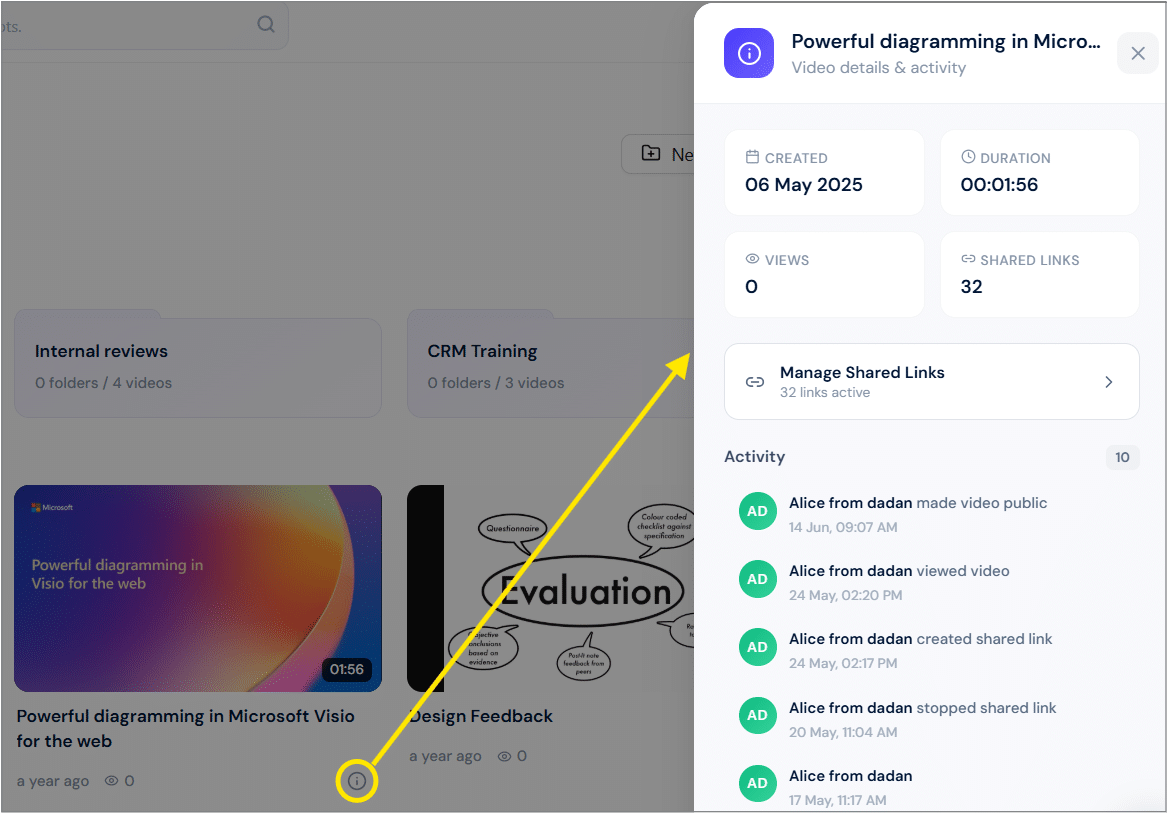
- In this panel, you can view the following:
- Creation date
- Duration
- Number of views
- Shared link counter
- Activity
Copy and stop shared links #
This section will teach you how to copy and stop shared links from the details panel. Here are the detailed step-by-step instructions for copying shared links:
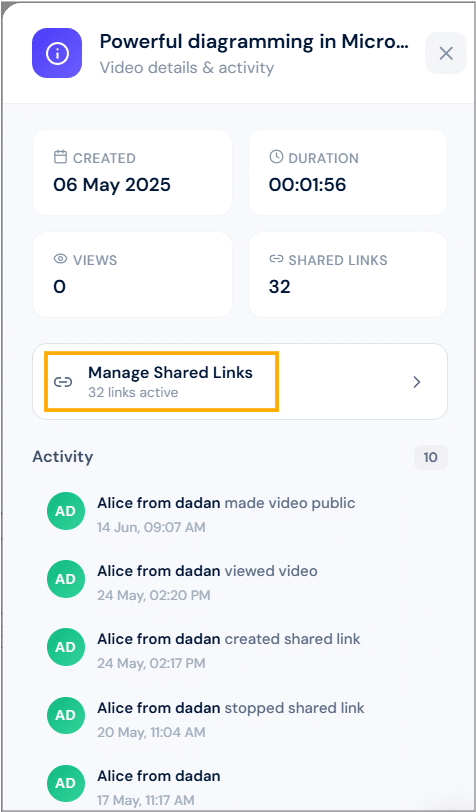
- From the Video details & activity panel, click the Manage Shared Links option.
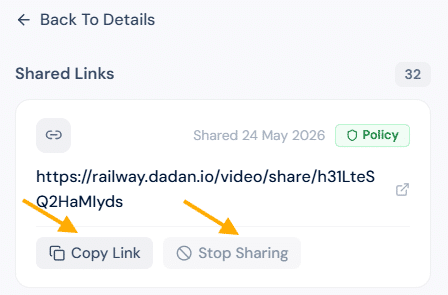
- In the Shared Links list, find the link you want to copy and click Copy Link.
- To stop sharing this link, click Stop Sharing.
Notes:
- After copying, the link is ready to paste into any messaging app, email, or social media platform.
- Disabled links will no longer appear under the shared links list.


