
The Template Library is a central feature in dadan Video Studio that allows users to browse, preview, and start professional video projects quickly using ready-made templates. Instead of building everything from scratch, users can select a professionally designed template with predefined scenes, scripts, durations, and structures, then customize it as needed.
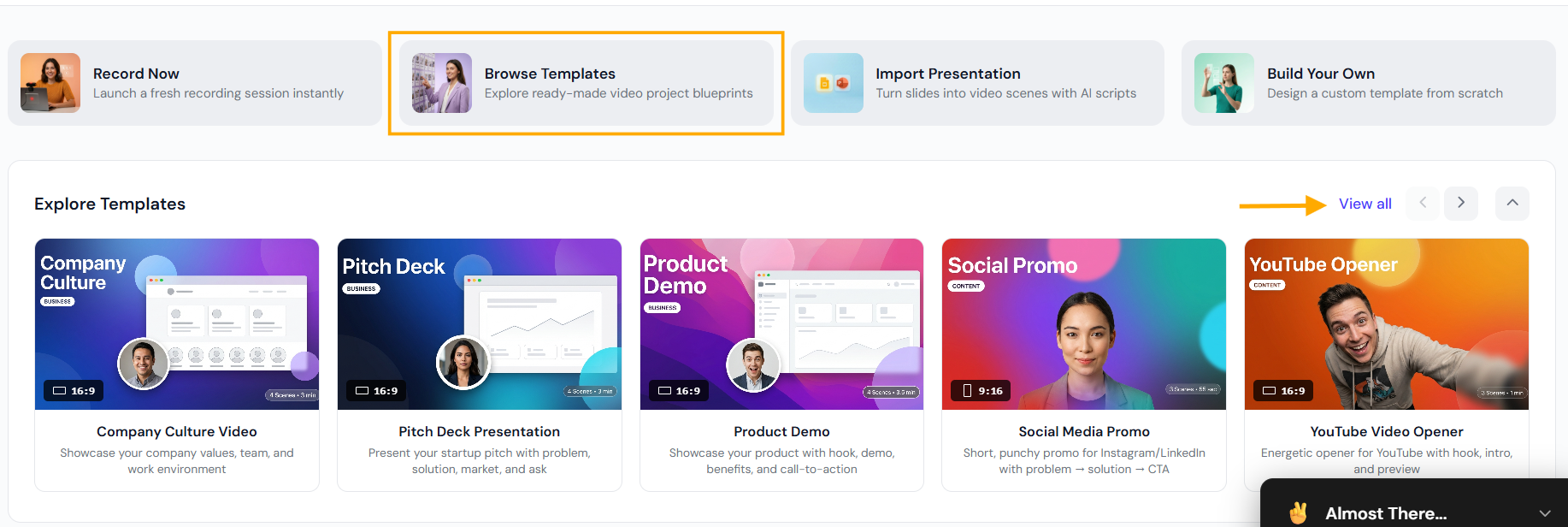
The Template Library is accessible in multiple ways:
- Clicking Browse Templates on the main Video Studio dashboard.
- Using the View all button in the Explore Templates section.
Key options in the Template Library #
Open the full Template Library modal, which includes category filters.
- All Templates.
- Education.
- Business.
- Content Creation.
- Developer.
- Interview.
You can choose from these actions:
- Start Blank:
- Creates an empty project with one default scene for complete creative freedom.
- Help Me Choose:
- Guided wizard that asks about platform (YouTube, LinkedIn, Instagram, TikTok, etc.), audience, goal, and length, then recommends the best templates.
- Create Custom:
- Build your own template.
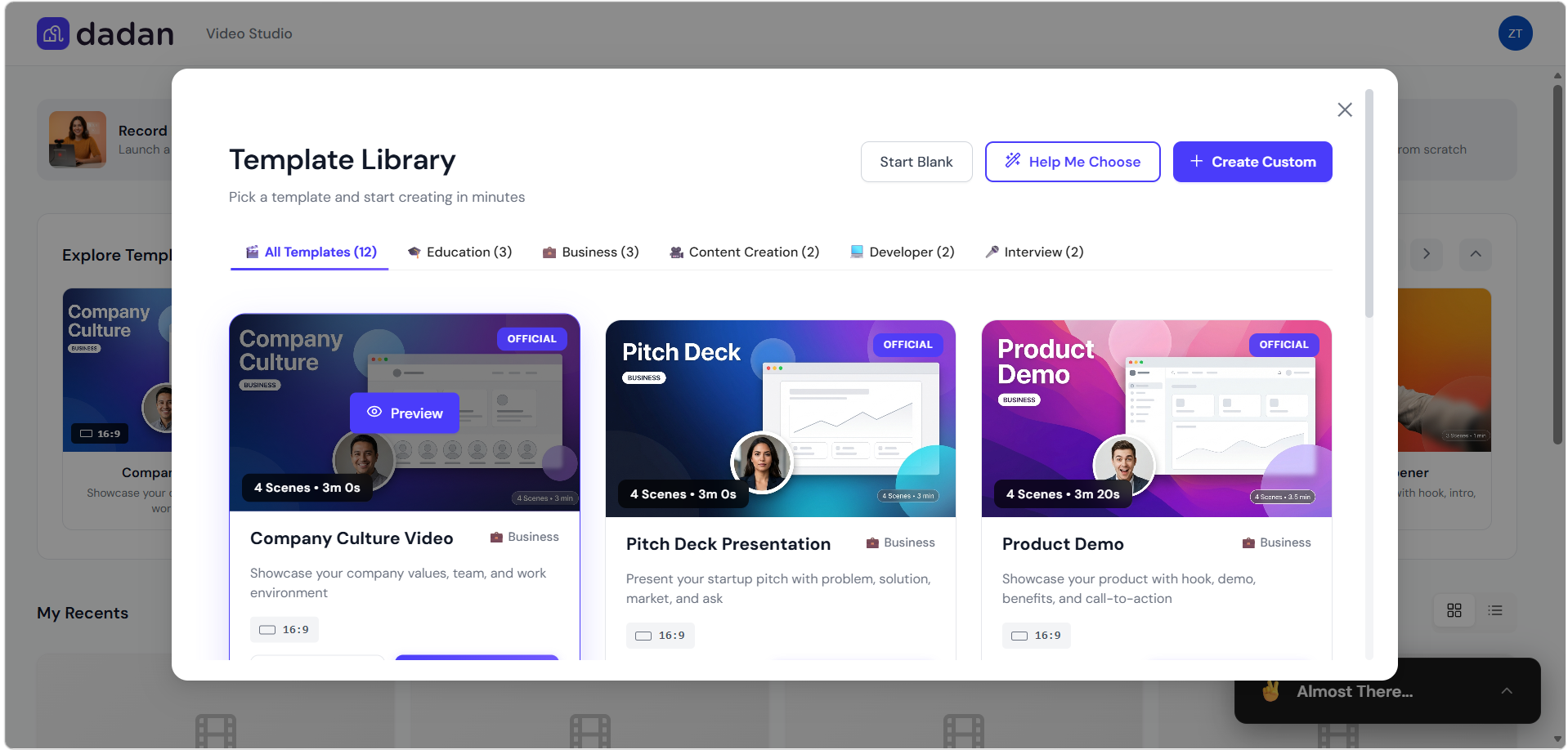
- To preview a template, reveal the Preview button to open the template preview pop-up.
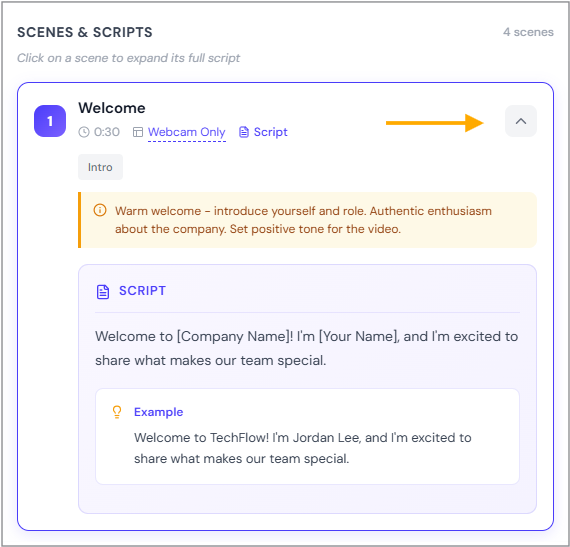
- You can click on a scene to expand its full script.
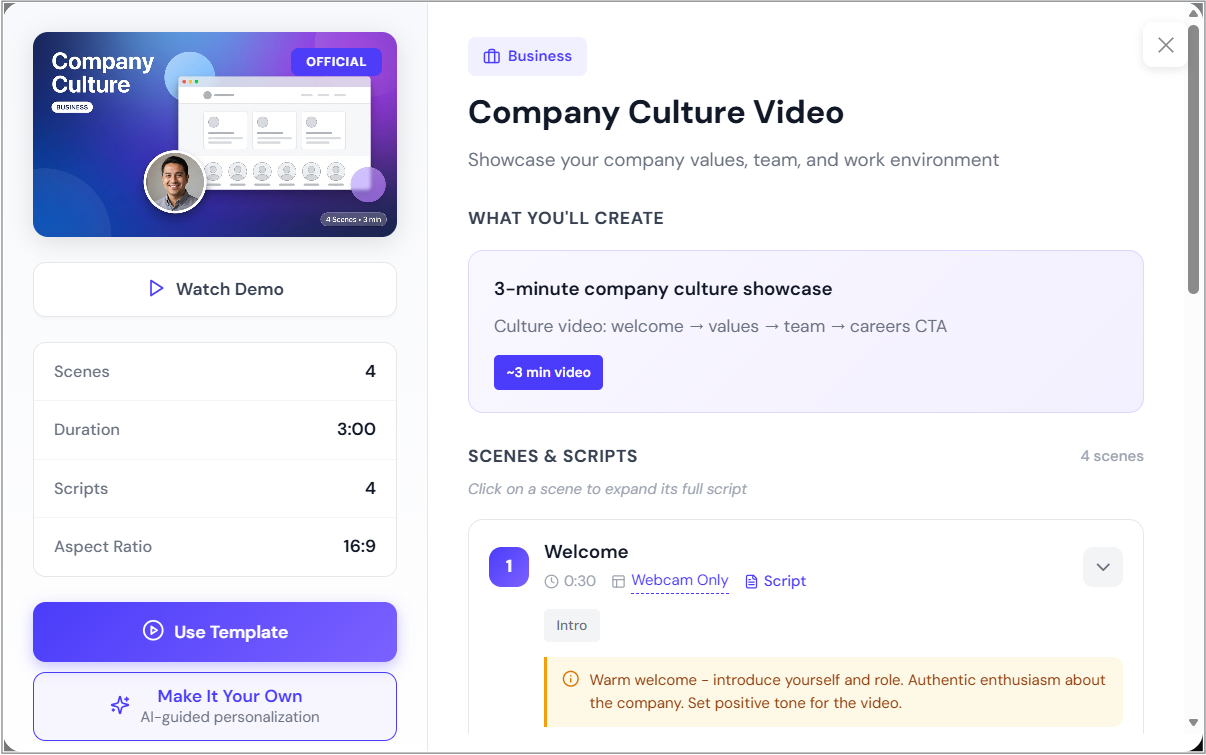
The preview window options include:
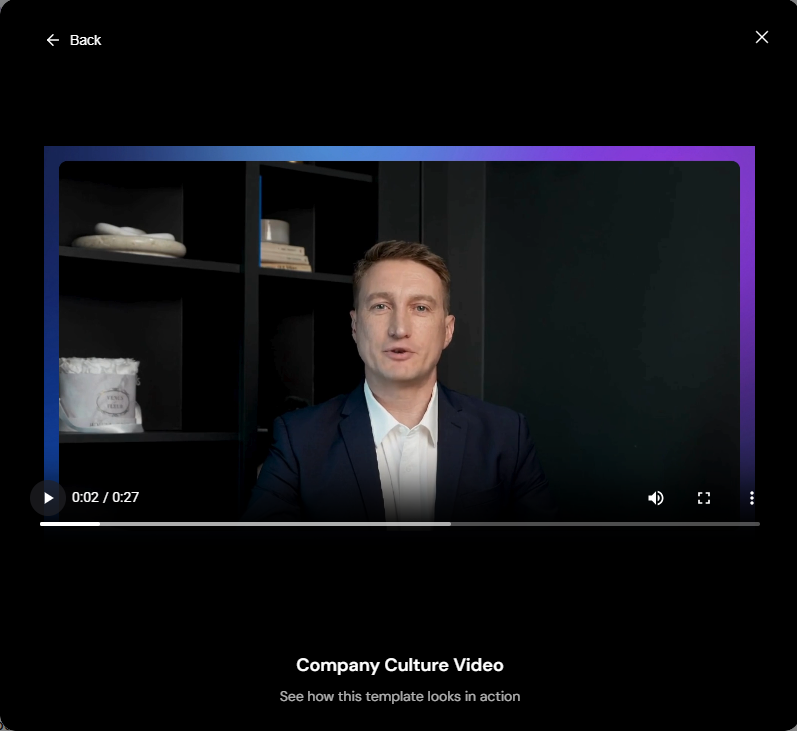
- Watch Demo:
- To replay the video preview.
- Use Template:
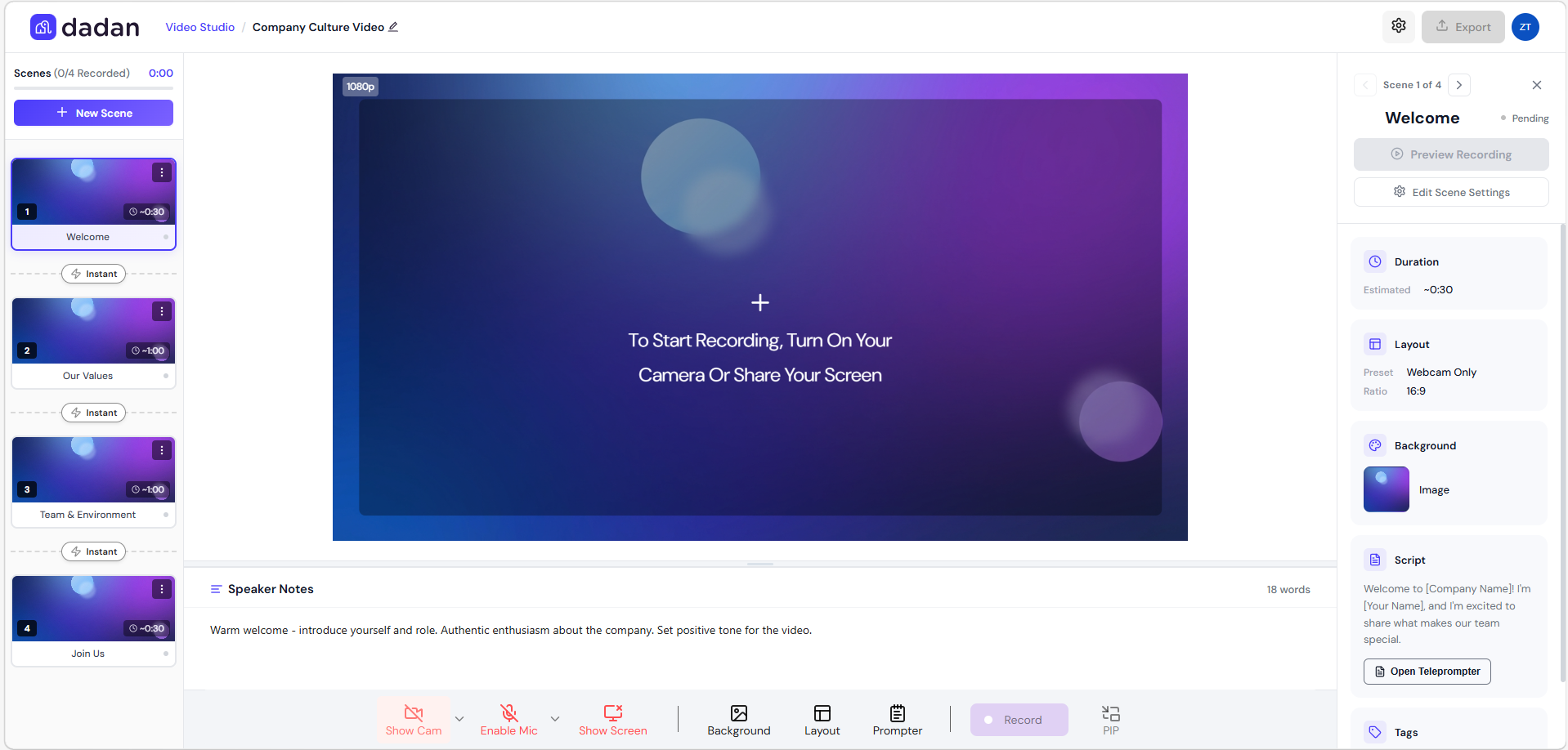
- Instantly loads the template into the Video Studio workspace with all scenes, scripts, and settings pre-populated. The project opens ready for recording.
- Make It Your Own (AI-powered):
- Launches a two-step AI personalization flow:
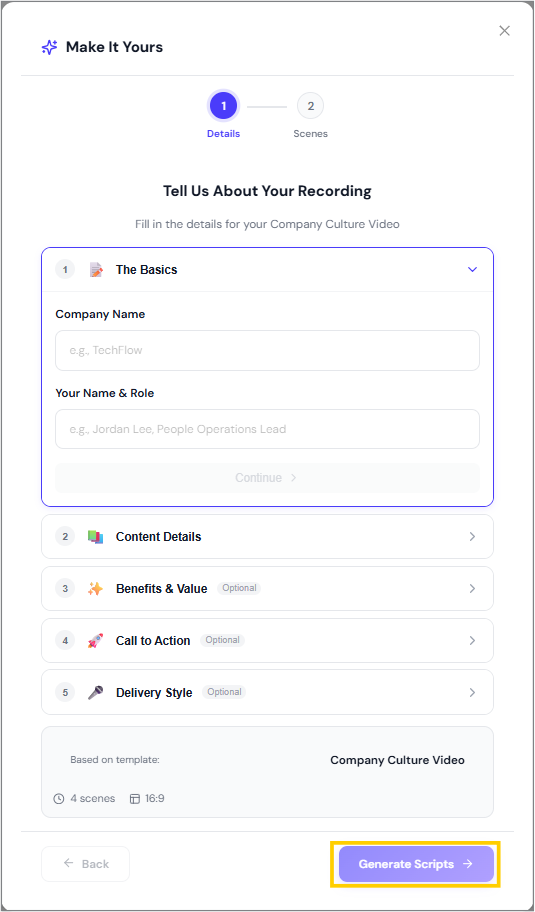
- Step 1 – Details: User fills in basics (Company Name, Your Name & Role, Content Details, Benefits, Call to Action, Delivery Style).
- Click Generate Scripts.
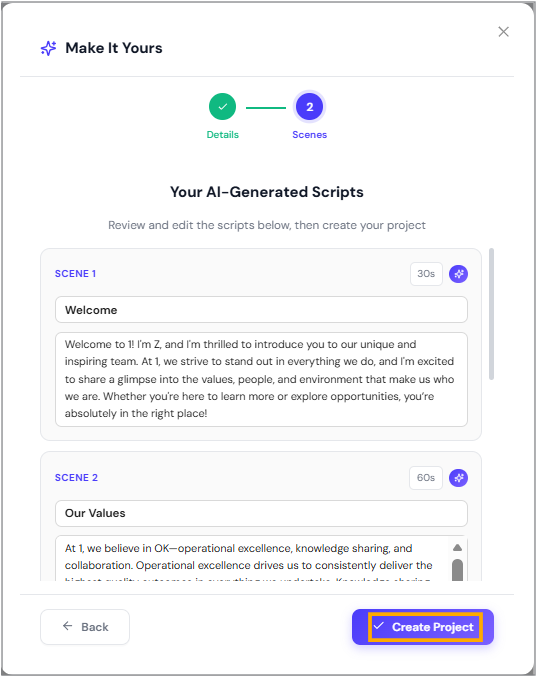
- Step 2 – Scenes: AI generates personalized scripts for each scene.
- Users can review and edit the AI-generated scripts before creating the final project.
- Click Create Project.
Project workspace after selecting a template #
Once a template is used, the interface changes to the full recording studio:
- Left sidebar: List of all scenes (with thumbnails, durations, and Instant labels).
- Central preview area (1080p) with recording prompt.
- Right sidebar: Scene settings (Duration, Layout, Background, Script, Tags).
- Bottom toolbar: Camera, Mic, Screen share, Prompter, Record button.
- Speaker Notes section at the bottom.
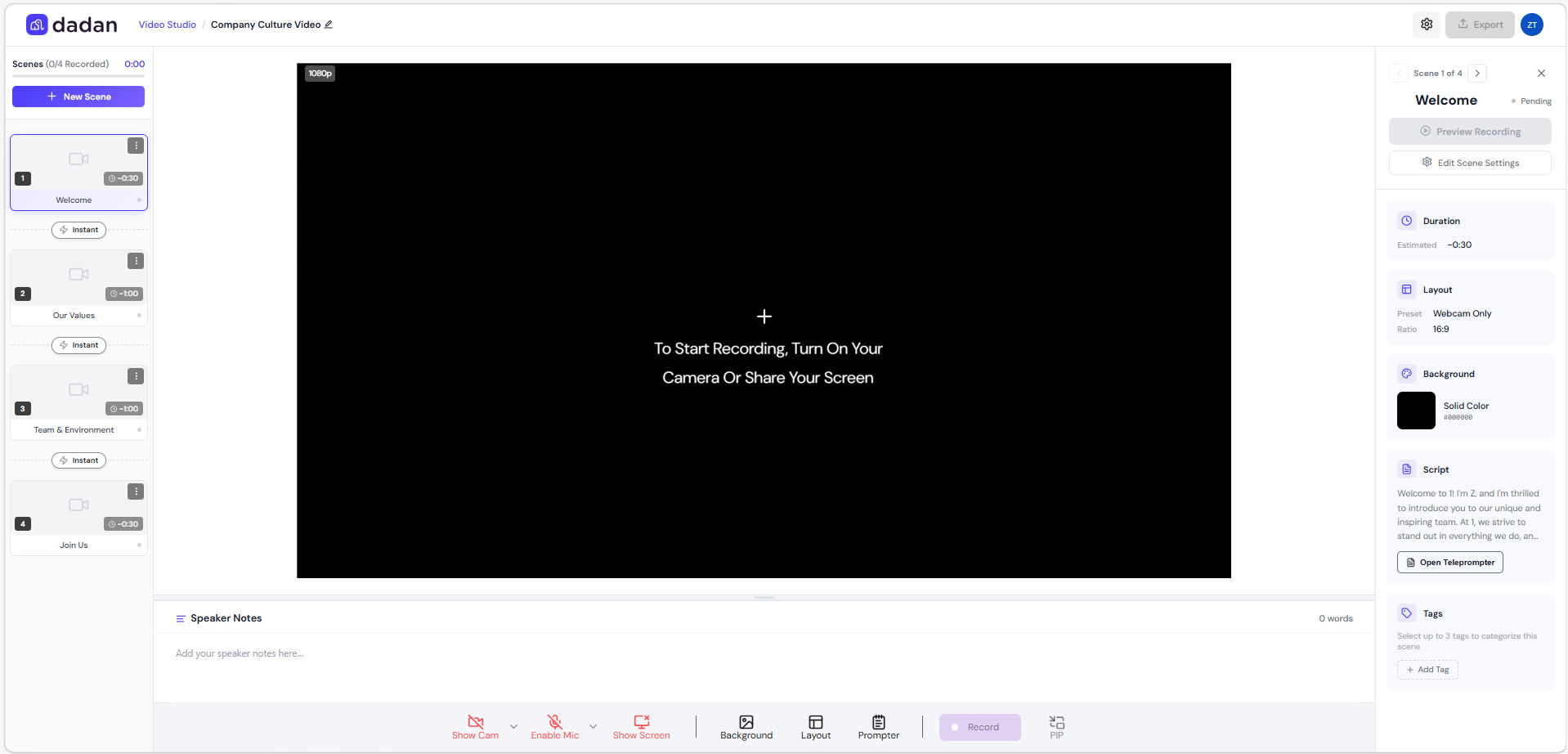
Each scene is marked Instant in the list, indicating it is pre-configured and ready to record.
Creating a custom template from scratch #
If none of the existing templates fit your needs, you can build your own reusable template:
- From the main Template Library, click + Create Custom (top right).
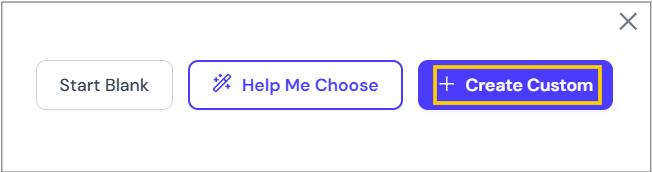
- The Create Custom Template modal opens.
Template info tab:
- Enter Template Title.
- Select Category (e.g., Content Creator).
- Choose Aspect Ratio (16:9 Landscape recommended).
- Add Description.
- Define Example Output and What User Gets.
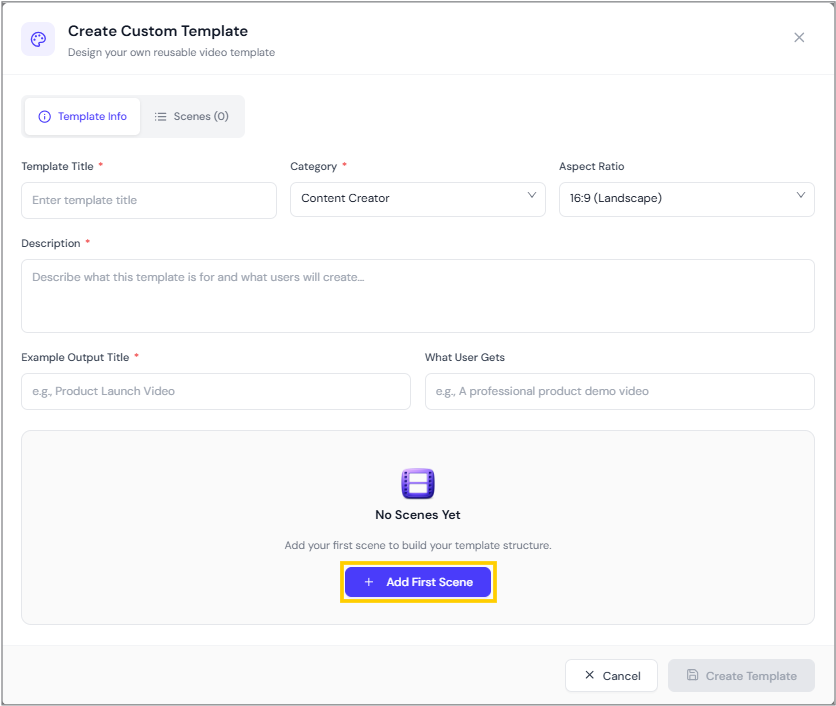
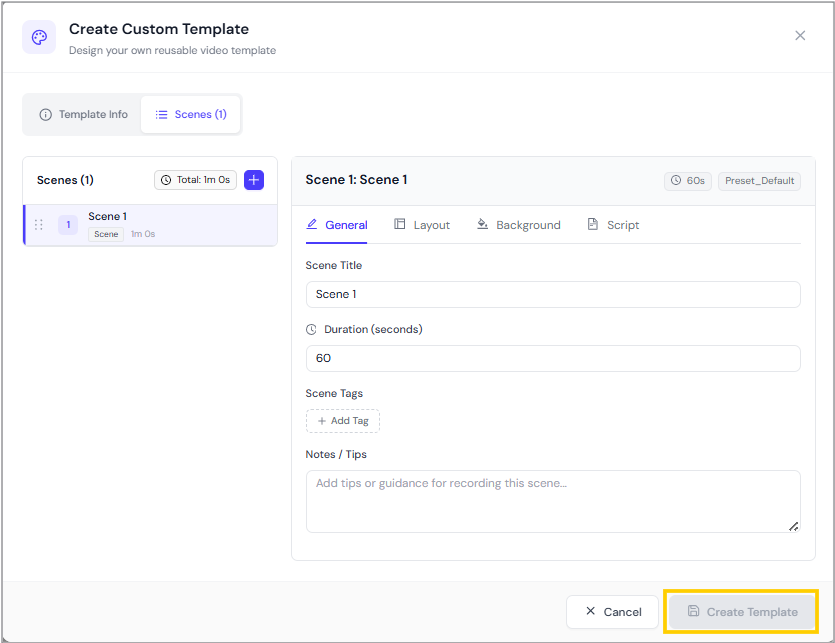
Scenes tab:
- Click + Add First Scene to start building the structure.
- For each scene, you can configure:
- Scene Title.
- Duration (in seconds).
- Scene Tags.
- Notes / Tips.
- Layout, Background, and Script settings.
Once scenes are added and configured, click Create Template to save it for future use or sharing.
Benefits of using the template library #
- Saves significant time with professionally structured scenes and scripts.
- Provides clear guidance and examples for each scene.
- Supports quick starts, Use Template customization, Make It Your Own, and deep customization.
- Includes demo videos so users can see how the final video should look and feel.
- Consistent aspect ratios and professional designs across all templates.
The Template Library makes high-quality video creation accessible even for users with limited editing experience, while still offering flexibility for advanced users.


