
This guide provides a comprehensive overview of integrating dadan videos with Google Classroom, enabling educators to share multimedia content to enhance the learning experience seamlessly.
Dadan, a versatile video management platform, enables users to create, store, and share educational videos that can be easily integrated into Google Classroom for various use cases.
Steps to Share a dadan video on Google Classroom #
To share a dadan video on Google Classroom:
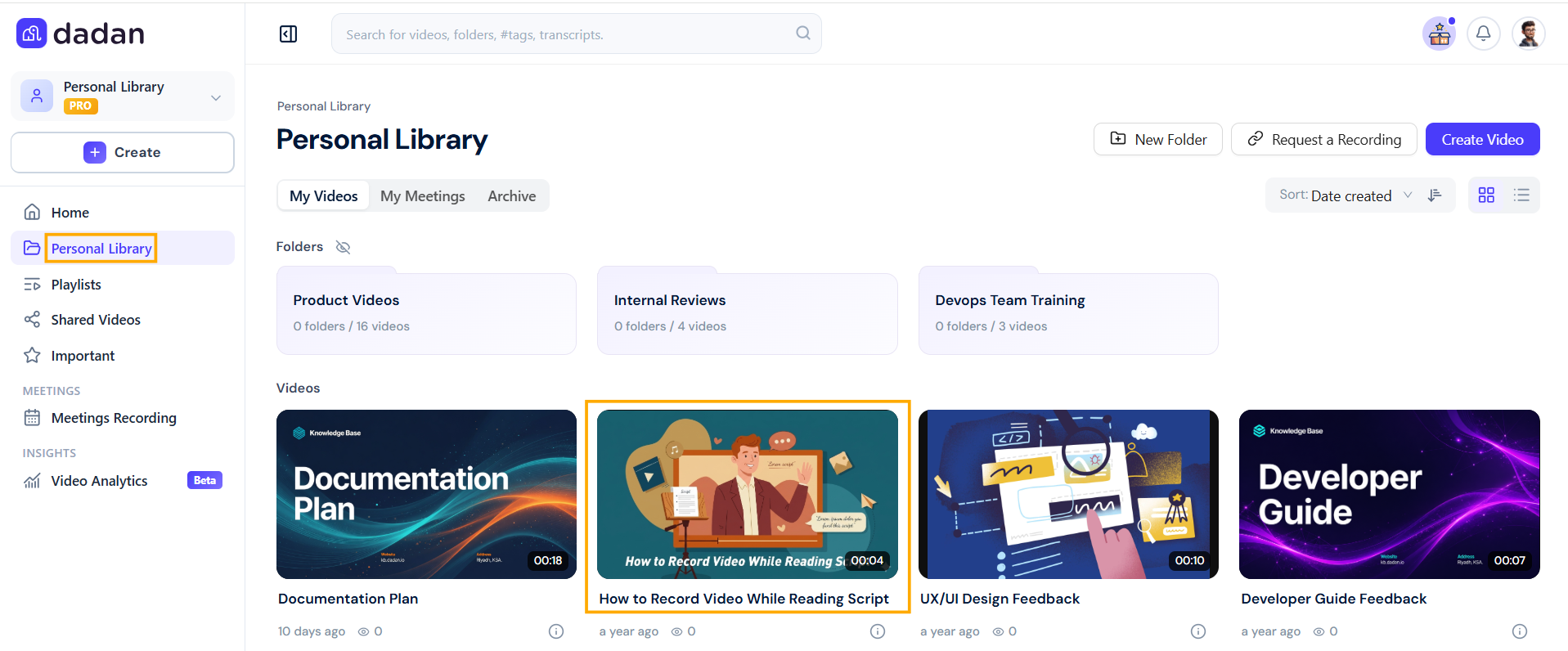
- Go to your Personal Library in the dadan interface.
- Select the video you wish to share.
- Edit and enhance your video (optional):
- Open the selected video in the editor.
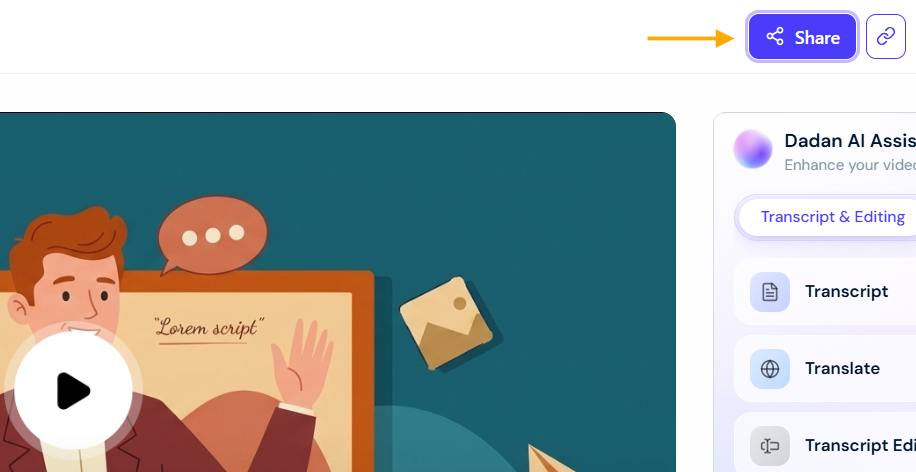
- Use the dadan AI Assist panel to enhance your video with features like transcripts, titles, tags, descriptions, summaries, and note-taking.
- Click Share to proceed to the publishing options.
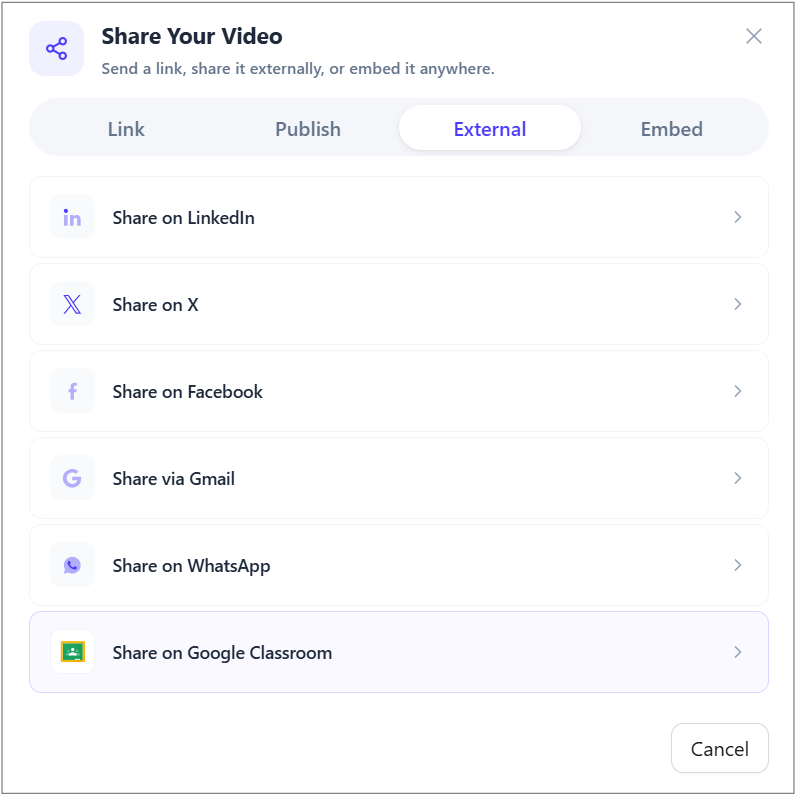
- In the Share Your Video window, select the External tab.
- Select the Share on Google Classroom option.
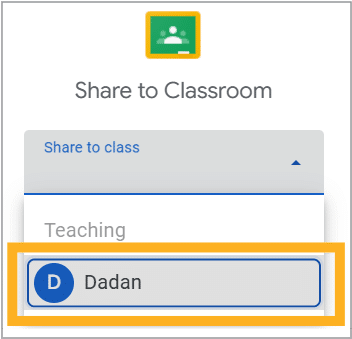
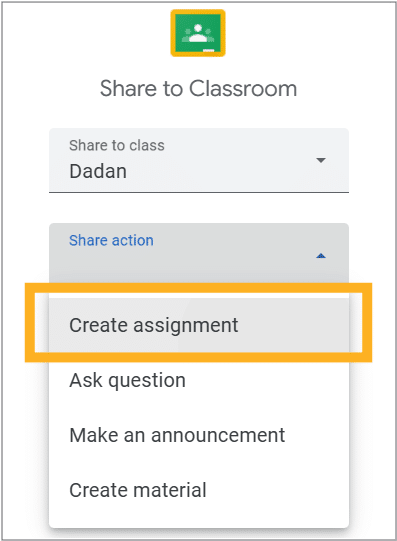
- A “Share to Classroom” dialog will appear. Choose the target class (e.g., “dadan”) from the “Share to class” dropdown.
- Select a share action from the “Share action” dropdown:
- Create assignment (to assign the video as a task)
- Ask question (to pose a question related to the video)
- Make an announcement (to share the video as an announcement)
- Create material (to add the video as a resource)
Configure the share action #
Configure the Google Classroom share action depending on the selected action, fill in the required fields:
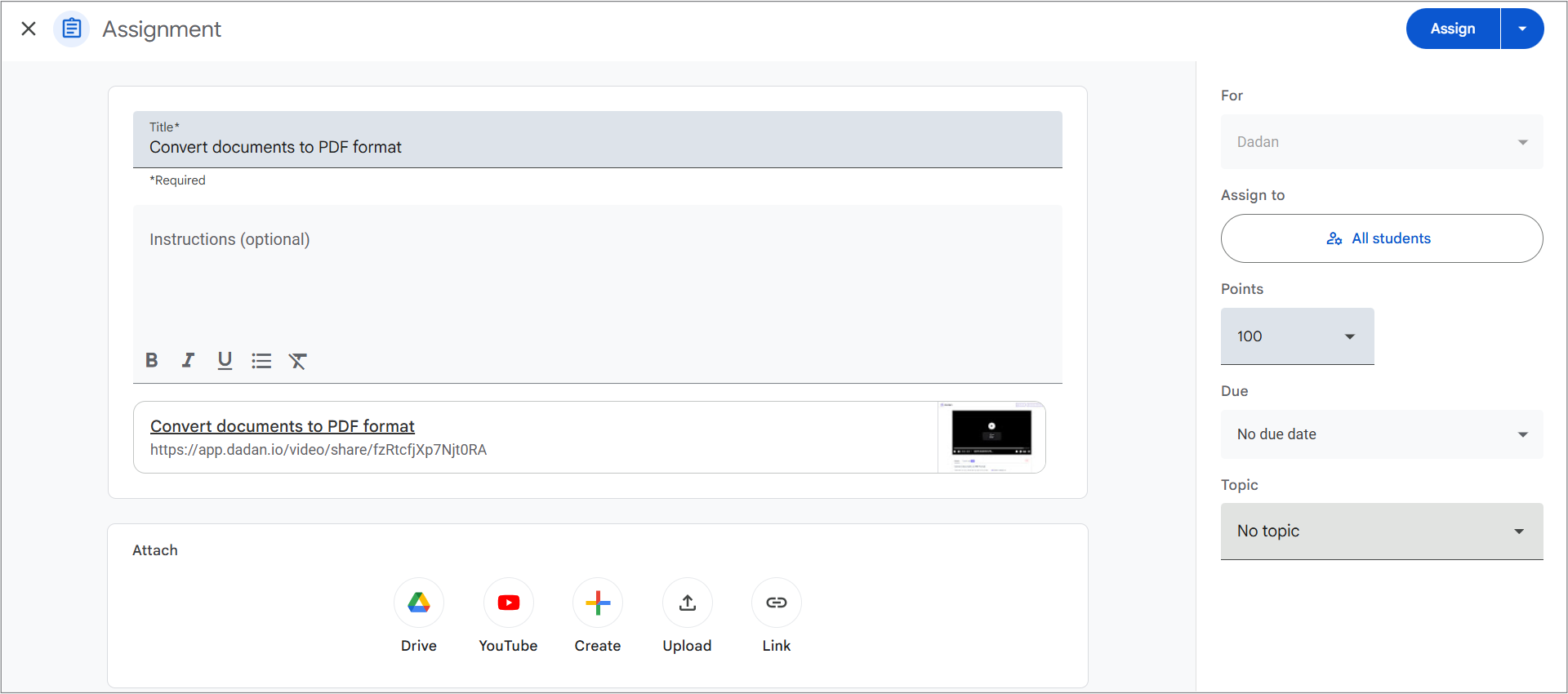
- Assignment:
- Title: Pre-filled with the video title.
- Instructions: Add optional instructions for students.
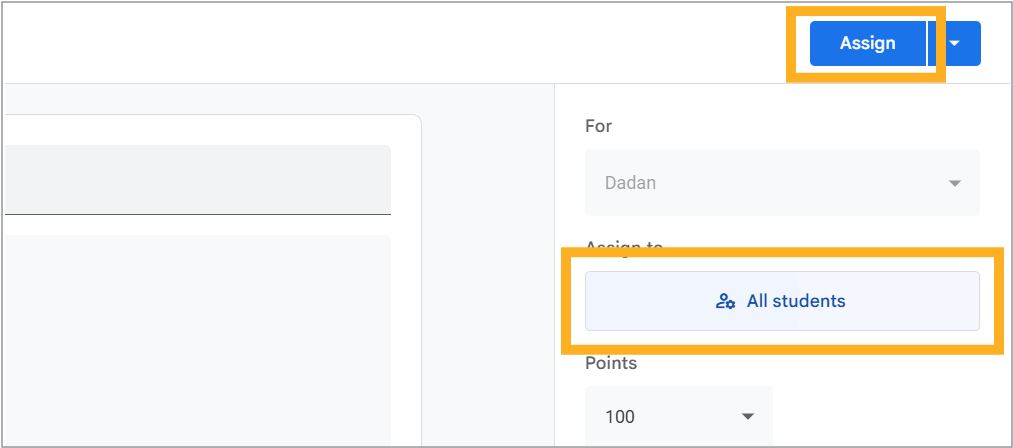
- Assign to: Select the audience (e.g., “All students”).
- Points: Set the points (e.g., 100).
- Due: Choose a due date or select.
- Topic: Assign a topic if applicable.
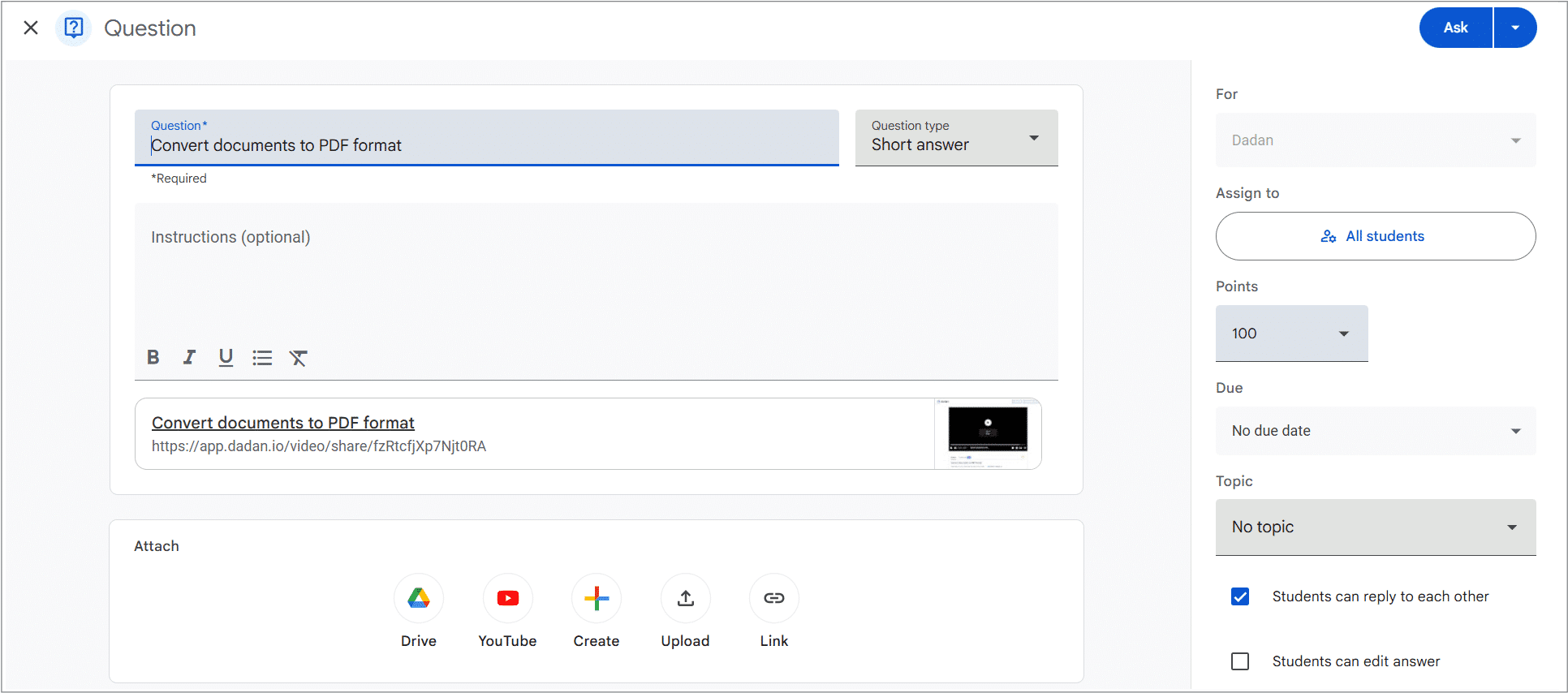
- Question:
- Question: Pre-filled with the video title.
- Choose the question type (e.g., “Short answer”).
- Configure additional settings like “Assign to” and “Points.”
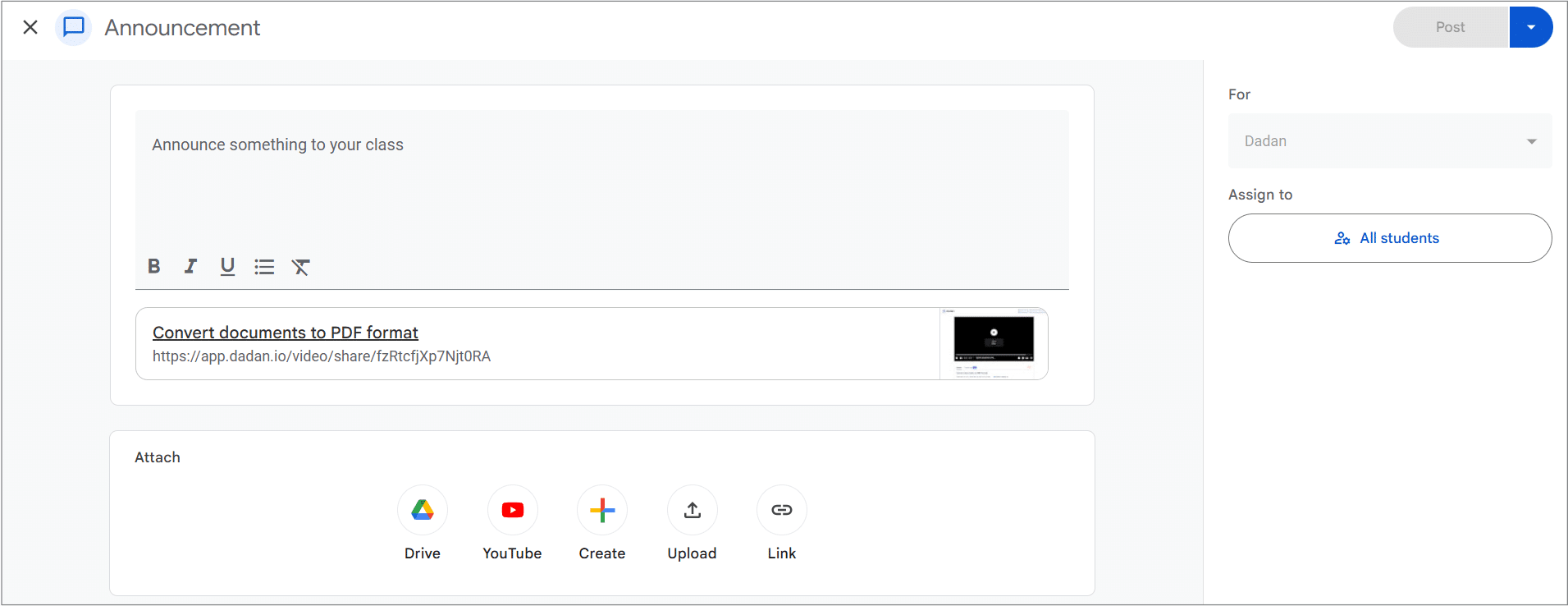
- Announcement:
- Add a message in the “Announce something to your class” field.
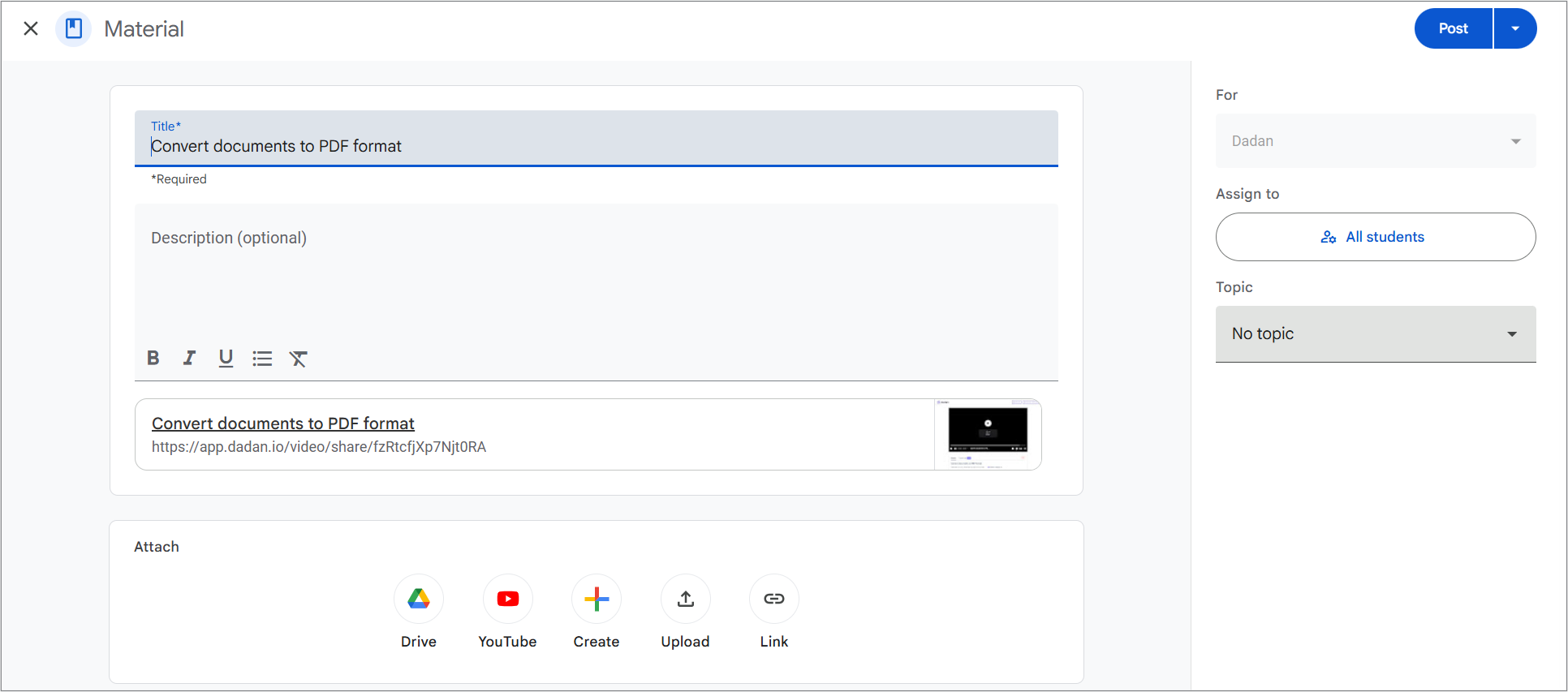
- Material:
- Title: Pre-filled with the video title.
- Add an optional description.
Attach additional resources #
The dadan video link is automatically attached. You can attach additional resources via Google Drive, YouTube, or other options if needed.
- Once configured, click the Assign, Ask, or Post button (depending on the share action) to share the video to Google Classroom.
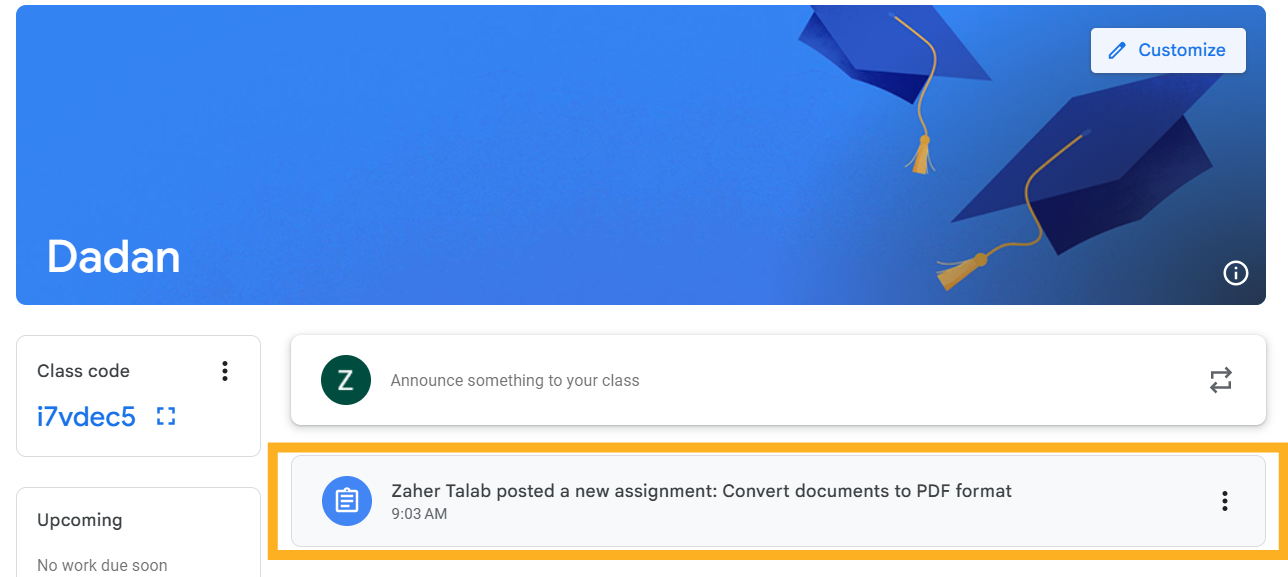
- After posting, you’ll see a notification and a post in Google Classroom.
Google Classroom use cases #
Google Classroom use has several cases, these include:
- Assignment Distribution: Share instructional videos as part of homework assignments, providing students with step-by-step guidance.
- Interactive Quizzes: Embed videos and pair them with questions to assess student understanding in real-time.
- Class Announcements: Use videos to communicate important updates or demonstrations to the entire class.
- Resource Sharing: Add videos as supplementary materials to enrich lesson plans and provide additional learning resources.


