Whether you’re organizing content for yourself or sharing it with others, managing your playlists is simple. This guide walks you through editing playlist details, sharing links, embedding playlists on a website, and maintaining organization by sorting, archiving, or deleting playlists.
- See also: Creating your video lists in dadan.
Edit a playlist #
To edit a playlist:
- Go to the Playlists section in the sidebar.
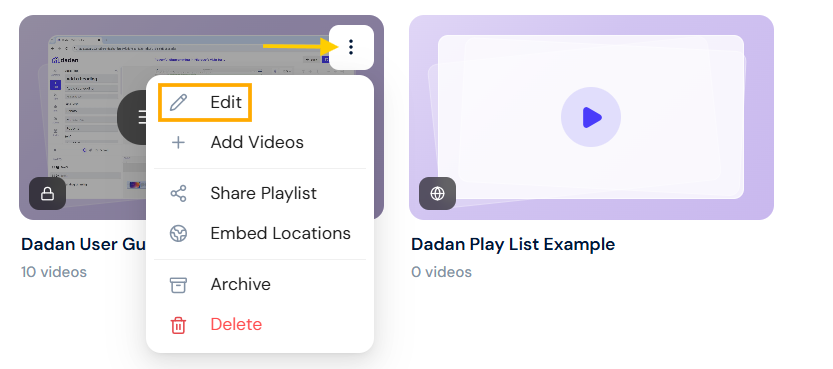
- Click the three-dot menu next to the playlist you want to edit.
- Select Edit from the dropdown.
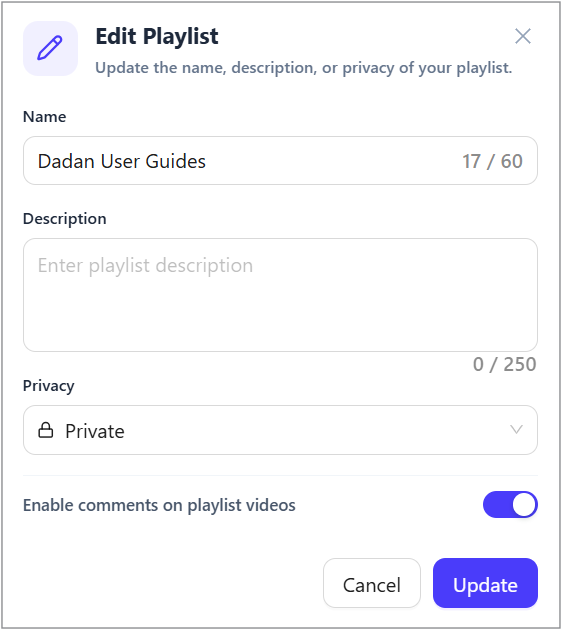
- Update the name, description, comments, or privacy settings as needed.
- Click Update to save your changes.
Share a playlist #
To share a playlist:
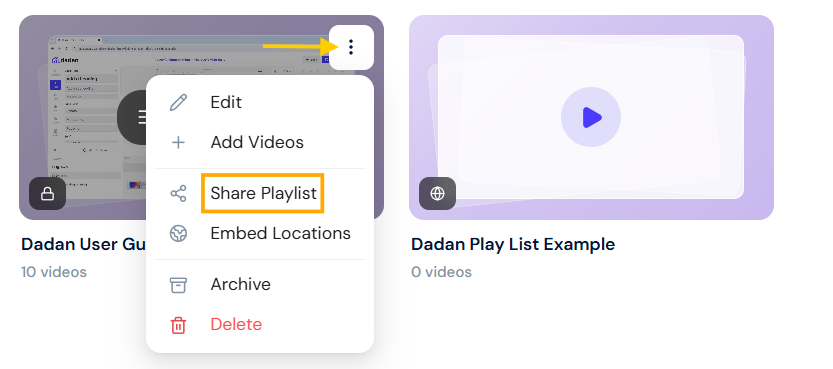
- Select Share Playlist from the three-dot menu dropdown.
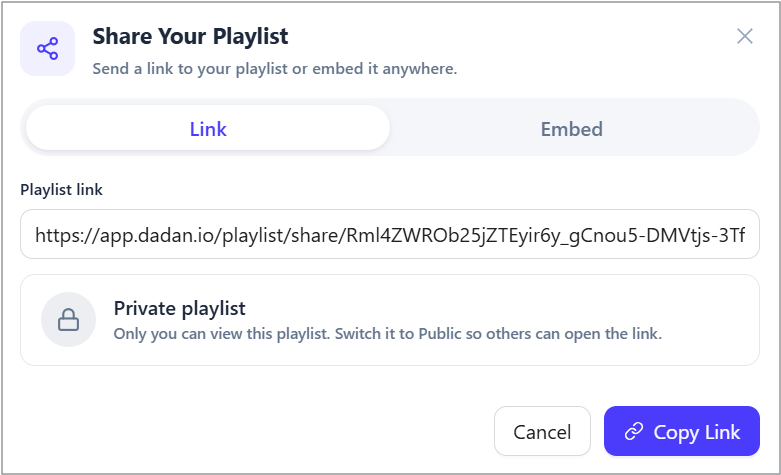
- In the Share Your Playlist pop-up, copy the generated share link and share it with others via email or messaging apps.
- If the playlist is private, you can change the privacy setting to Public in the edit menu.
Embed a playlist #
To embed a playlist:
- In the previous Share Your List pop-up, select the Embed tab.
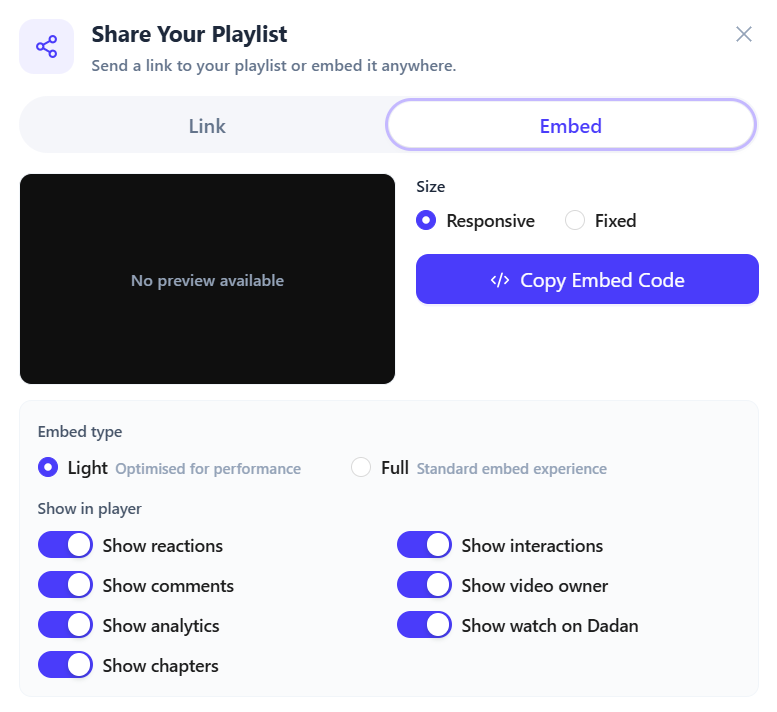
- In the Embed Playlist dialog, customize the embed settings by toggling options to your preference.
- Click Copy Embed Code to copy the code to embed the playlist on a website or platform.
- Paste the copied code into your desired webpage to embed the playlist.

- This is an embedded playlist example; to view the list, click the list icon below.
Sort playlists #
To sort playlists:
- Find the Sort field.
- Click the drop–down arrow to select your preferred sorting option: Date created or Name.
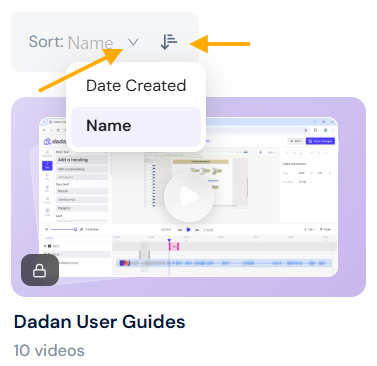
- To sort the folders in ascending/descending order, click the ascending/descending button.
- The playlists will automatically rearrange based on your selected sorting criteria.
Archive a playlist #
This feature lets you keep a Playlist and organize it into the Archive menu rather than permanently delete it. An Archived Playlist will not appear in the Personal Library or any team spaces.
To archive a playlist:
- Select Archive from the three-dot menu dropdown.
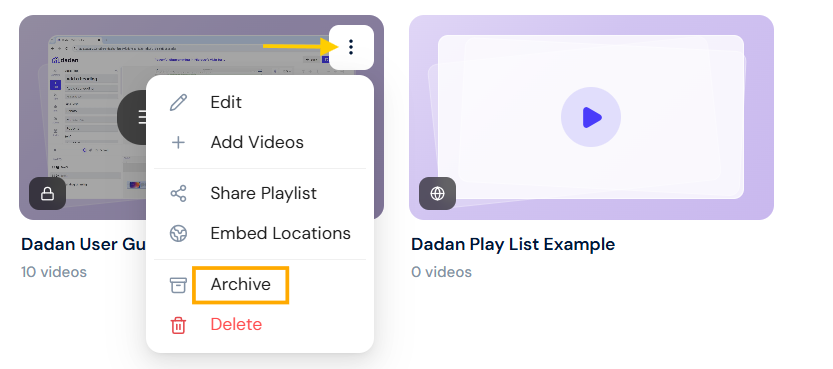
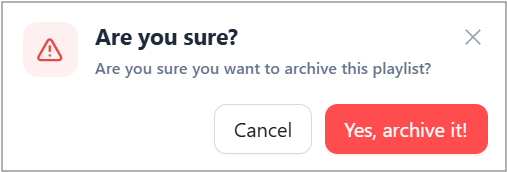
- Confirm by clicking Yes, archive it! in the dialog box.
- The playlist will be moved to the Archive section in the sidebar.
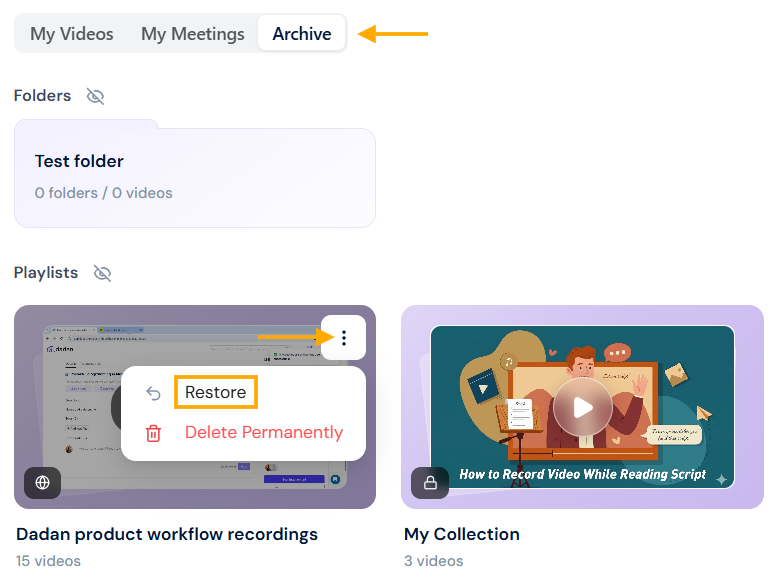
To restore an archived playlist, do the same previous steps:
- From the Archive menu, in the Playlists section:
- Select your playlist.
- Click the three-dot [⋮] menu.
- Select Restore.
- Confirm your choice.
Delete a playlist #
To delete a playlist:
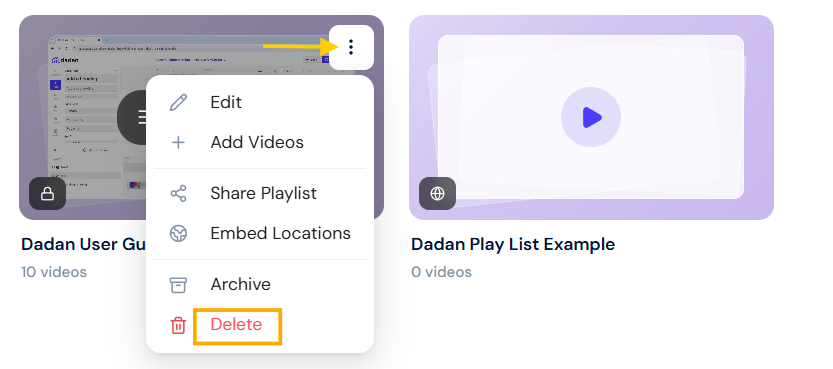
- In the Playlists section, click the three-dot menu [⋮] next to the playlist you want to delete.
- Select Delete from the dropdown.
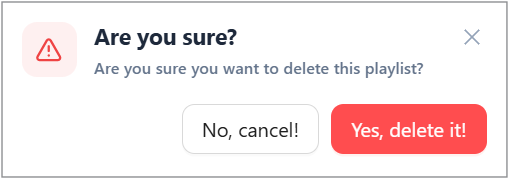
- Confirm by clicking Yes, delete it! in the dialog box.
- The playlist will be permanently removed.