Video lists, or playlists, in dadan are a powerful way to organize and categorize your videos for easy access and sharing. Creating playlists allows you to group related content, such as marketing plans or quarterly results, ensuring that you and your team can quickly find and review important videos when needed.
This guide will walk you through the process of managing playlists efficiently. Follow these steps to streamline playlist creation and organization in your application.
Creating video playlists in dadan #
To create video lists in dadan:
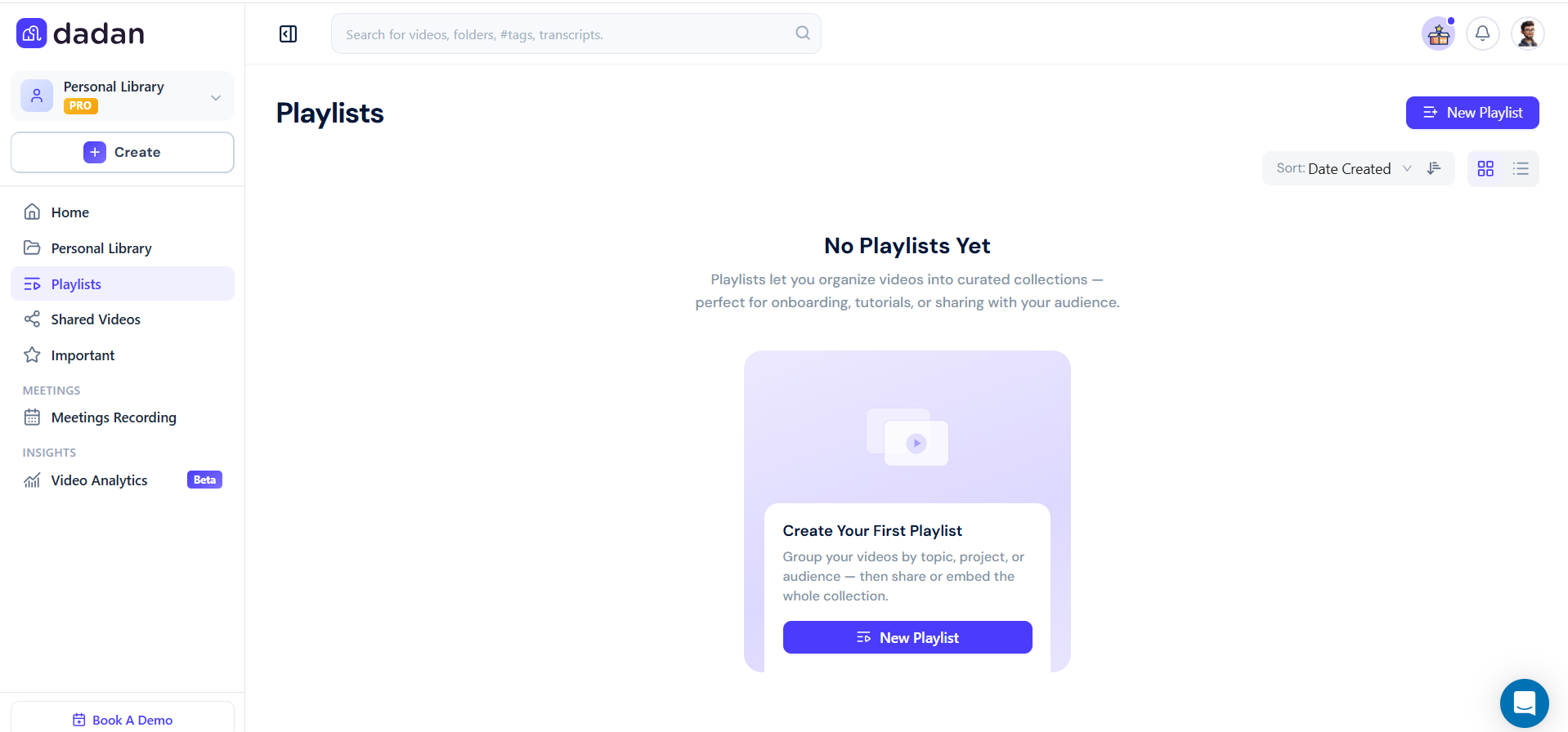
- Log in to your dadan account. Click Playlists in the sidebar to view the Playlists section.
- Click New Playlist to create a playlist.
- In the Create New Playlist dialog, enter a Name and a Description.
- Choose the Policy setting (Private or Public) from the dropdown.
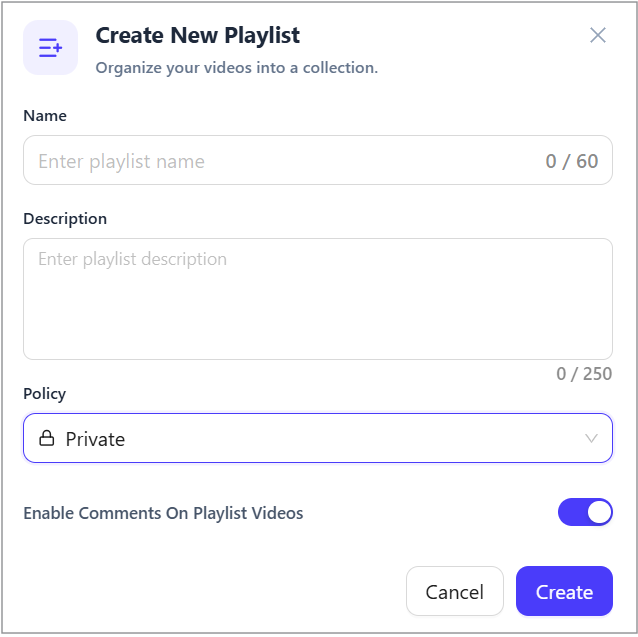
- Disable/Enable the Enable Comments On Playlist Videos option.
- Click Create to save the new playlist.
View your Playlists #
After creation, your new playlist will appear under the Playlists section. To view your list:
- Select a playlist to open.
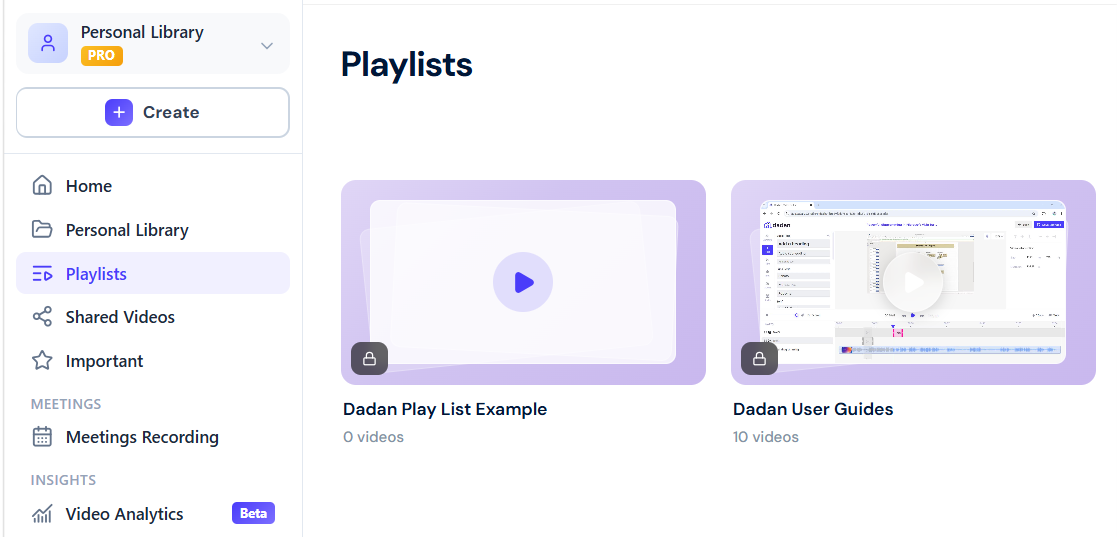
- If no videos have been added, you’ll see a message that says this playlist is empty, and you need to add videos.
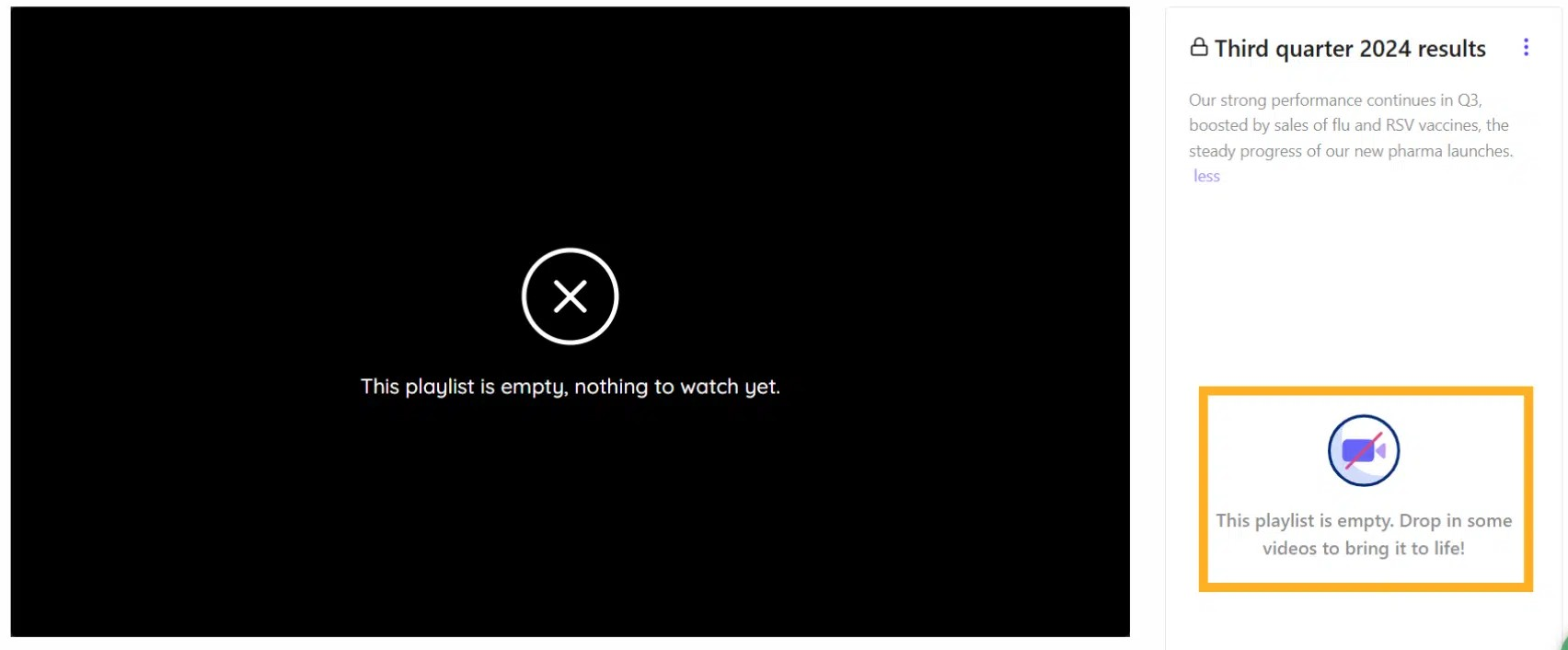
- The private Playlist shows a lock icon beside its name.

- The public playlist shows a globe icon beside its name.

Add and remove videos to a Playlist #
To add videos to a Playlist:
- Go to the Videos section on the Personal Library or a Team Space.
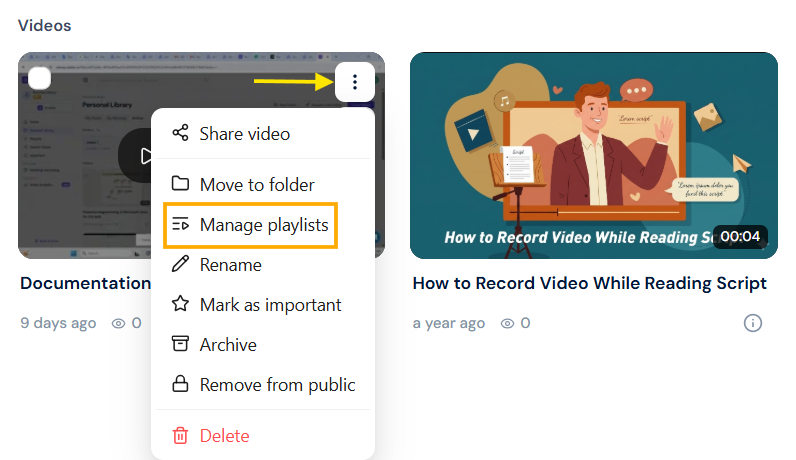
- Click the three-dot “⋮” menu on a video thumbnail. Select Manage playlists from the dropdown.
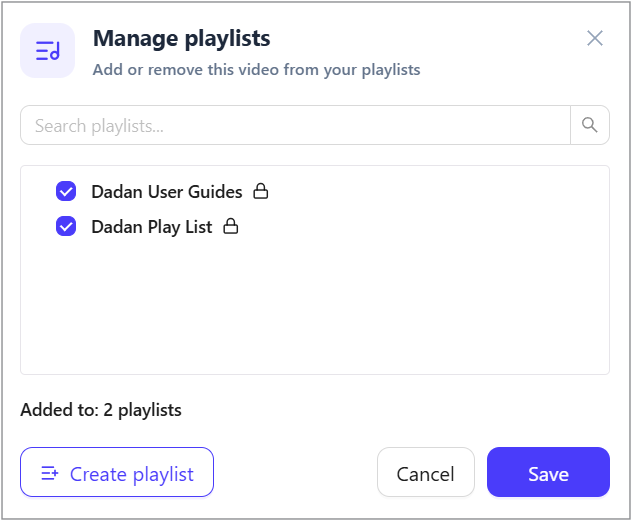
- In the Manage Playlists pop-up, check (to add) or uncheck (to remove) the video from the desired playlist(s).
- Click Save.
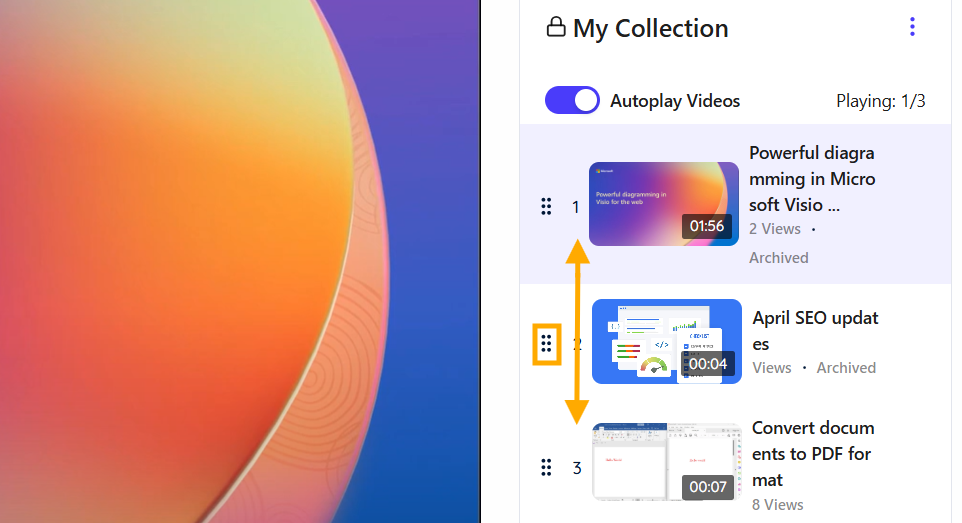
Note: Drag the six-dot icon up or down to reorder a video in the list.
You can also add videos from the Playlist in another way:
- Open the playlist to which you want to add videos.
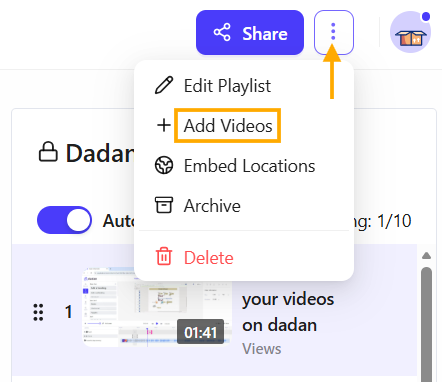
- Click the three-dot menu next to the video.
- Select + Add Videos to add the videos to the playlist.
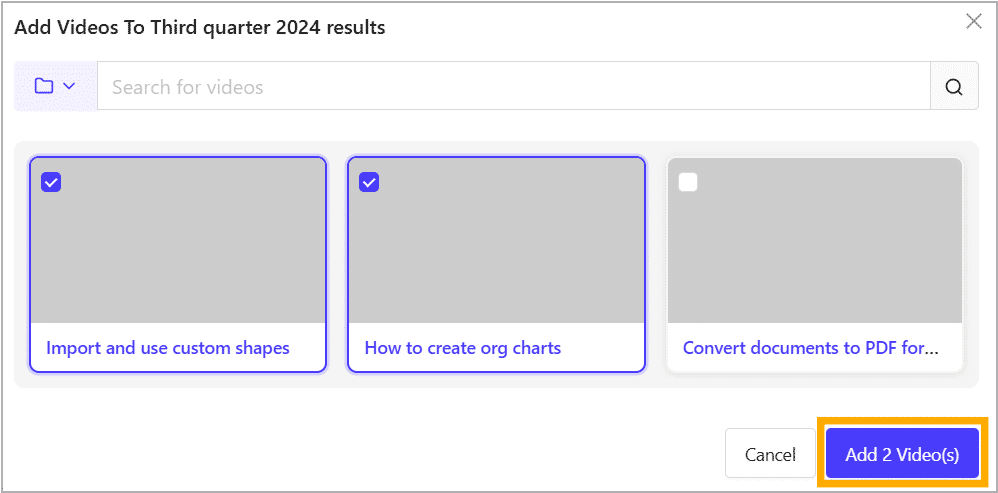
- Select the video (s) you want to add to the list and click the blue Add Videos button.
You can also remove videos from the Playlist in another way:
- Open the playlist and locate the video you want to remove.
- Click the three-dot menu next to the video.
- Select Delete From Playlist to remove the video from the playlist.
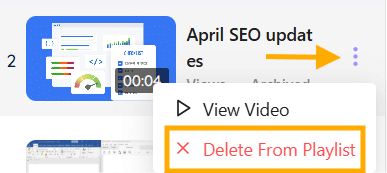
Note: The View Video option opens the video outside the playlist as a single video.
Enable autoplay for seamless playback #
To enable autoplay in a list:
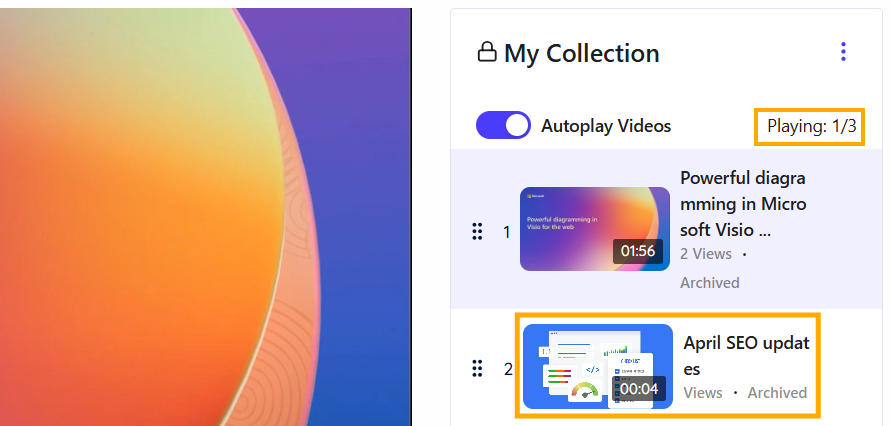
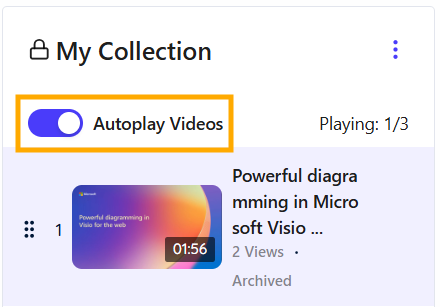
- Toggle the Autoplay Videos switch to the “On” position to enable automatic playback of the next video in the playlist.
- Inside the playlist, click on a video thumbnail to start playing it:
- Use the Playing: X/Y indicator to track your progress.
- If Autoplay is enabled, the next video will play automatically after the current one ends.