
Renaming folders helps keep your workspace organized and updated, especially as project names or priorities change. In dadan, you can rename any folder in your Personal Library or Team Space.
This short guide will walk you through how to rename a folder in just a few steps.
Looking for the full guide on managing folders? Check out the complete folder management guide.
Steps to rename a folder #
To rename a folder, follow these steps:
- Log in to your dadan account. The Home page opens by default.
- You can switch to the Personal Library, a Team Space, or any other location to sort a folder.

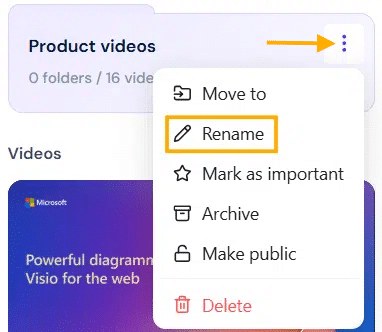
- Find the folder you want to rename and click the three dots [⋮] button.
- A dropdown menu will expand; click Rename.
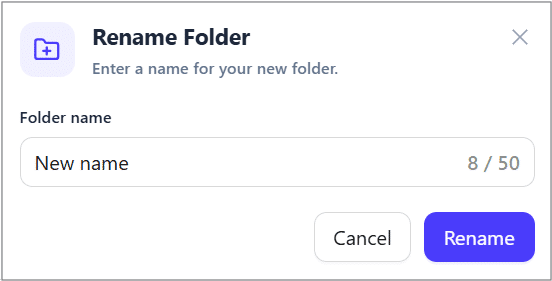
- The Rename Folder box will pop up.
- Enter the desired folder name in the Folder name field.
- Click the Rename button to apply the changes.
Tip: Clear, descriptive names make it easier to find folders and keep your workspace clean, especially when collaborating with others.


