
If you have a request to record a video in dadan, follow this guide to complete and submit a recording. Once submitted, the video will be automatically saved in the requester’s account.
Notes:
- If the video requester kept the allow anonymous submissions option enabled in the video recording request, you don’t need to be a dadan user to record the video. Anyone with the request link can record and submit a video.
- Video requests can be sent for recording on both PCs and mobile devices. The recorded video via mobile will be in the mobile ratio.
- Firefox and other browsers based on it are currently not supported for responding to video requests.
Steps to respond to a recording request #
Follow these steps to record and submit your response to a video request in dadan:
- Open the request unique link:
- You will receive a link to record the requested video.
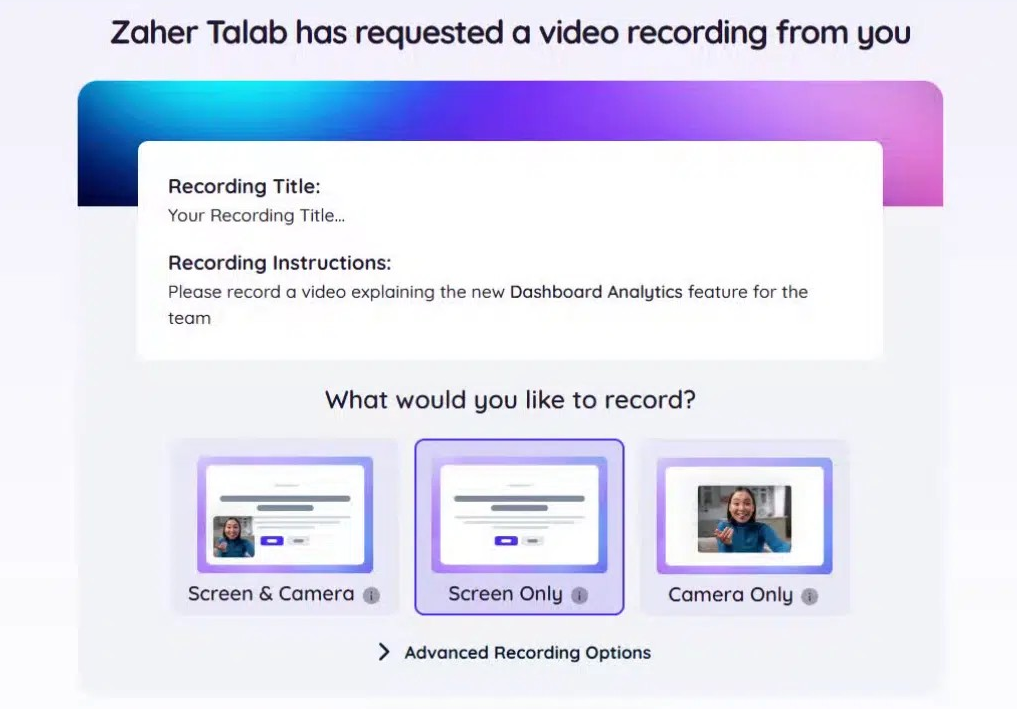
- Click the request link to open the recording request page.
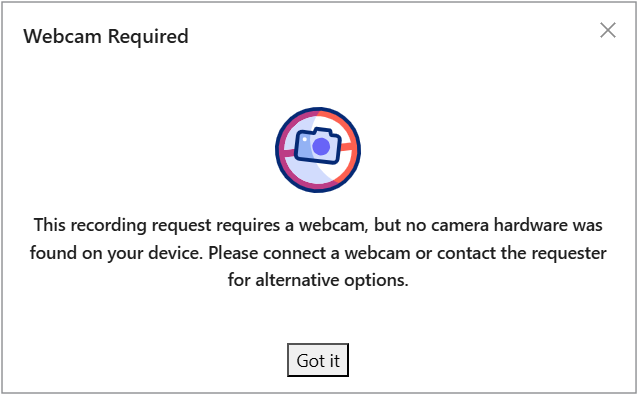
- Note: If the requester chooses Screen + Cam or Cam and the responder does not have a webcam or camera, this error message will appear.
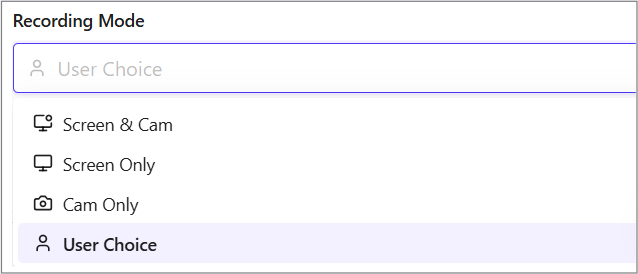
- If the User Choice option is selected, they choose screen + cam, and they don’t have a webcam, they will automatically be redirected to screen-only mode.
- Review the request details:
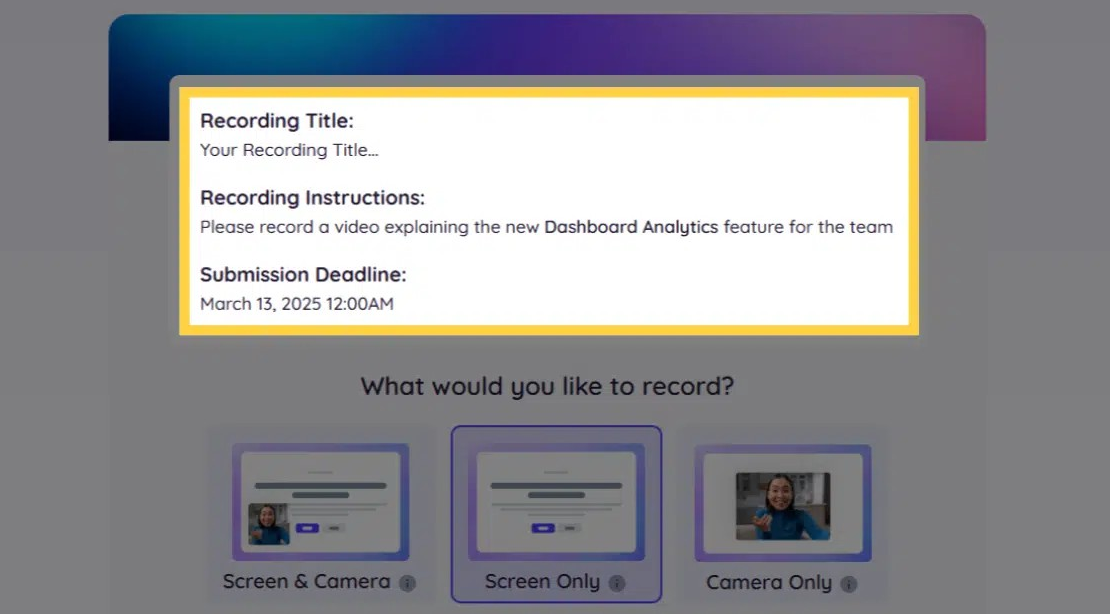
- Review the Recording Title to understand the purpose of the request.
- Check the Recording Instructions for specific topics or guidelines you need to cover.
- If a Submission Deadline is set, submit your recording before it expires.
- Configure recording settings:
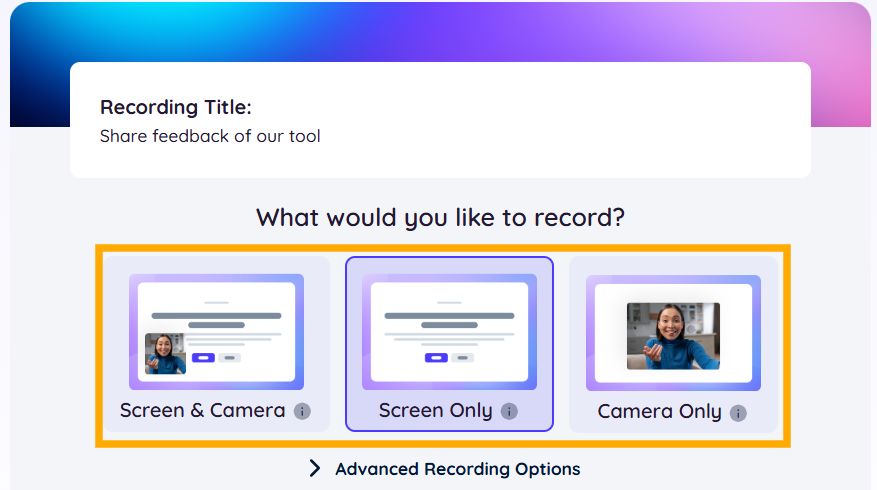
- Choose the Recording Mode based on the requester’s settings.
- If customization is allowed, adjust it as needed before starting:
- Screen Only: Record your screen without a camera.
- Camera Only: Record yourself using your webcam.
- Screen & Camera: Record both your screen and webcam.
- Record your video:
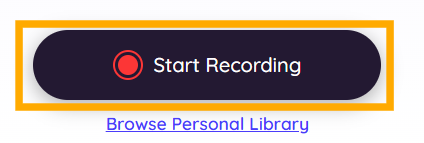
- Click Start Recording and follow the prompts.
- Cover all required points mentioned in the instructions.
- Keep the video clear, concise, and relevant.
- Stop Recording:
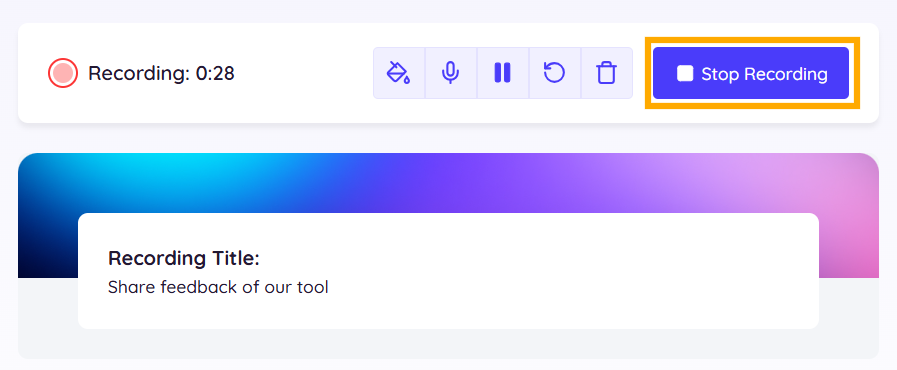
- Once done, click Stop Recording and review your video.
- Submit your recording:
- If you’re satisfied with the video, click Submit Video to send it to the requester.
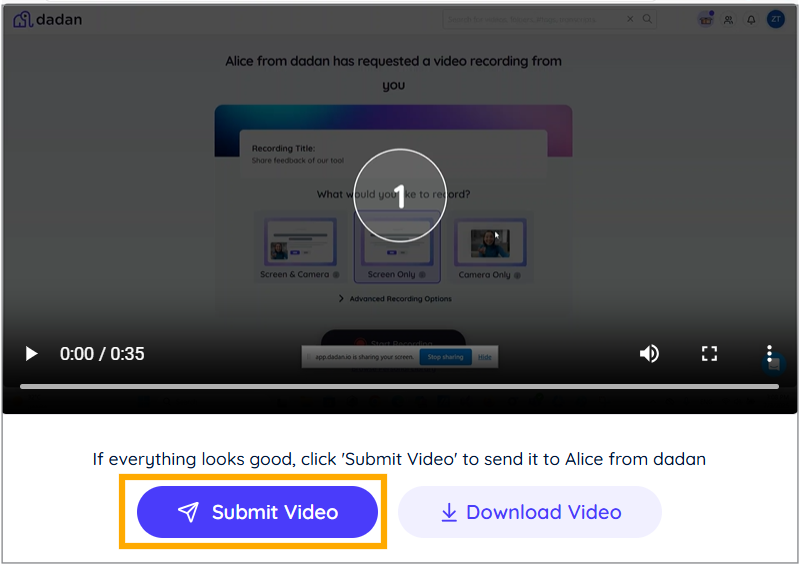
- The video will be uploaded to the requester’s account.
- You can also download the video (optional).
Note: If multiple submissions are allowed, you may re-record and submit more videos.
Best practices for recording responses #
Following these steps, you can efficiently respond to video requests and collaborate effectively in dadan:
- Follow the instructions carefully to meet the requester’s expectations.
- Structure your video well, and keep it concise for better clarity.
- Ensure good lighting and sound if recording with your camera.
- Use high-quality screen resolution for clear visuals.
To request a video, follow this guide: How to request a video recording.


