
Dadan’s Request a Recording feature in the Windows desktop app lets you quickly create a shareable link to collect videos from anyone, no account or app installation required on their end. This is perfect for gathering testimonials, candidate introductions, customer feedback, team updates, or async video responses.
How to create a video request #
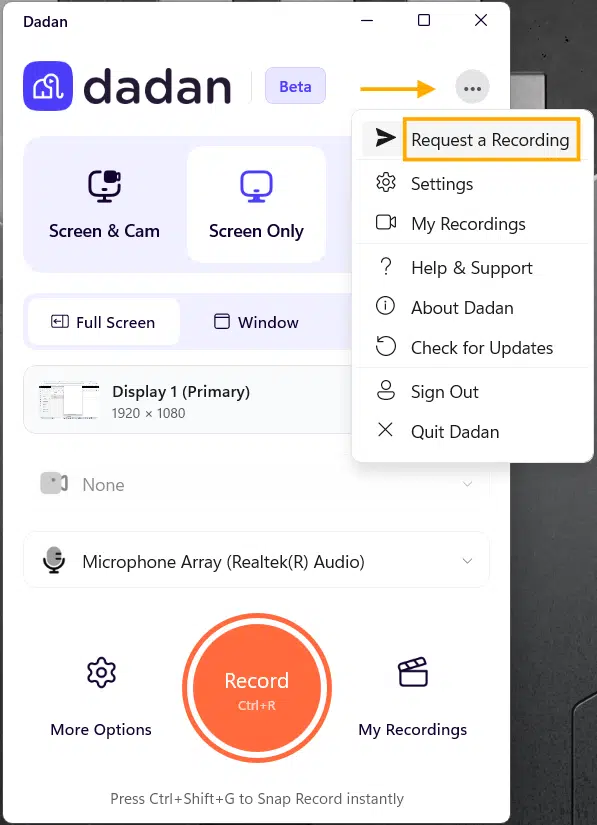
- From the dadan Windows app, click the three-dot menu (⋯) in the top right.
- Select Request a Recording from the dropdown menu.
Recording request form information #
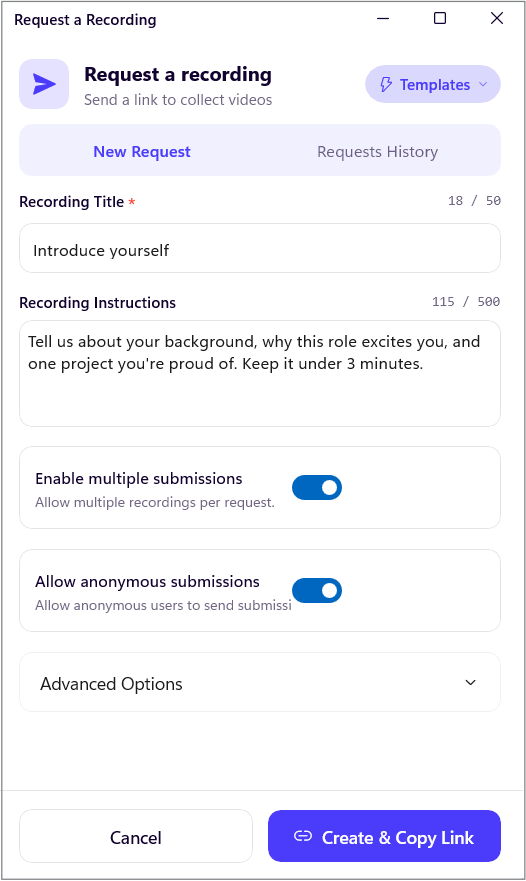
Fill in the form information:
- Recording Title: Give your request a clear name (mandatory).
- Recording Instructions: Provide detailed guidance for the recipient.
- Enable multiple submissions: Allow recipients to send more than one video.
- Allow anonymous submissions: Recipients can record and submit without signing in.
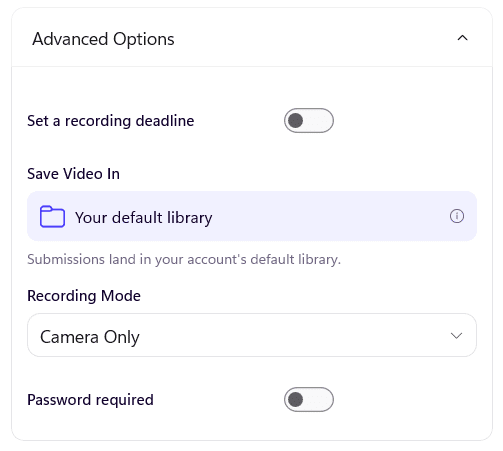
- Advanced Options (optional):
- Set a recording deadline.
- Save Video In: Personal Library or a team space.
- Recording Mode: Camera Only, Screen Only, or Screen + Camera.
- Password required.
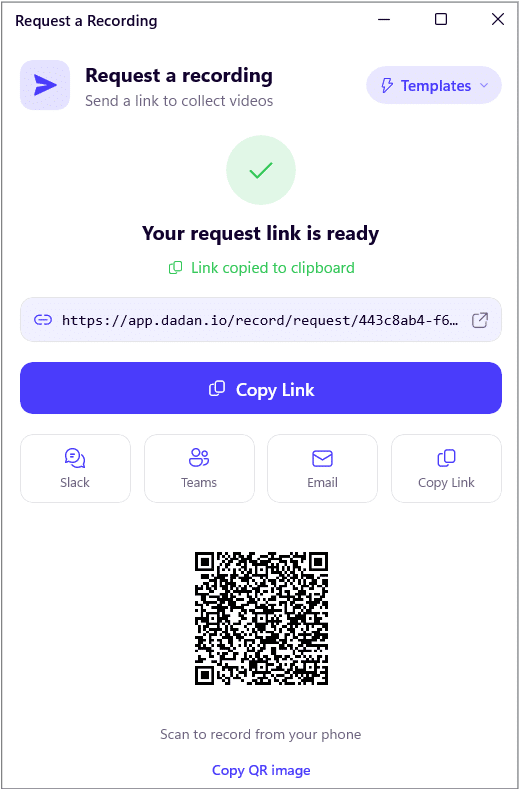
- Click Create & Copy Link, and it will automatically be copied to your clipboard.
Using templates for video requests #
Dadan provides ready-made Templates to help you create professional video requests quickly, without having to start from scratch every time.
To use templates:
- Open the Request a Recording window (via the three-dot menu → Request a Recording).
- Click the Templates button in the top right corner.
- Choose from the dropdown list of available templates:
- Customer Testimonial
- Bug Report
- Candidate Intro
- Daily Standup
- Customer Feedback
- Product Demo
- Code Review
- Feature Request
- Sales Proposal
- Onboarding Intro
- How-To Tutorial
- Design Review
- Customer Onboarding
- Sprint Demo
- Retrospective
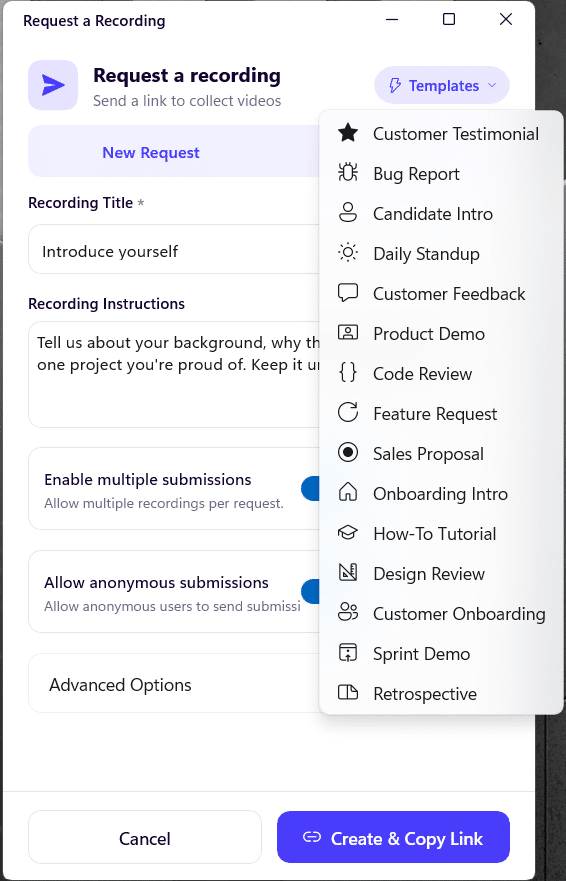
Dadan automatically fills in:
- Recording Title with a suggested name.
- Recording Instructions with clear, ready-to-use guidance.
You can keep the pre-filled content as-is or customize the title and instructions to better fit your needs.
Benefits of templates:
- Save time on writing clear instructions.
- Ensure consistency across similar requests.
- Help recipients understand exactly what to record.
- Great starting point for common use cases like bug reporting, interviews, testimonials, and team updates.
What recipients see #
People who receive the link will see:
- The recording title and your instructions.
- Three recording mode choices: Screen & Camera, Screen Only, or Camera Only.
- A simple, guided recording experience directly in their browser.
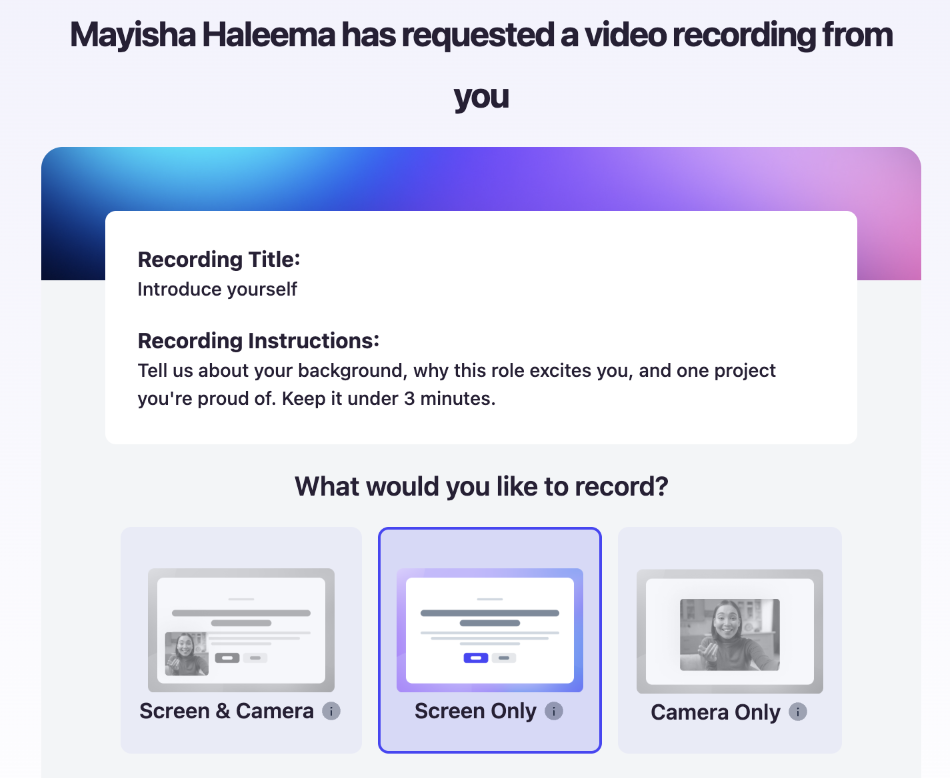
They can record, review, and submit their video effortlessly, even on mobile.
Key benefits #
- Frictionless for recipients (no signup needed).
- Full control over instructions and settings.
- Works seamlessly alongside dadan’s desktop recording tool.
- Link management and history.
Note: For more information about recording requests, visit this guide.


