
Dadan lets you request video recordings from teammates or collaborators via a unique link. The recorded video will automatically be added to your account. This feature helps streamline communication and ensures you receive the information you need in a clear and structured format.
Note: Video requests can be sent for recording on both PCs and mobile devices. The recorded video via mobile will be in the mobile ratio.
Steps to request a video recording #
Follow these steps to request a video recording in dadan:
- Access the request feature:
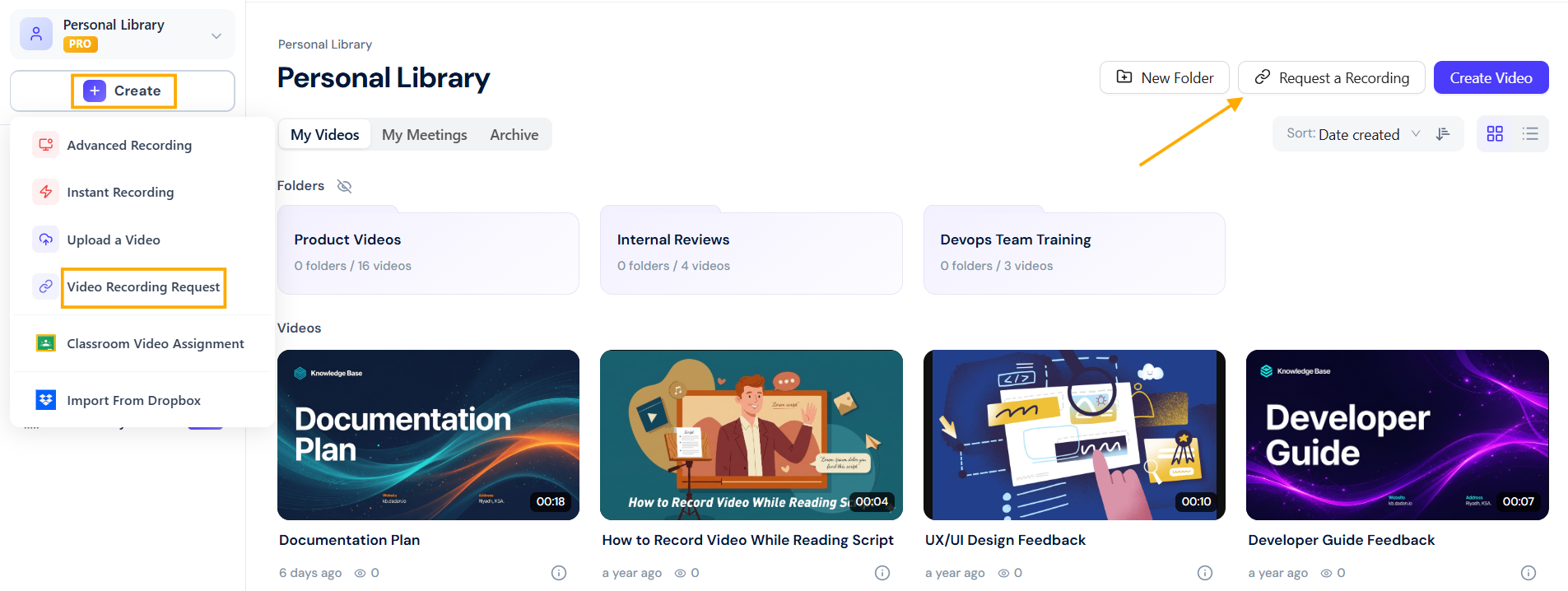
- Open the dadan app and click Create on the left sidebar to open the dropdown menu.
- Select Video Recording Request from the options.
- Alternatively, click the Request a Recording button in the upper right section of the Personal Library screen.
- The Request a recording panel will appear for you to fill out.
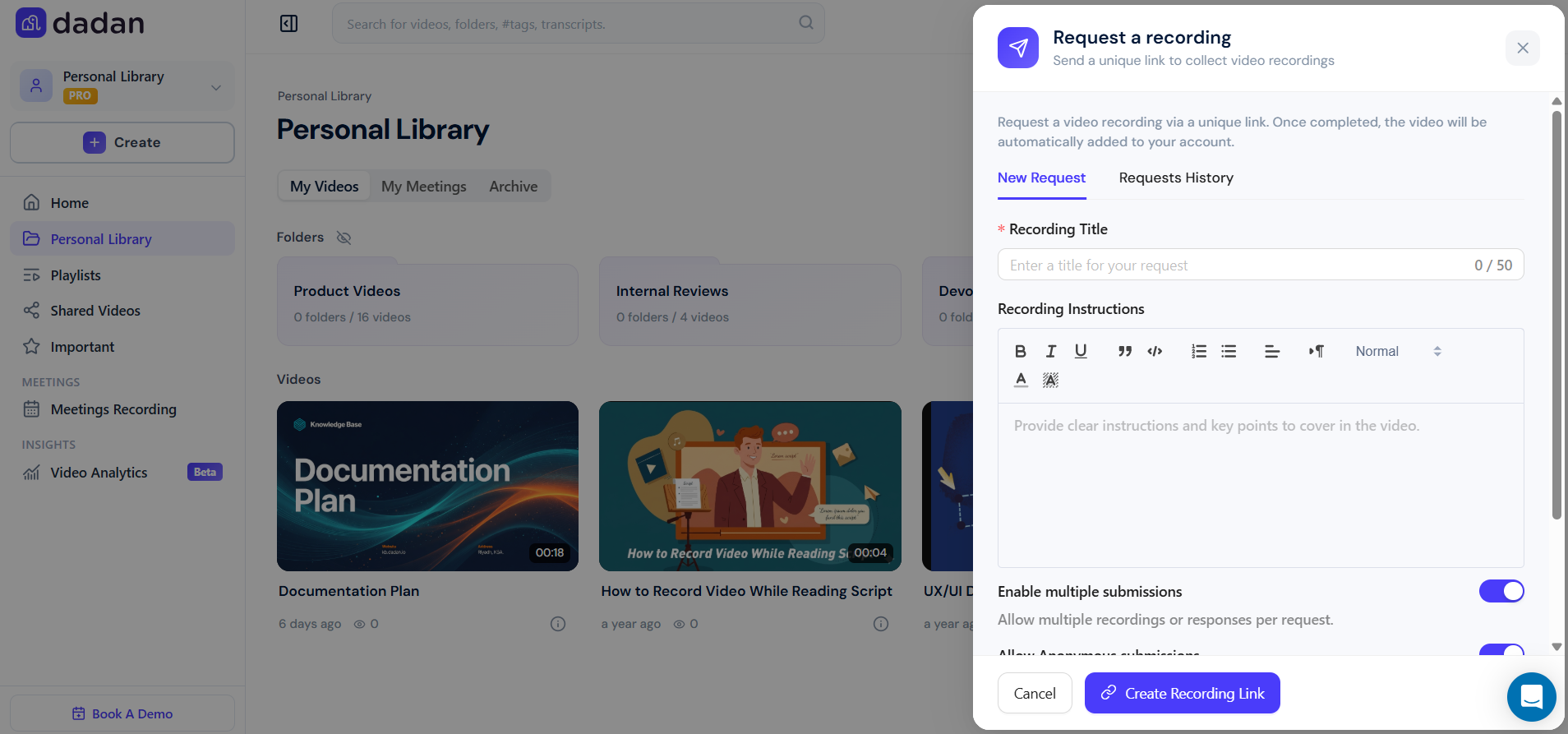
Filling the request form #
Follow these steps:
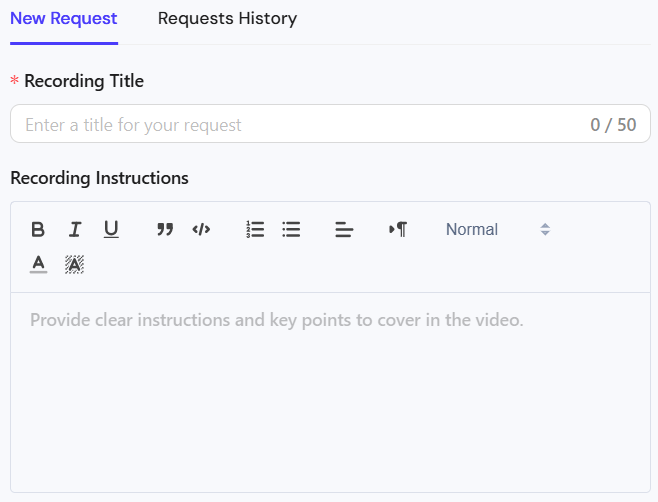
- Enter the request details:
- Recording Title: Provide a clear title for the request.
- Recording Instructions: Add specific details on what should be covered in the video.
This helps the recipient understand the purpose and key points to address.
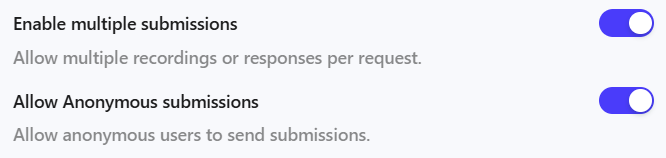
- Enable multiple submissions (optional):
- Keep this option enabled if you want multiple recordings or responses per request.
- Allow Anonymous submissions (optional):
- Keep this option enabled if you want to allow anyone with the request link to record and submit a video.
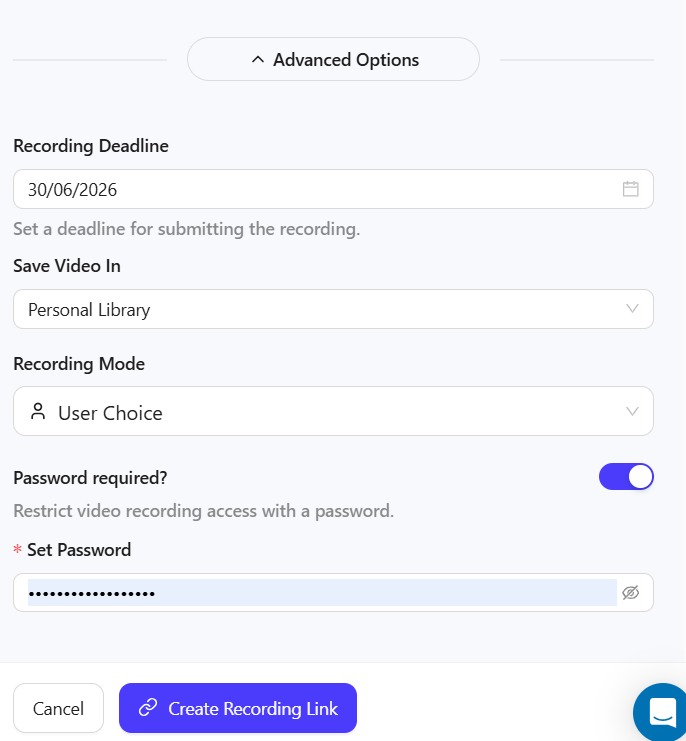
- Set advanced options (if needed):
- ClickAdvanced Options to configure additional preferences.
- Recording Deadline: You can set a deadline for submitting the recording.
- Save Video In: Choose where the recorded video will be stored (e.g., Personal Library or Team Space).
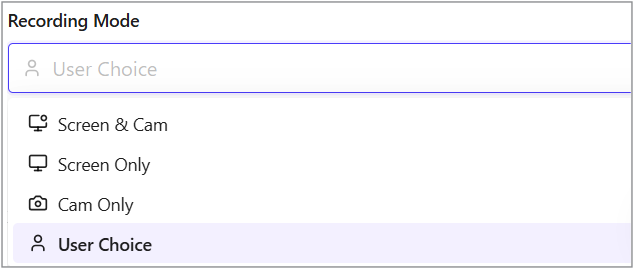
- Recording Mode: Select whether the user can choose their recording settings or if specific modes (e.g., screen only, camera only, both) should be enforced.
- Password required? (optional): Toggle this option to create a password and restrict access to the recording link if needed.
- ClickAdvanced Options to configure additional preferences.
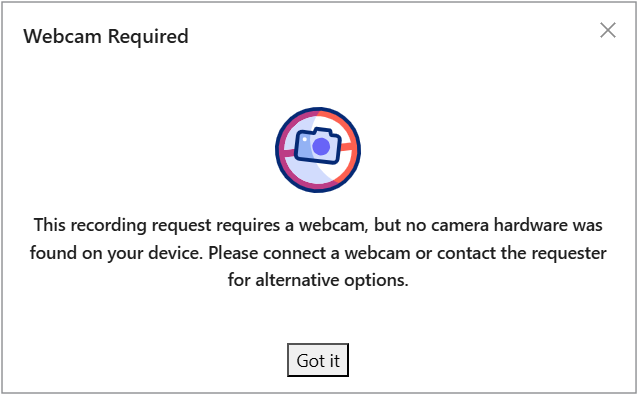
- Note: If the requester chooses Screen + Cam or Cam and the responder does not have a webcam or camera, this error message will appear.
- If the User Choice option is selected, they choose screen + cam, and they don’t have a webcam, they will automatically be redirected to screen-only mode.
- Send the request:
- Click Create Recording Link to complete the process.
- A link to the request will be created, allowing you to copy and send it to a teammate.
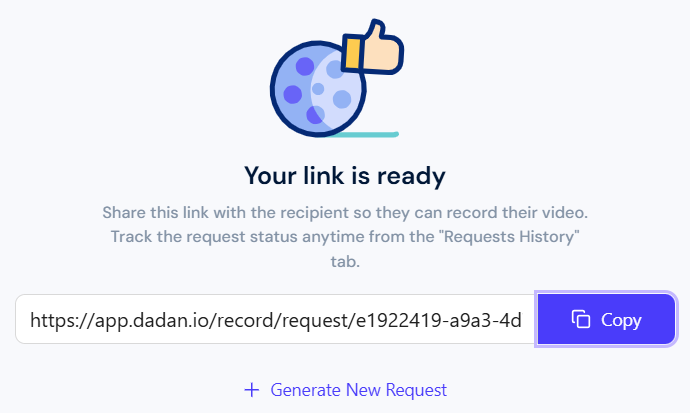
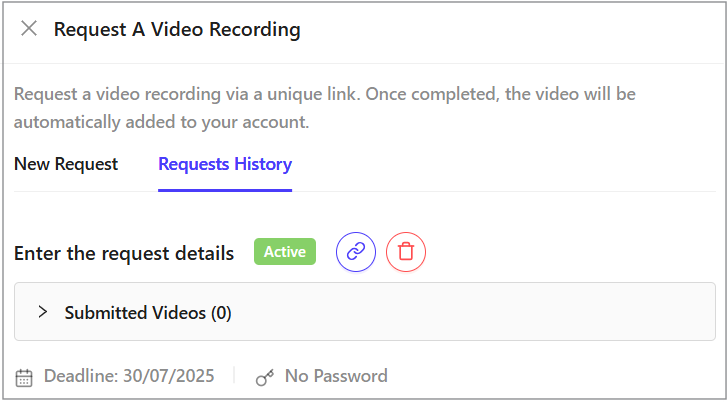
- The request will appear in the Request History list.
Receive and review the video #
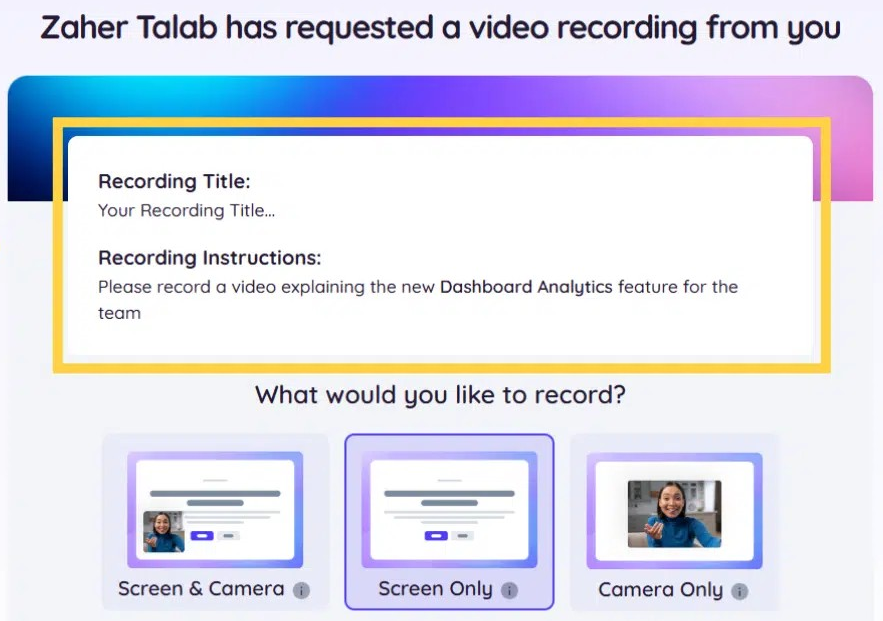
When the recipient opens the link, a recording screen opens, including the Recording Title and Recording Instructions.
- Once the recipient completes the recording:
- You will receive a notification that a user has submitted a new recording request.

- Click the notification to access the video.
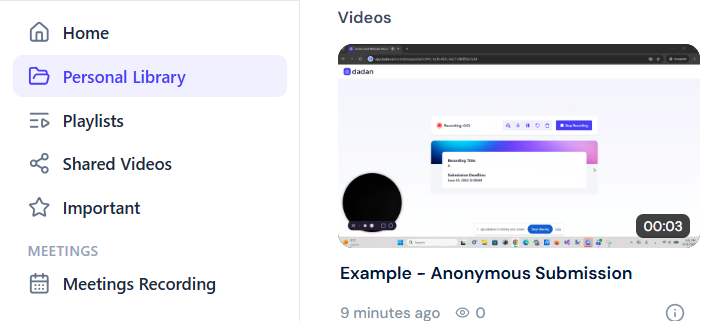
- The video will be added to your Requests History tab:
- Click Submitted Videos to view the video(s) list that have been recorded via the request link.
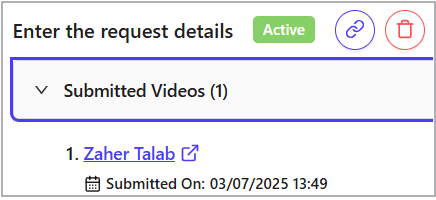
- Click the video link to open it. You can view, comment on, or share the video as needed.
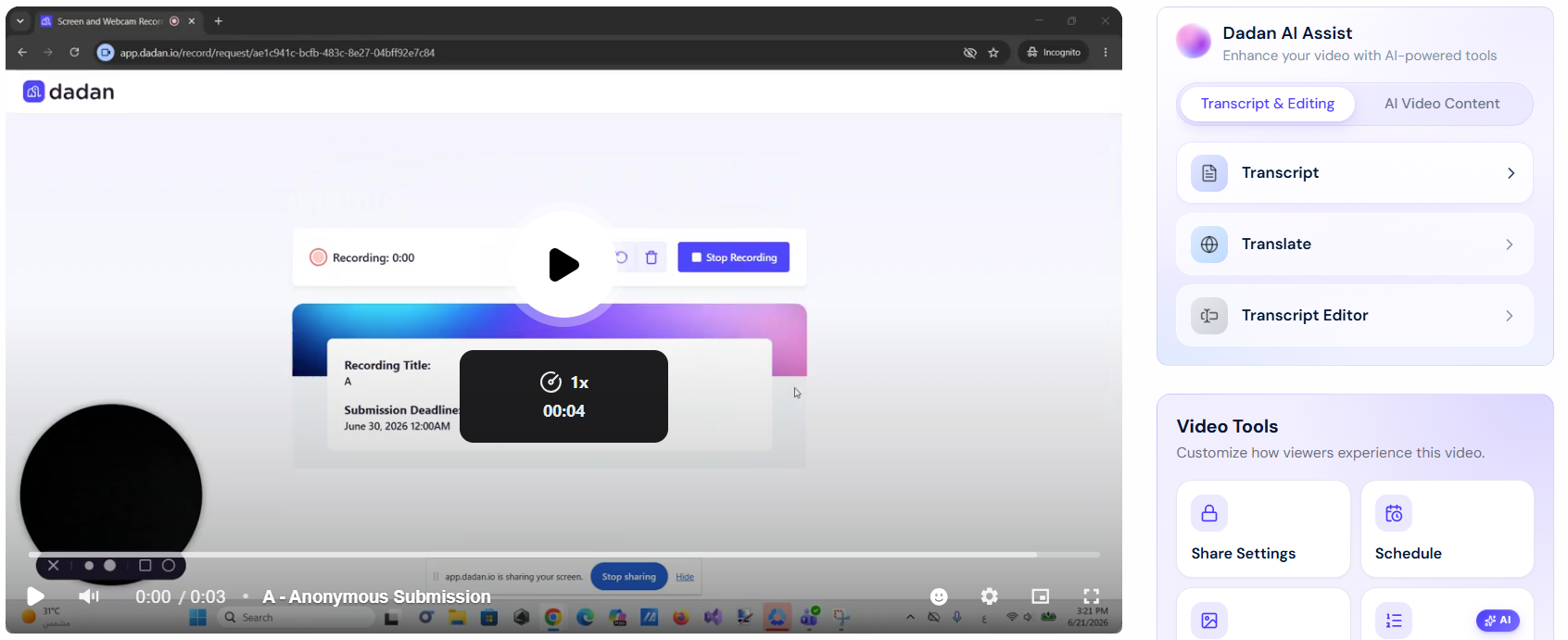
- The video will be saved in the selected storage location (Personal Library or Team Space).
Best practices for requesting videos #
By following these steps, you can efficiently collect video responses and improve team collaboration:
- Provide clear and detailed Recording Instructions to prevent misunderstandings.
- Keep the request concise and clear.
- If the video is for training or documentation, request a structured walkthrough.
Use cases #
Requesting videos through dadan makes it easy to gather insights, feedback, demonstrations, and content from anyone, without requiring them to sign in. Here are the most common ways teams and creators use this feature:
- Teachers: Collect student questions or doubts after a lecture.
- Business Owners: Request customer testimonial videos.
- YouTube Creators: Gather audience or guest clips to include in a video.
- Customer Support Teams: Ask customers to share screen recordings of issues.
- Instructional Designers: Request quick insights or explanations from subject matter experts.
Read this guide for detailed information about use cases for requesting a video.
To respond to a video request, follow this guide: How to respond to a video request.


