
Dadan provides an intuitive way to upload, organize, and manage your videos, ensuring seamless collaboration and easy access to content. This guide covers everything you need to manage your video library:
- Uploading videos to your Personal Library or Team Space.
- Making videos public or private.
- Moving videos between locations.
- Marking videos as important for easy access.
- Renaming, deleting, or archiving videos.
Follow these steps to keep your video content well-organized and easily accessible.
Note: For more information and to compare our subscription prices, click here or visit our website to get started with dadan.
Uploading videos to your dadan account #
Easily upload videos to your dadan Library or Team Space to store, manage, and share your content. Currently, dadan supports MP4 and WebM files, with more formats coming soon. You can upload up to 5 GB per file and up to 5 files at once. Your upload limits depend on your subscription plan.
Follow the steps below to upload your videos seamlessly:
- Go to the Personal Library or Team Space where you want to upload the video.
- Find and click the + Create button.
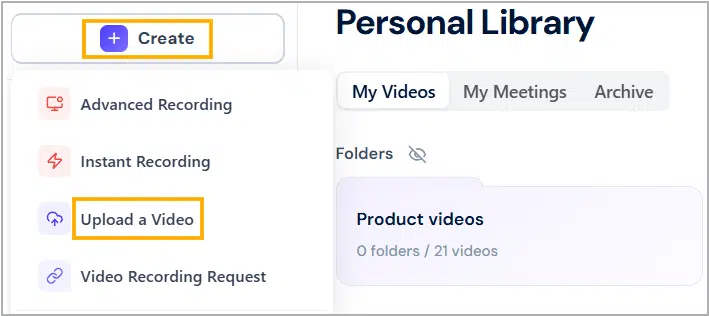
- A sub-menu will expand. Click Upload a Video.
- The Upload Videos popup will appear.
- You can drag and drop the video here or click browse from your computer to select the video file manually.
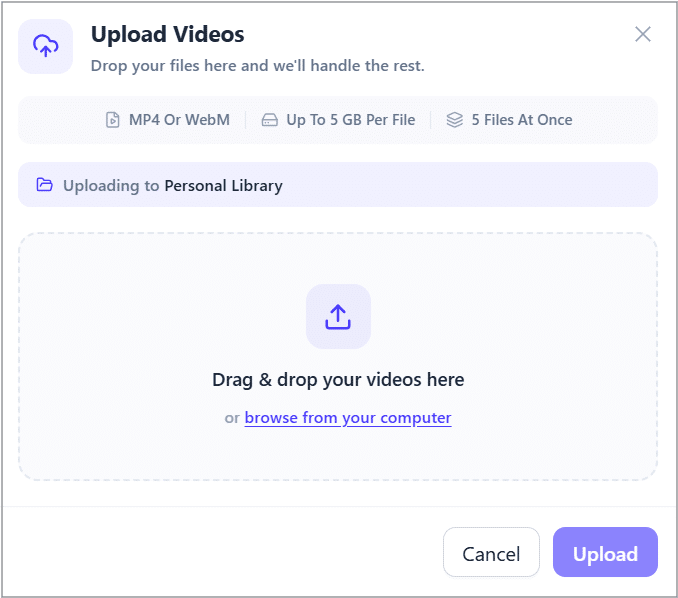
- The selected file will appear in this window. You can add more videos and continue uploading the selected video by clicking the Upload button.
- Once the upload is complete, click the Done button.
How to sort your videos #
In this section, you will learn how to sort videos by name or date in ascending or descending order. This option comes in handy when you need to filter videos in your preferred manner.
- Find the Sort field.
- Click the drop–down arrow to select your preferred sorting option: Date created or Name.
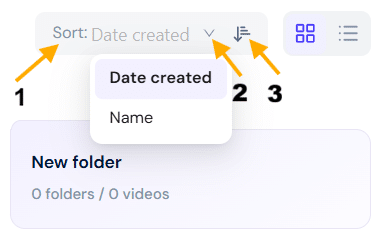
- To sort the videos in ascending/descending order, click the ascending/descending button.
Make videos public #
Want to share your videos with a wider audience? dadan lets you make videos public, so anyone can watch them on your dadan public profile page. You can also revoke public access at any time.
Follow the steps below to manage your video’s visibility:
- Go to the Personal Library or Team Space where the video was uploaded.
- In the Videos section, find the video and click the three-dots [⋮] icon.
- A dropdown menu will expand, click Make public.
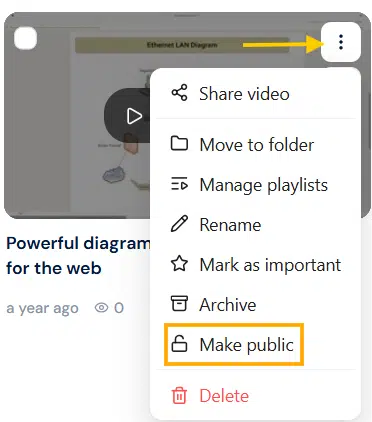
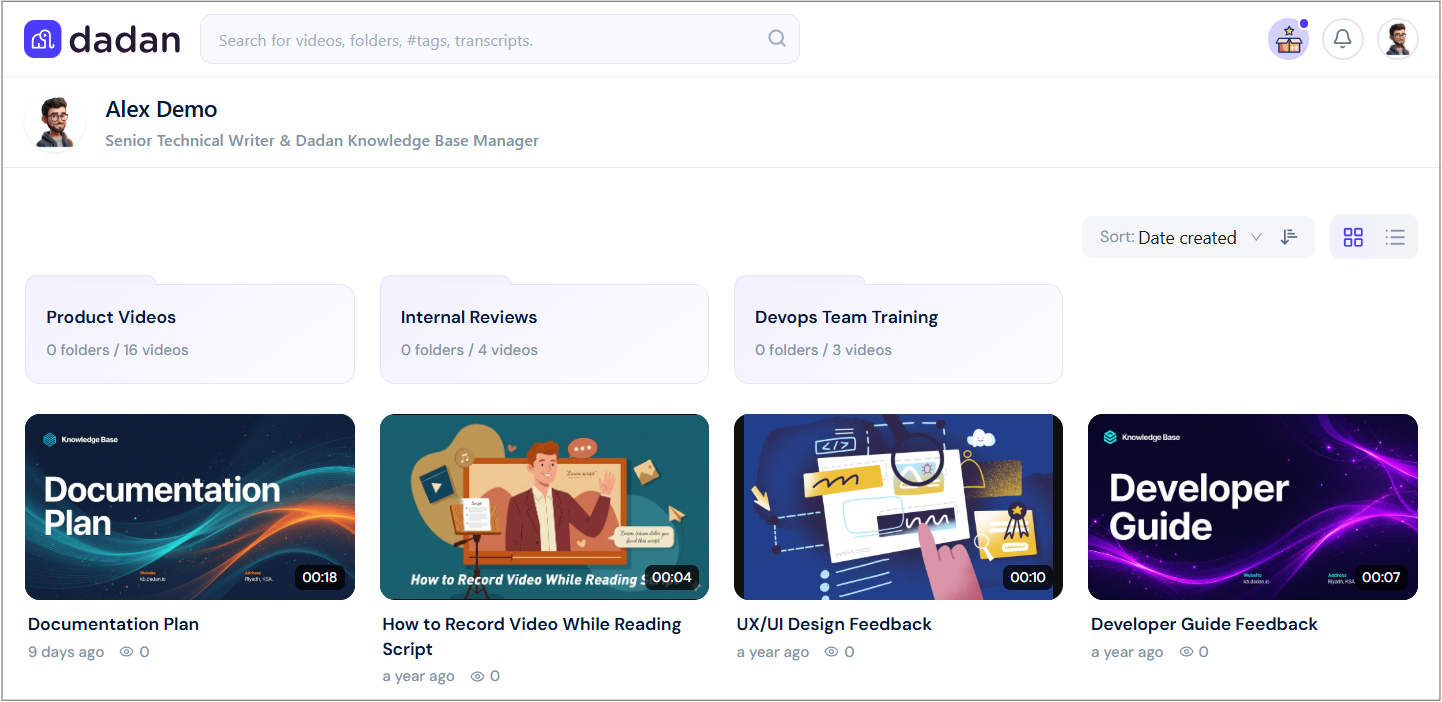
- Your video will be viewed in your public profile:
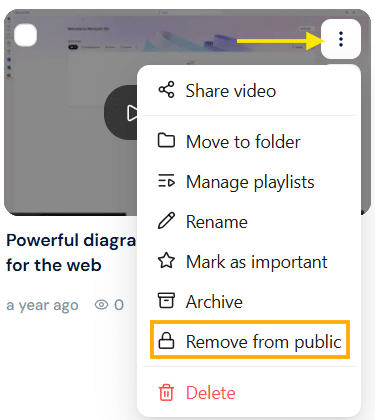
Note: To remove the video from the public, follow the steps above and select the Remove from public option. This option is only available if the videos are already public.
Move videos #
Easily organize your videos by moving them between your Personal Library, Team Space, or folders. This helps keep your content structured and accessible.
Follow the steps below to move your videos:
- Go to the Personal Library or Team Space where the video was uploaded.
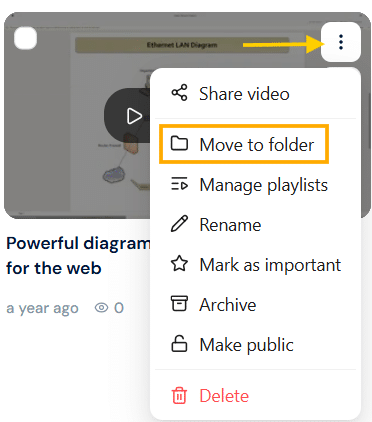
- In the Videos section, find the video and click the three-dots [⋮] button.
- A dropdown menu will expand. Click Move to folder.
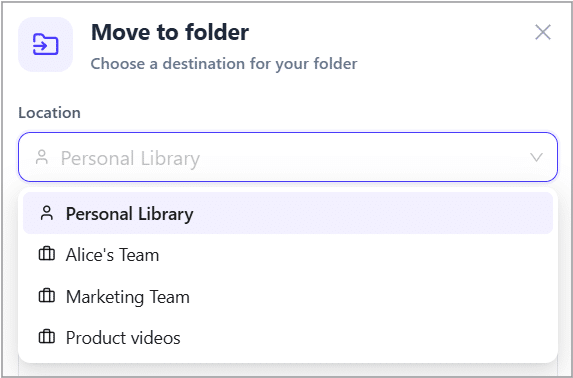
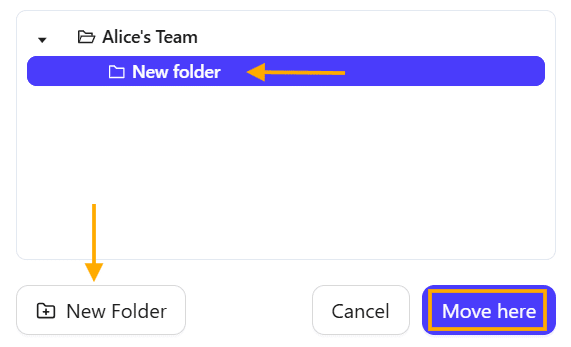
- In the Move to folder pop-up, select the new Location. You can choose the Personal Library or a specific Team space.
- In the location, select the desired designation folder.
- You can click New Folder to create a new folder during the move (Optional).
- Click the Move here button to complete the action.
Move multiple videos #
You can move several videos at once to keep your workspace organized.
To move multiple videos:
- Click the checkmark on each video you want to move.
- Select Move To from the bottom action bar.
- Choose the target folder or workspace, then confirm.
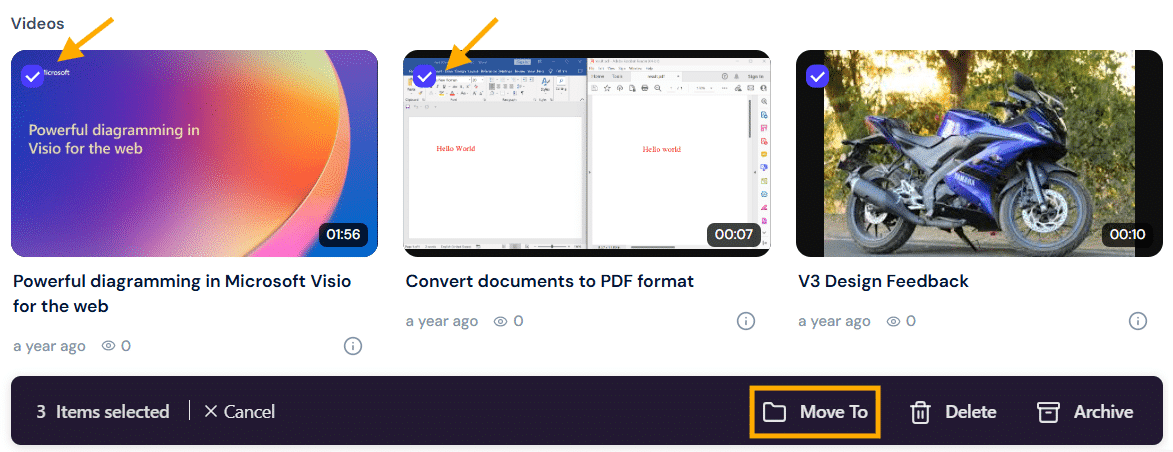
All selected videos will be instantly moved to the new location.
Mark videos as important #
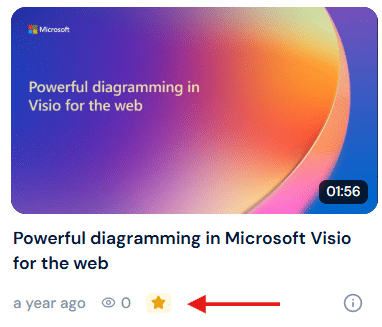
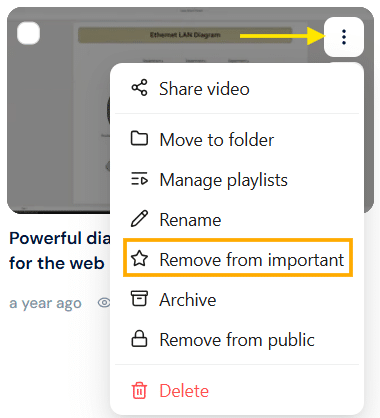
Highlight essential videos by marking them as important. After marking a video, a star icon will appear on its thumbnail, and it will be available in the Important menu.
Follow the steps below to mark or unmark videos as important:
- Go to the Personal Library or Team Space where the video was uploaded.
- In the Videos section, find the video and click the three-dots [⋮] icon.
- A dropdown menu will appear. Click Mark as important.
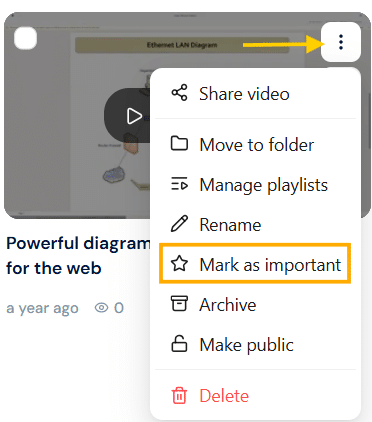
- A star icon will appear on the selected video.
Note: To unmark the selected video as important, use the steps above and select the Remove from important option. This option is only available for videos that are already marked as important.
Rename videos #
Rename videos with clear and relevant titles to keep your video library organized. This will make it easier to find and manage your content.
Follow the steps below to rename a video:
- Go to the Personal Library or Team Space where the video was uploaded.
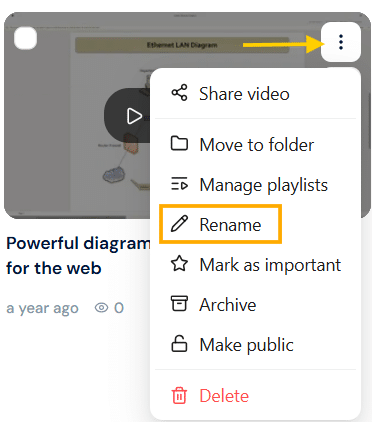
- In the Videos section, find the video and click the three-dots [⋮] icon.
- A dropdown menu will appear. Click Rename.
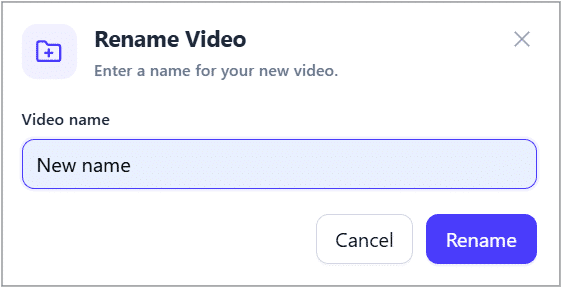
- The Rename Video box will appear. In the Video name field, enter the desired video name.
- Click the Rename button to apply the changes.
Delete videos #
Learn how to permanently delete videos from your dadan account. Deleting a video will remove it entirely, while archiving allows you to make it temporarily inaccessible without losing it.
Follow the steps below to delete a video:
- Go to the Personal Library or Team Space where the video was uploaded.
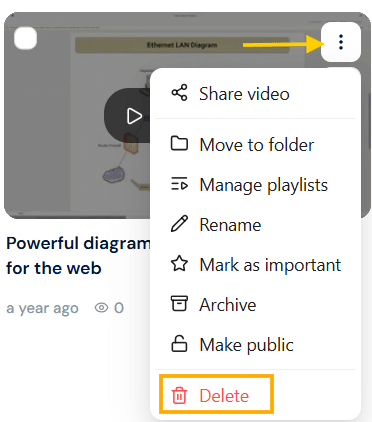
- In the Videos section, find the video and click the three-dots [⋮] icon.
- A dropdown menu will appear. Click Delete.
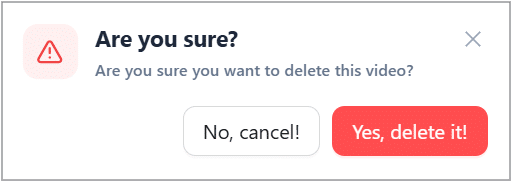
- A confirmation box will appear. Click the Yes, delete it! button to continue deleting the selected video.
Delete multiple videos #
Need to clear up space or remove old recordings? You can delete multiple videos in one step.
To delete multiple videos:
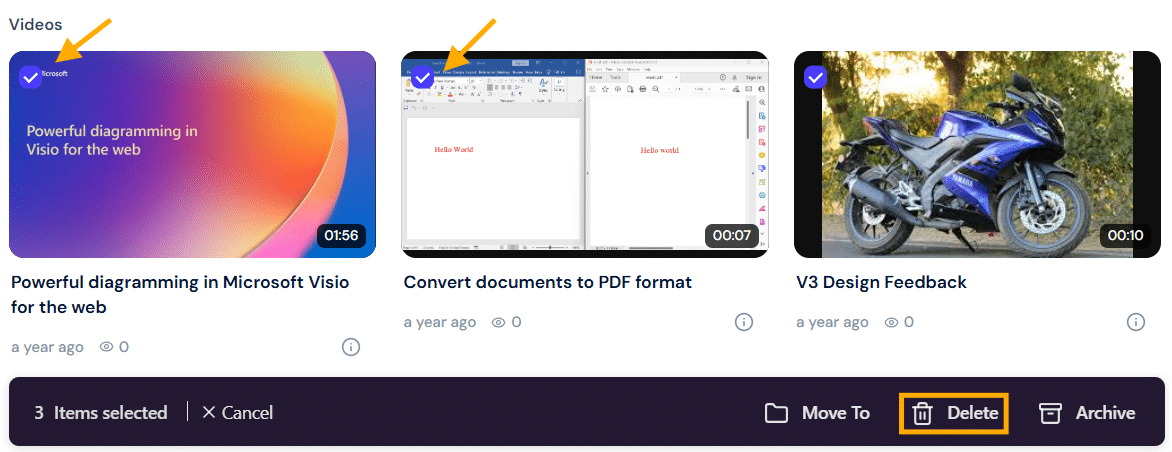
- Select the videos by clicking the checkmarks on their thumbnails.
- Click Delete in the action bar.
- Confirm the deletion when prompted.
Once deleted, videos cannot be recovered; make sure you’ve saved what you need before confirming.
Archive Videos #
Learn how to archive videos to keep your Personal Library and Team Spaces organized. Archived videos are moved to the Archive menu, making them inaccessible in your Library, team spaces, and folders, while they remain stored in your account.
Follow the steps below to archive a video:
- Go to the Personal Library or Team Space where the video was uploaded.
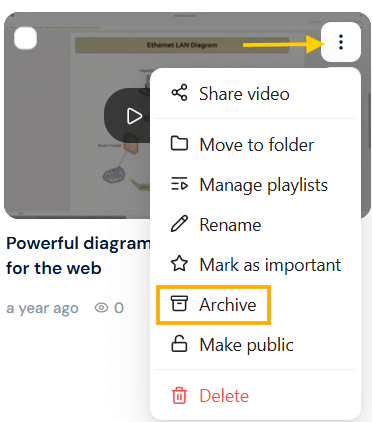
- In the Videos section, find the video and click the three-dots [⋮] icon.
- A dropdown menu will appear. Click Archive.
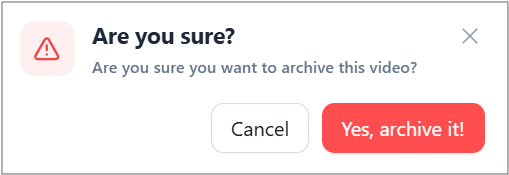
- A confirmation dialog box will appear. Click the Yes, archive it! button to continue sending the selected video into the Archive menu.
Archive multiple videos #
Archiving helps you keep your main dashboard tidy without losing your content.
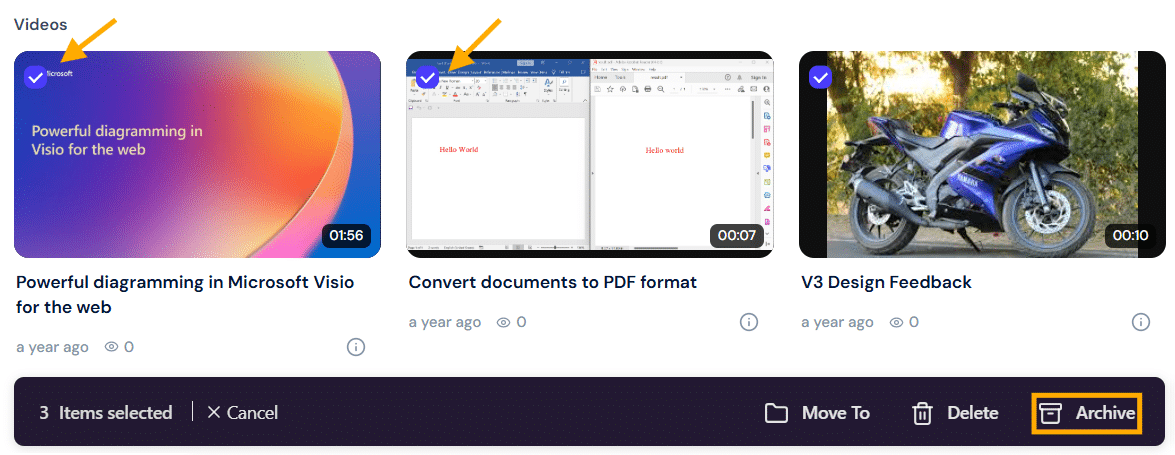
To archive multiple videos:
- Click the checkmarks on the videos you want to archive.
- Select Archive from the bottom bar.
- The videos will move to your Archived tab, where you can restore them later if needed.
Note: Archived videos remain private and accessible only to you until restored.
How to restore archived videos #
In this section, you will learn how to restore archived videos. Archived Videos are no longer visible from their original file location. However, you can access these videos in the Archive tab.
To make the archived Videos accessible again, you can restore them using this method:
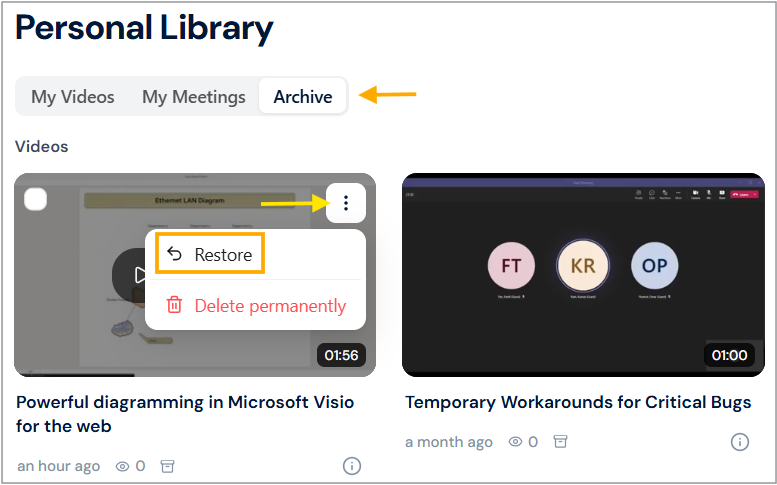
- Find and click the Archive menu.
- In the Videos section, find the video you want to restore and click the three-dots [⋮] icon.
- A dropdown menu will expand. Click Restore.
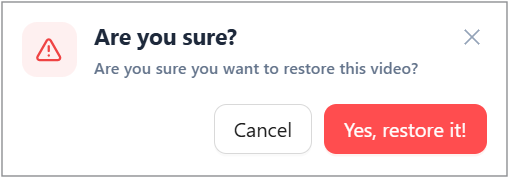
- A confirmation box will appear, click Yes, restore it!.
Restore multiple archived videos #
Do you want to bring your archived videos back to your main workspace? You can restore multiple videos in one simple step.
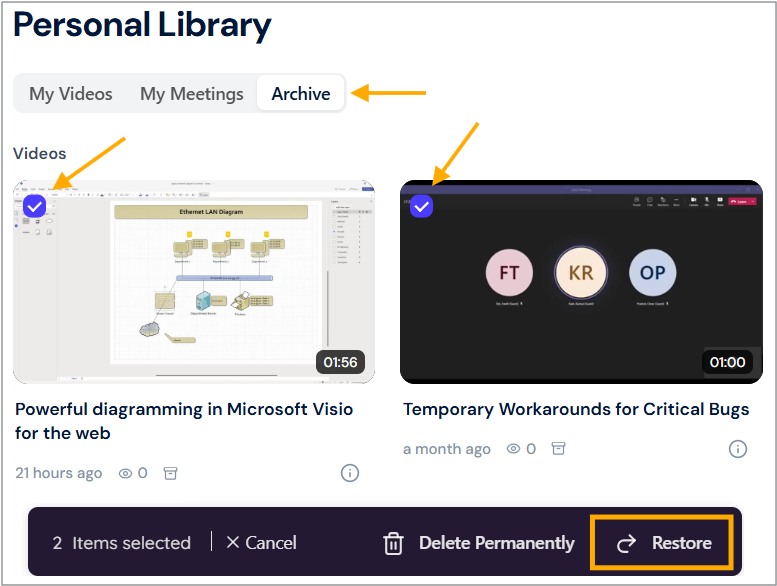
To restore multiple videos:
- In the Archive menu, select the videos by clicking the checkmarks on their thumbnails.
- Click Restore in the action bar.
- The selected videos will instantly reappear in your main video list.
Restored videos keep their original titles, views, and descriptions, just as you left them.
How to delete archived videos permanently #
In this section, you will learn how to delete archived videos permanently. When videos are moved to the archive, they will no longer be visible from their original location. However, these videos are stored in the Archive menu, where you can access, restore, or permanently delete them.
Note: Please be aware that permanently deleted videos can no longer be accessed or restored.
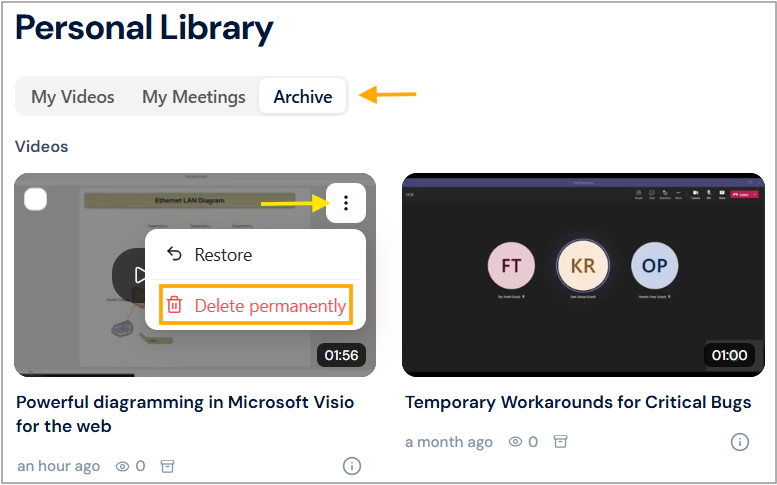
- Find and click the Archive menu.
- In the Videos section, find the Video you want to delete and click the three dots [⋮] menu.
- A dropdown menu will expand, and click Delete permanently.
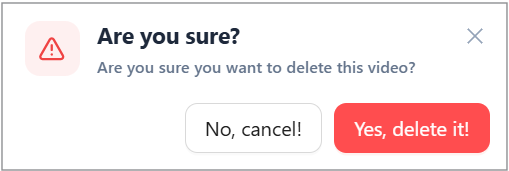
- A confirmation box will appear, click the Yes, Delete it! button.
Delete multiple archived videos permanently #
Do you need to clear up space or remove old recordings? You can delete multiple archived videos permanently in one step.
To delete multiple videos:
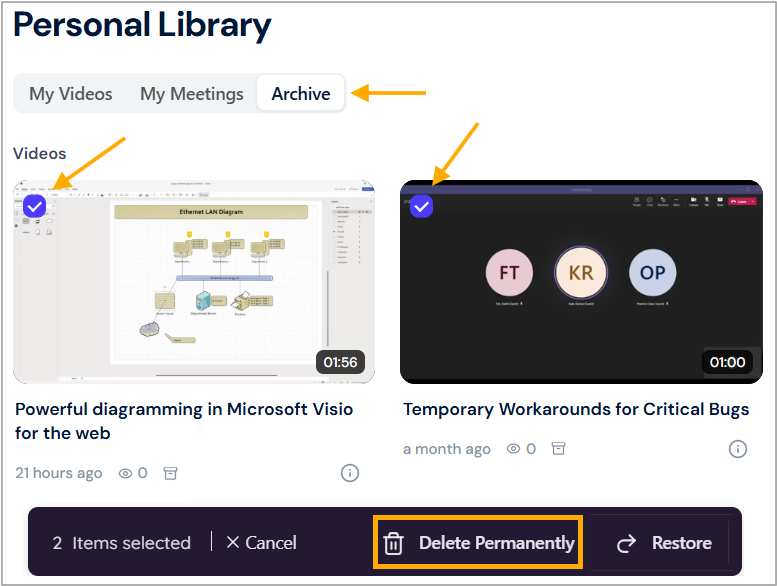
- In the archive menu, select the videos by clicking the checkmarks on their thumbnails.
- Click Delete permanently in the action bar.
- Confirm the deletion when prompted.
Once deleted, videos cannot be recovered. Make sure you’ve saved what you need before confirming.


