
Local Recordings is a feature in dadan that saves video recordings directly to your device, rather than relying solely on cloud storage. This feature enables offline access. By default, dadan saves recordings both locally and in the cloud, but you can change this in the settings.
Key features #
The Local Recordings page has these features:
- Offline access: Watch your recordings anytime without the internet.
- Faster processing: Reduce upload delays by saving files directly to your device.
- Video backup: Keep copies of your videos both locally and in the cloud.
- Enabled by default: Recordings are saved locally unless you change this setting.
How to access the Local Recordings page #
To access the Local Recordings page, follow these steps:
- Open the dadan browser extension.
- Click the Settings icon.
- Navigate to My Local Recordings.

- A new screen in the browser will appear with a list of your locally stored recordings.
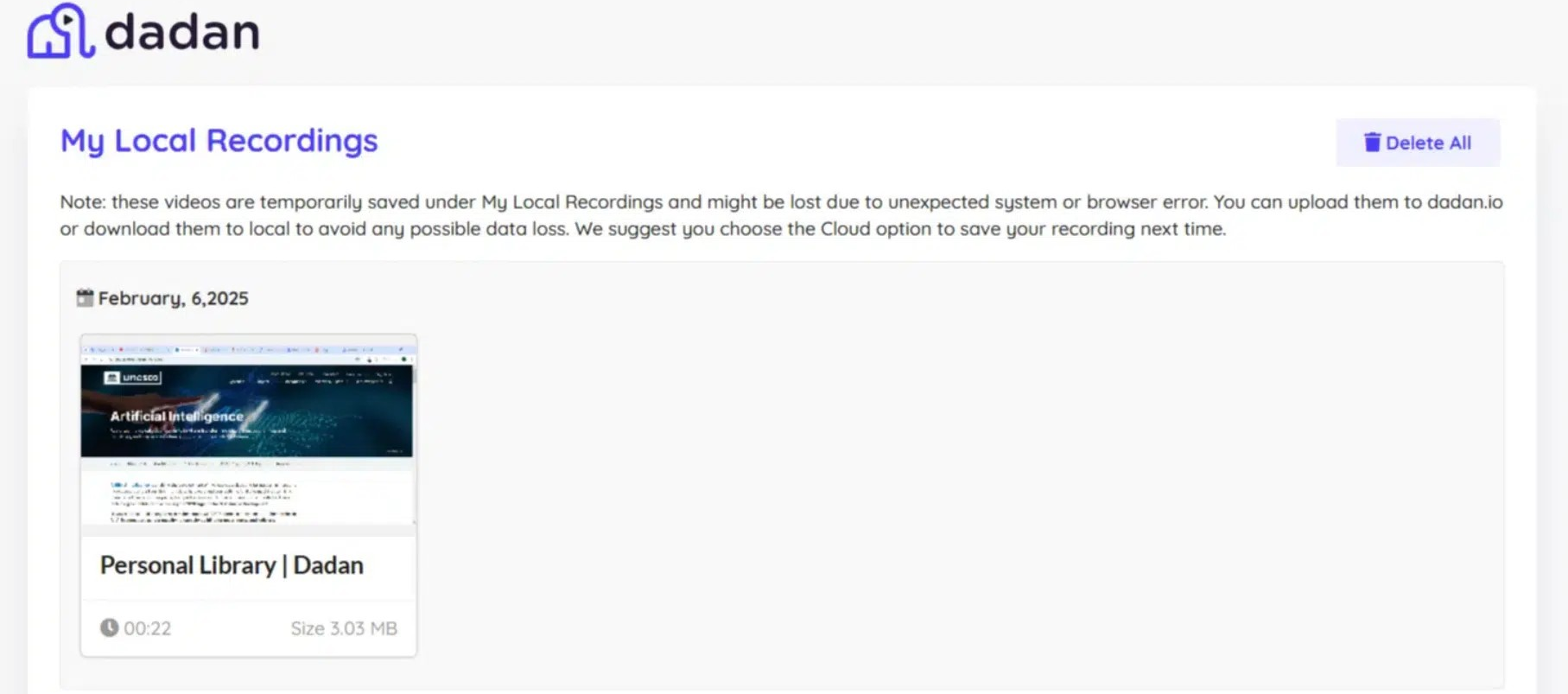
Although the screen appears within the internet browser, it actually displays the video content from your local computer. It doesn’t need an internet connection.
The Local Recordings page link doesn’t use the default Internet HTTP protocol, but uses the extension protocol, as shown in this link example:
extension://fdajiojhcojhjjaljkllpagnhaemmabj/index.html?page=videos
Available actions in the My Local Recordings page #
The My Local Recordings page has these actions:
- Download: To save the recording to another location on your device.
- Delete: To permanently remove the recording from local storage.
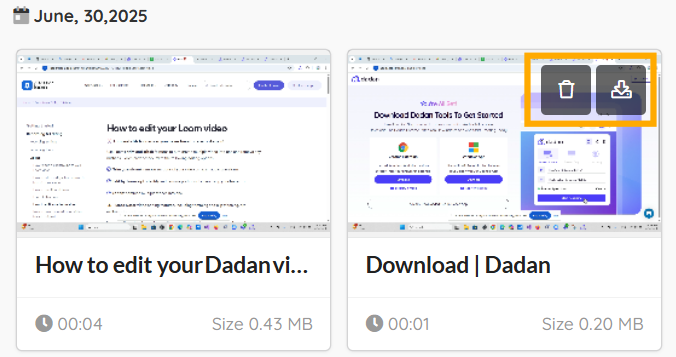
Access the Local Recordings in the dadan desktop app #
To access Local Recordings in the dadan desktop app:
- Click the three dots […] icon.
- Select the Open local videos option.
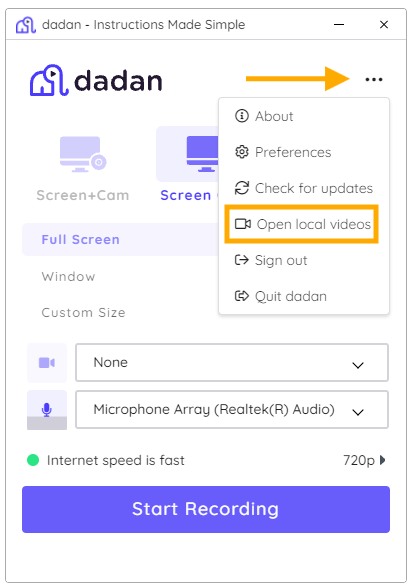
- The My Local Recordings window will open.
- You can download or delete videos, just like in the dadan browser extension.

How to change recording storage preferences #
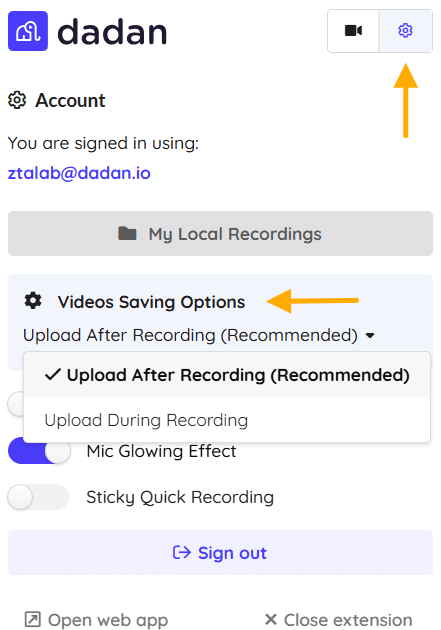
By default, dadan saves recordings both locally and in the cloud. To change this:
- Open the dadan Extension Settings and go to Video Saving Options.
- Choose between Upload After Recording or Upload During Recording.
Local Recordings vs. Personal Library #
While Local Recordings stores your files on your device, the Personal Library in dadan provides cloud storage for easy access and sharing.
Here are the key differences:
| Feature | Local Recordings | Personal Library |
|---|---|---|
| Storage Location | On your device | In dadan’s cloud |
| Access | Accessed via dadan extension and browser but stored locally | Accessible from any device with an internet connection |
| Editing | No built-in options | Built-in dadan editor available |
| Privacy | Private and offline | Private, but stored in the cloud |
- See also: Personal Library screen in dadan.


