Welcome to the ultimate guide on publishing your dadan videos directly to YouTube! Whether you’re a seasoned content creator or just starting, this document will walk you through the seamless process of sharing your dadan creations with the world.
Dadan’s innovative platform empowers you to craft engaging, dynamic videos, and with YouTube’s massive audience, your content can reach new heights.
Accessing integration settings #
To open dadan integration on YouTube:
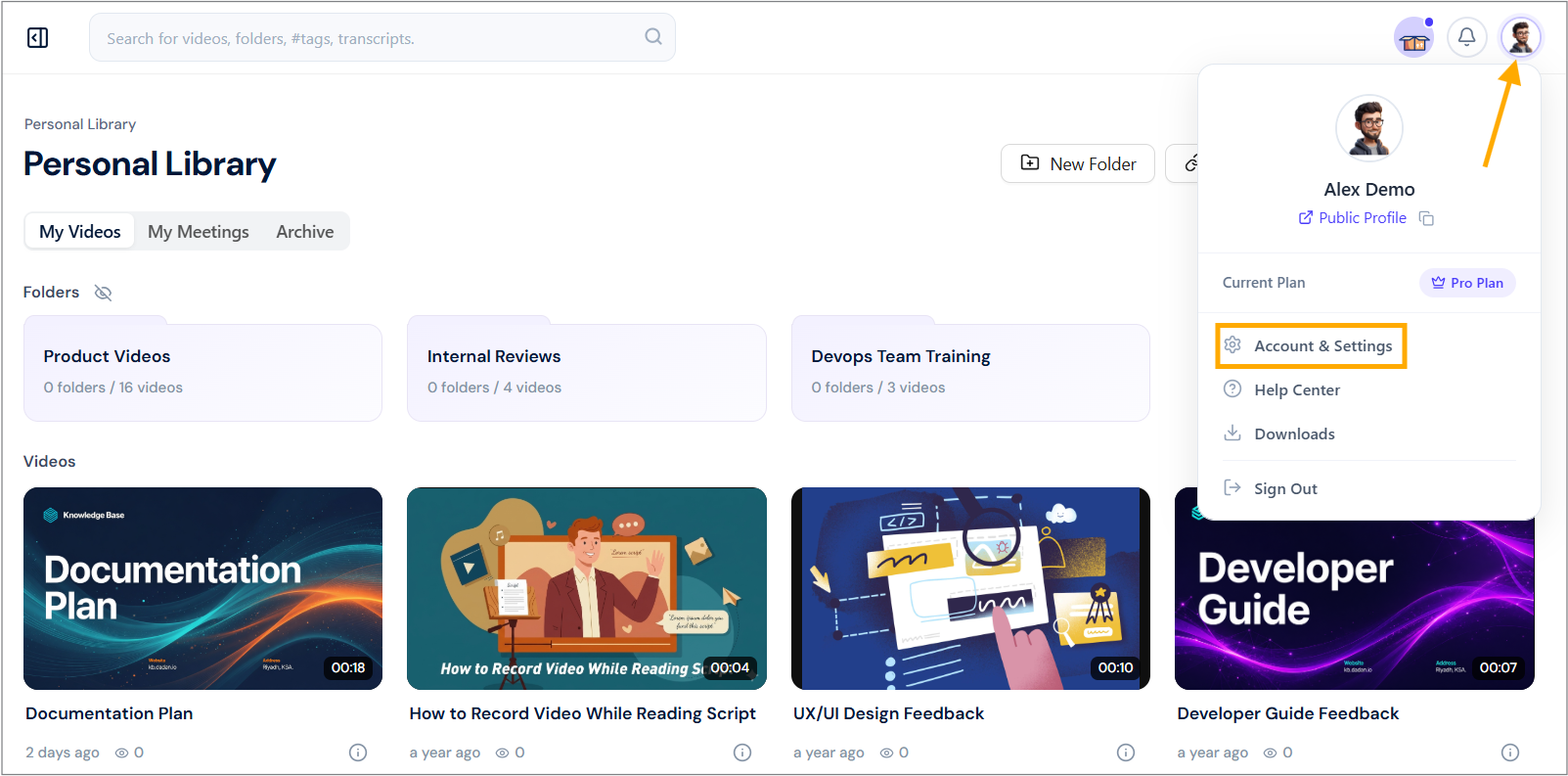
- Navigate to your dadan account and click your profile icon in the top right corner.
- Select Account & Settings from the dropdown menu.
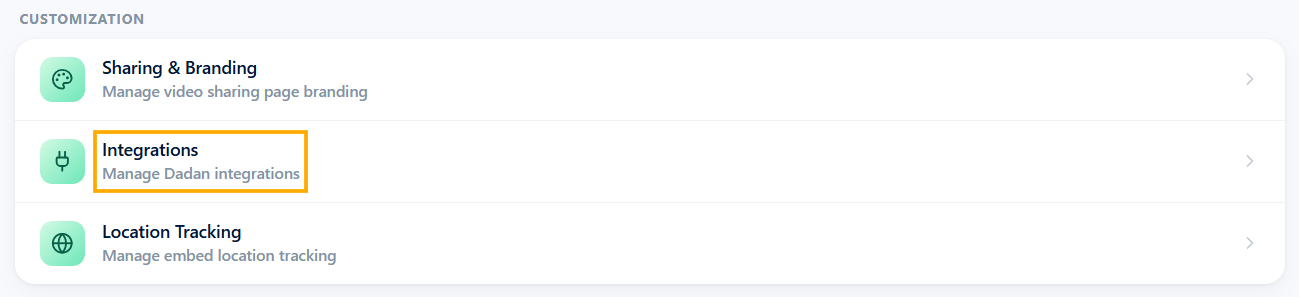
- In the Customization section, click the Integrations option.
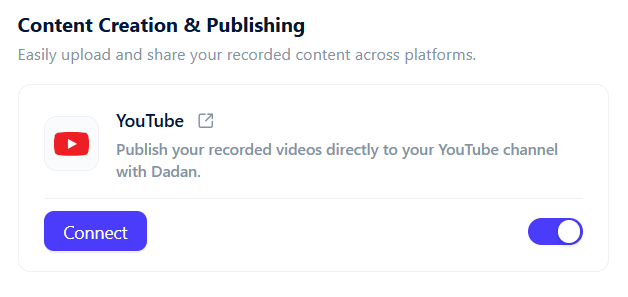
- Under the Content Creation & Publishing section, locate the YouTube option.
Enabling YouTube integration #
- Click the Connect button to link your YouTube account to dadan.
- A Google sign-in prompt will appear. Sign in with your Google account associated with YouTube.
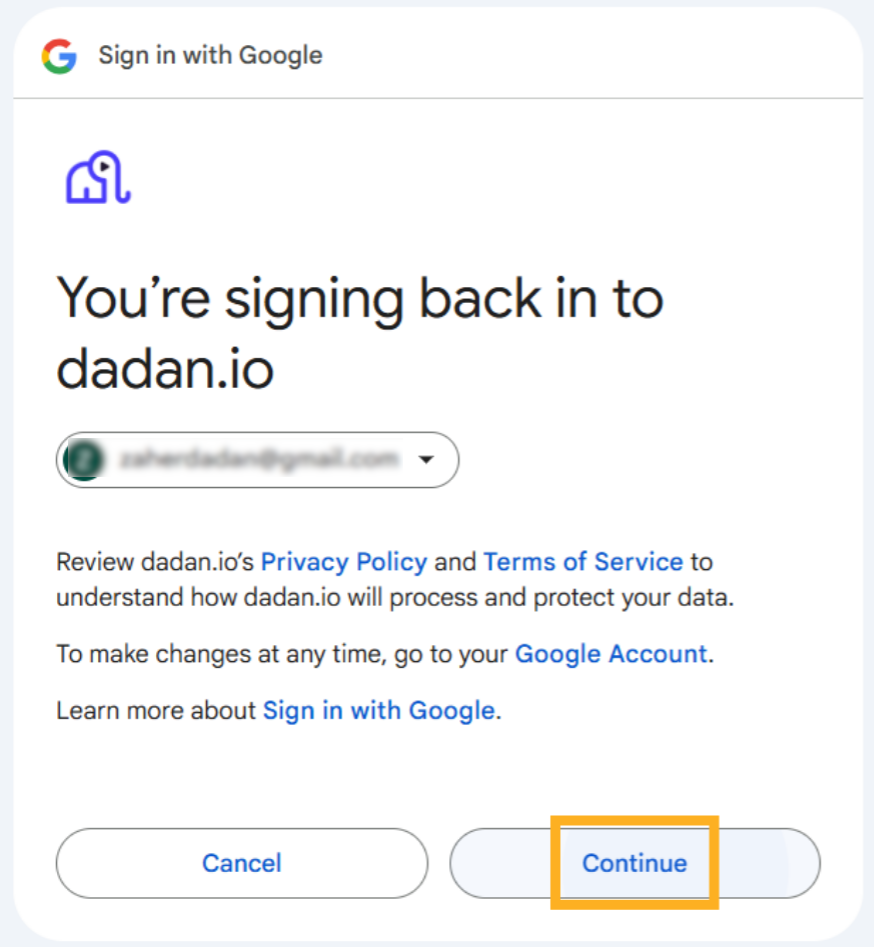
- Review dadan’s Privacy Policy and Terms of Service, then click Continue to authorize the connection.
- Once connected, you will see a confirmation message: “YouTube has been connected successfully.”
Note: After connecting dadan.io to your Google account, you may receive a security notification. Confirm the activity by selecting “Yes, it was me” if it was initiated by you, from this device, to ensure account safety.

Open your video #
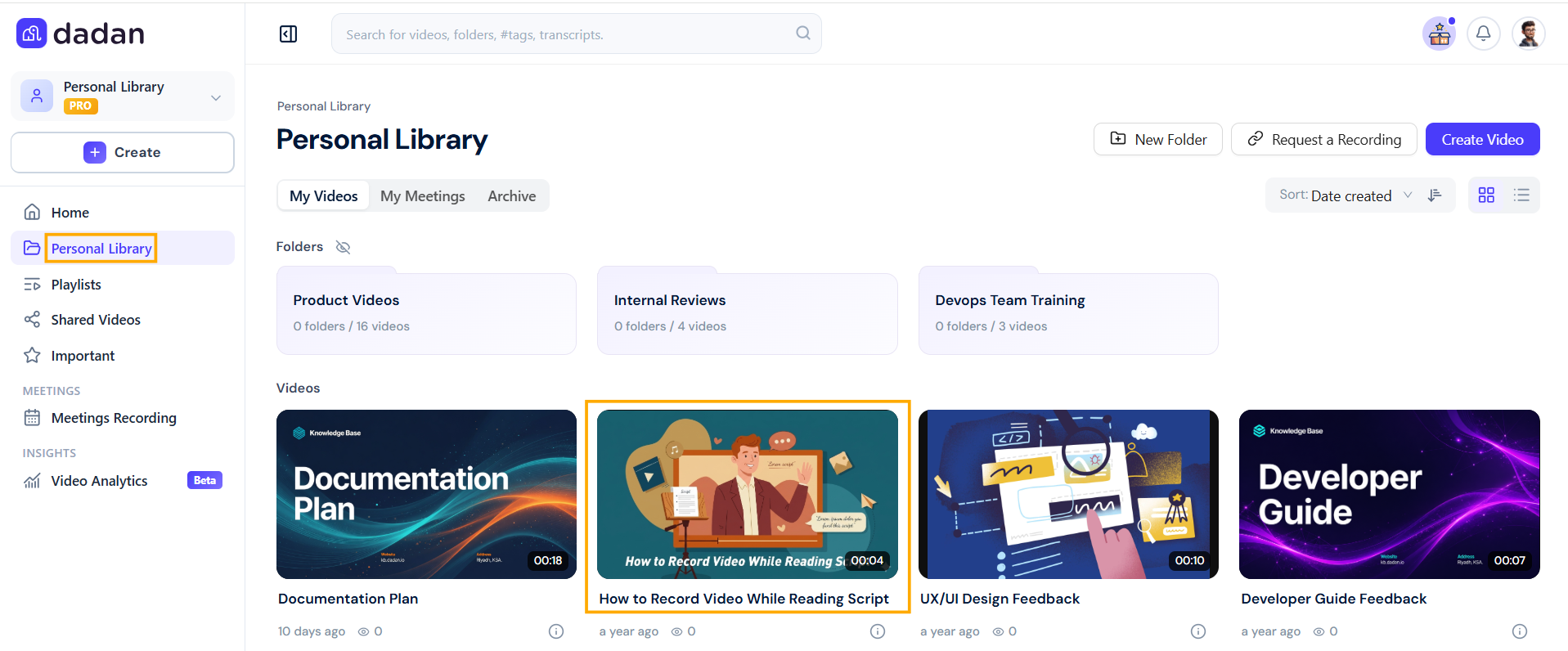
- Go to your Personal Library in the dadan interface.
- Select the video you wish to publish by clicking on it.
- Edit and enhance your video (optional):
- Open the selected video in the editor.
- Use the dadan AI Assist panel to enhance your video with features like transcripts, titles, tags, descriptions, summaries, and note-taking.
Publishing to YouTube #
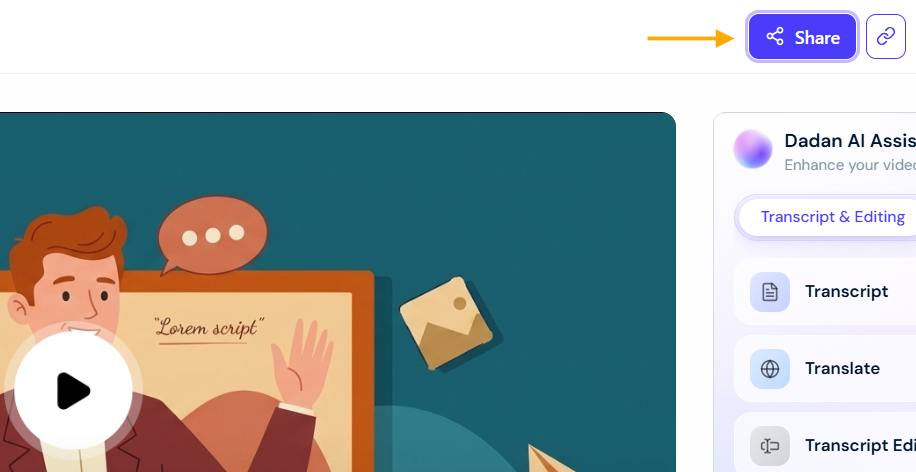
- Click Share to proceed to the publishing options.
- In the Share Your Video window, select the Publish tab.
- Ensure YouTube is marked as Connected.
- Configure Privacy Settings:
- Private: If you want the video to be accessible only to specific users.
- Public: For wider visibility (default).
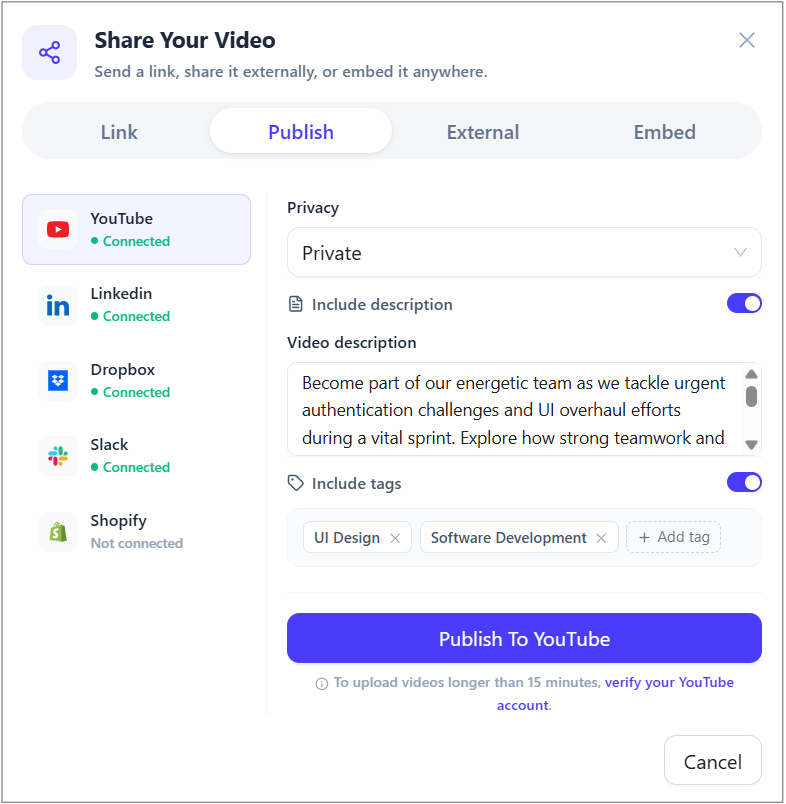
- Optionally, Include Description and Include Tags to provide context and improve discoverability (e.g., Visio Web, Microsoft Visio).
- Click Publish to YouTube to upload the video.
Note: If your video is longer than 15 minutes, you may need to verify your YouTube account. Follow the prompt to complete verification.
Verifying upload and troubleshooting #
- After clicking Publish to YouTube, wait for the upload to complete.
- If you encounter an Unauthorized error, first check your YouTube channel settings to ensure you create a YouTube channel.

- To create a YouTube channel, select “Create > Upload video” enter your name and handle, and then click “Create channel” to set up your channel profile.
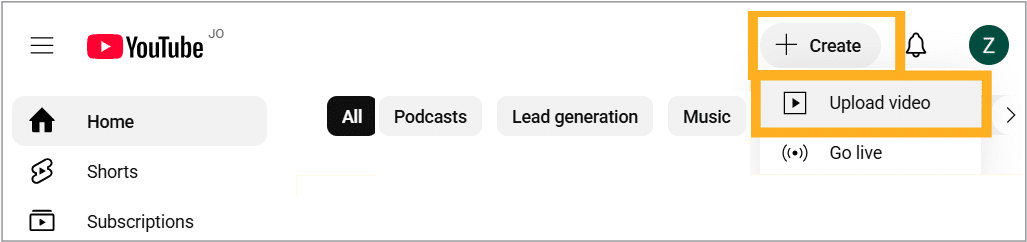
- Once you publish the video again from dadan, you will see the “You’re all set!” message confirming the video is published and available for viewing on YouTube.
Viewing your uploaded video #
- Go to YouTube and sign in to your account.
- Click on Your videos in the left-hand menu to see all your uploaded content.
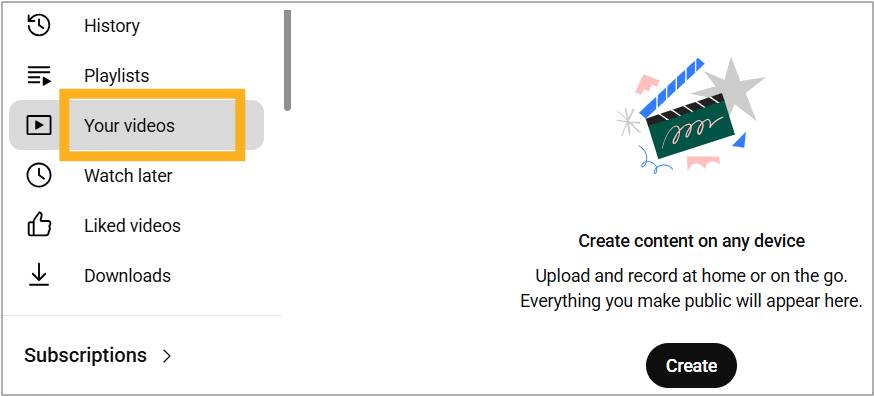
- Locate your recently uploaded dadan video and click on it to view.
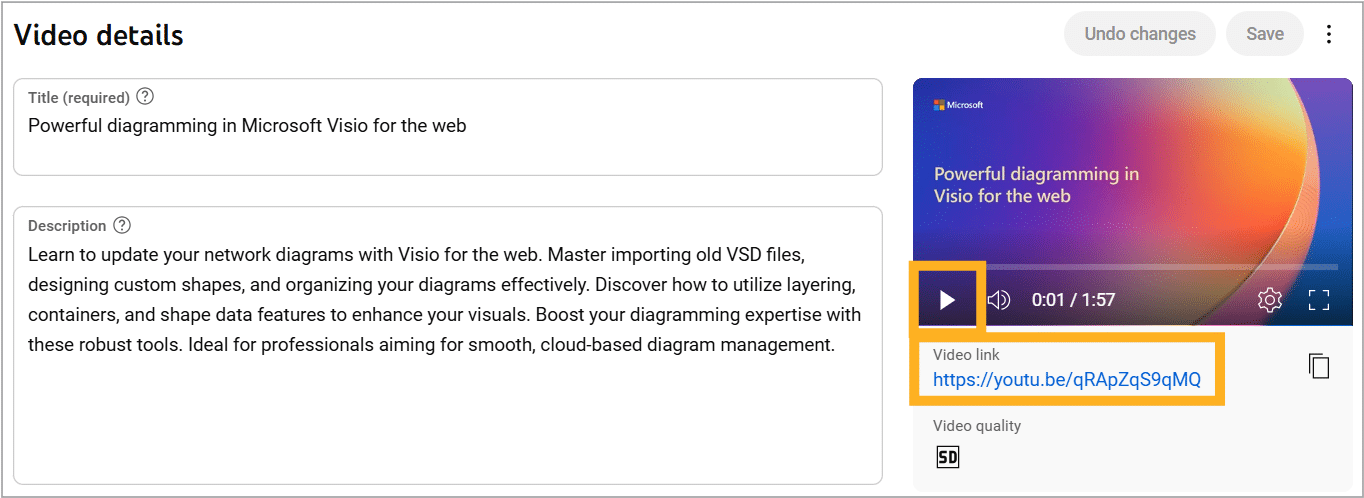
- Check the Video details section for the title, description, and Video link to share or manage the video further.